
Asterisks in Windows tracert mean a probe did not receive the expected response before its timeout. They do not, by themselves, prove that the router at that position is broken or dropping your application’s traffic. Check whether later hops respond and whether the intended service works before changing a router or firewall.
Microsoft explains that some routers do not return the time-exceeded messages used by this tool. Those routers can be invisible in a trace even while traffic continues beyond them. A useful diagnosis therefore combines the trace with the actual symptom, rather than treating every silent hop as an outage.
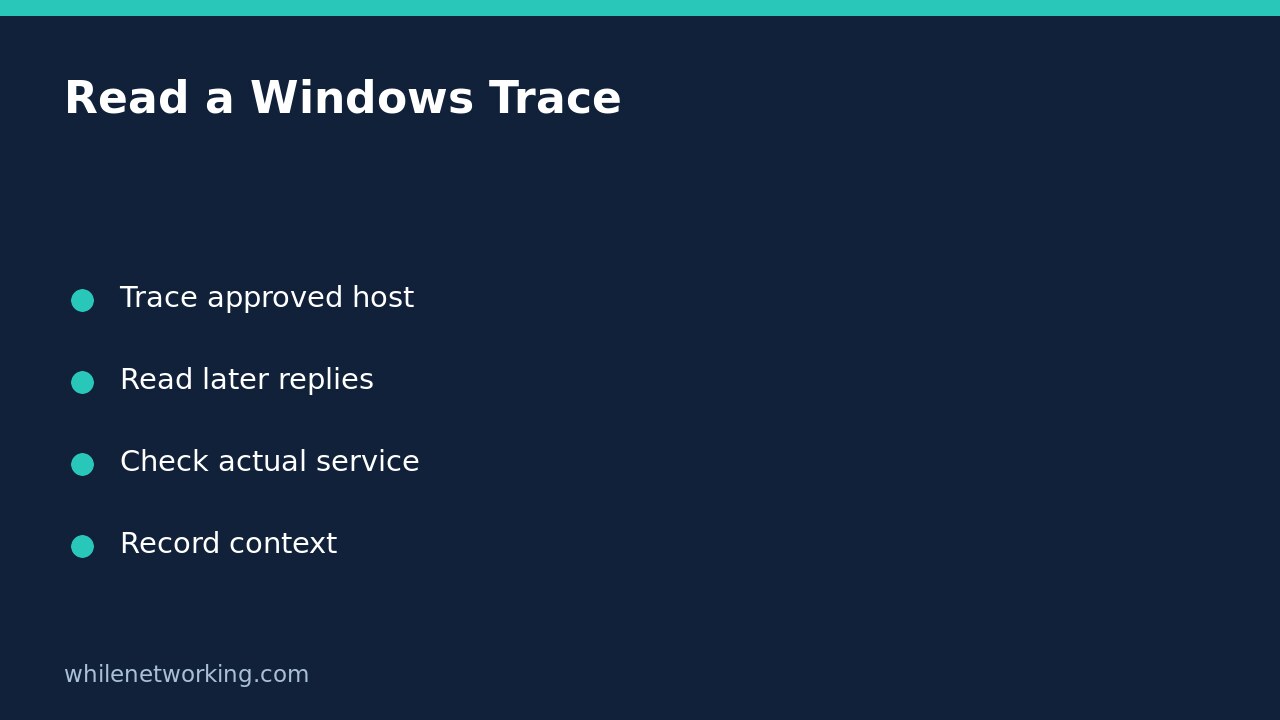
Run one bounded trace to an approved destination
Open Command Prompt on the Windows computer experiencing the problem. Use a destination you own or are authorised to troubleshoot. The following command uses a placeholder hostname; replace it with the actual approved host before running it:
tracert /d /h 15 /w 1000 your-approved-host.example/dskips reverse name lookups for intermediate routers, which can reduce delays caused by resolving their names./h 15caps the trace at fifteen hops. Microsoft documents thirty as the default; this shorter cap can stop before a distant destination./w 1000waits up to one thousand milliseconds for the relevant response to each probe. A shorter wait makes missing replies appear sooner, but can miss slower responses.
This is a diagnostic probe, not a configuration change. It does not reset adapters or alter DNS settings. Stop it with Ctrl-C if you selected the wrong destination. Do not run repeated traces against unrelated systems or use troubleshooting as a reason to bypass network policy.
Read later hops before interpreting a silent row
Read the trace from top to bottom, including its ending. The numbered rows represent successive hop positions. The timing columns are round-trip measurements for the probes receiving replies, not a direct measurement of a single cable or link between adjacent rows.
Consider a hypothetical trace where hop four has only asterisks but hops five and six reply, and the destination eventually answers. That observation supports a narrow conclusion: the trace received replies from beyond the silent position. It does not support declaring hop four a complete forwarding failure. This is an interpretation example, not a measurement from your network.
If a later router reports a high round-trip time but subsequent routers and the destination report lower times, do not add the row values together or identify that row as the bottleneck from this alone. Replies have their own timing characteristics. A single trace is an observation, not a complete performance analysis.
Separate an incomplete trace from an unavailable application
If every row after a certain point is silent, several explanations remain possible. The destination or intermediate devices may not answer the diagnostic messages, replies may be filtered, the destination may be unreachable, or the chosen hop cap may be too low. The trace alone does not select among those explanations.
First check the actual approved application: for example, does the expected HTTPS page load in the browser on the affected machine? Record the error and time. A working website with an incomplete trace is a different problem from a website that fails in the browser and has an incomplete trace.
For an approved Windows port check, the separate article on interpreting Test-NetConnection when ping fails but TCP works explains why ICMP and a service connection can disagree. Even a successful TCP connection does not prove that authentication or an entire application transaction succeeds.
Adjust one test parameter instead of resetting everything
If the trace stopped at fifteen hops without reaching the destination, repeat once with the normal thirty-hop cap when justified. If your shorter timeout is the suspected issue, compare with a longer timeout while keeping the destination and network connection unchanged. Record which parameter changed so the two observations remain comparable.
Microsoft also documents /4 and /6 to select IPv4 or IPv6. Use them only when deliberately checking those different paths. Do not compare an IPv4 result with an IPv6 result as though only the timeout changed. A hostname can lead to different destination addresses, so preserve the address shown in each trace.
Do not disable the firewall to make the trace look cleaner. Silent diagnostic replies are not sufficient justification for weakening protection. Because these commands do not alter configuration, there is no adapter setting to roll back afterward.
What to include in a support ticket
- The affected application, approved destination hostname, and actual user-visible error.
- The timestamp, connection type, and whether an approved VPN was active.
- The exact trace command, resolved destination address, and whether the destination replied.
- Whether the service worked despite asterisks, and what a controlled follow-up test changed.
- A redacted copy of results if account names, internal hostnames, or addresses are sensitive.
FAQ: Are asterisks packet-loss percentages? No. They mark unanswered probes in this trace; do not convert them into a claim about application packet loss. Does a completed trace guarantee a healthy service? No. Continue with service-specific checks when the user-visible failure remains.
Source: Microsoft’s tracert reference explains TTL-based discovery, invisible routers, timeout behaviour, and command options.
Safety: This tutorial is for educational purposes. Test carefully before using steps in production and troubleshoot only authorised systems. The site owner is not responsible for misuse, damage, data loss, or production issues.