
If Windows stays awake after its idle timeout, run powercfg /requests while the problem is happening. This read-only query lists application and driver power requests that can prevent automatic display power-off or low-power sleep. It is a useful starting point, not proof that the listed application is faulty. A video call, recording session or other legitimate activity may need the computer awake.
This workflow investigates a computer that does not automatically sleep. If it sleeps successfully and then wakes, use the separate wake timers versus last-wake evidence workflow. A sleep blocker and a wake trigger answer different questions.
Record the circumstances before changing anything
Note whether the laptop is on battery or plugged in, the expected idle timeout, and which applications are active. Save your work. If you are recording, presenting, transferring important files or running a backup, wait for that task to finish before testing automatic sleep. Do not interrupt a managed workplace process without permission.
Check the configured screen and sleep timeouts in Windows Settings. Labels vary between Windows versions. A timeout set to never is a configuration choice rather than evidence of a broken driver. Record the current setting instead of changing several values at once.
Capture current power requests
Open Windows Terminal or Command Prompt as administrator on a computer you are authorised to manage, and enter the following command. The query does not change power settings.
powercfg /requestsRead the request categories and the caller information shown beneath them. Copy the output into a support note with the time and whether the machine is on mains power. Look for a named application, service or driver rather than assuming every category contains an error. Empty categories are useful observations too.
For example, imagine the output names a media application under a display or system request. That is a hypothetical diagnostic scenario, not a result measured on your PC. Check whether that application is playing content, capturing audio or performing another expected task. The request tells you what Windows reports at that moment; it does not explain every reason the computer might remain awake.
Compare one controlled change at a time
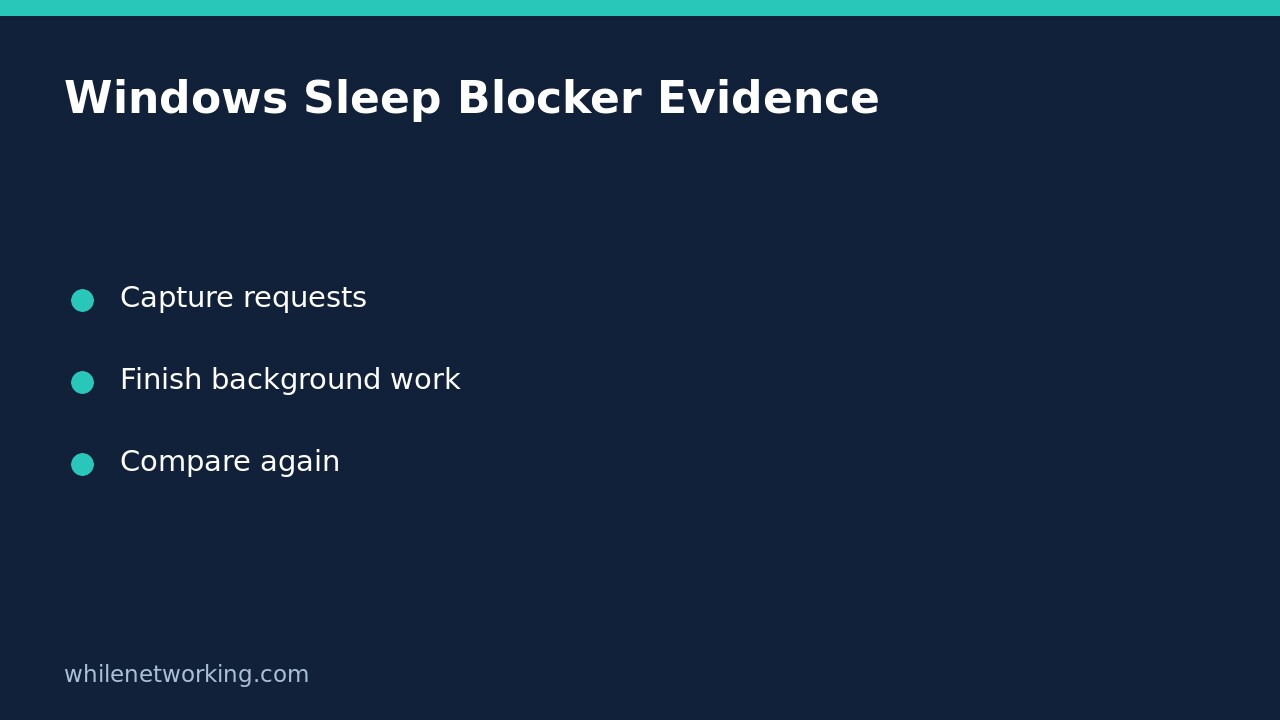
- Capture the initial output while the unwanted behaviour is present.
- Save work and stop playback or finish the relevant job inside the suspected application.
- Close that application normally if appropriate. Avoid forcibly terminating services or system processes.
- Run
powercfg /requestsagain and compare the caller and category. - Leave the computer idle for its configured timeout without touching input devices. Observe whether automatic sleep now works.
If a request disappears and sleep resumes, you have a useful relationship to investigate. You have not established a universal driver fault. Reopen the application later and check its supported playback, recording or keep-awake options. A request that returns only during an active call may be entirely appropriate.
If the caller is an unfamiliar driver or service, preserve its exact displayed name and contact the device vendor or IT team. Do not download a replacement driver from an advertisement or remove devices at random. Ask whether the request is expected before making a system-wide change.
Inspect existing overrides without adding new ones
Microsoft documents a separate command for power-request overrides. With no parameters, it displays the current override list:
powercfg /requestsoverrideThe absence of parameters matters. Adding a caller type, name and request type changes override configuration. This tutorial deliberately does not prescribe such a write. Ignoring a legitimate power request could allow sleep during work that should continue. Record any existing override and have its owner review it rather than deleting or expanding it speculatively.
If every request category is empty, repeat the capture during the actual failure rather than declaring the computer healthy. Review timeout settings and distinguish failure to sleep from immediate waking. Escalate with the paired snapshots, application state and exact observation instead of an unqualified claim that power management is broken.
Quick support checklist and FAQ
- Did the computer fail to enter sleep, or enter sleep and wake again?
- Was the query captured during the problem?
- Did normal completion of one application task change the request?
- Were configured timeouts and existing overrides recorded?
Does a listed caller mean malware? No. A power request alone does not establish malicious behaviour.
Is rollback required? These queries do not modify settings. Reopen any application you closed when ready; retain the original settings if you later seek an approved change.
Source: Microsoft powercfg documentation, particularly the requests and requestsoverride sections.
This tutorial is for educational purposes. Test carefully before using steps in production. The site owner is not responsible for misuse, damage, data loss or production issues.