
The sudden appearance of the iconic blue screen halts your workflow instantly, often leaving users panicked and unsure of how to proceed. While the Blue Screen of Death (BSOD) can be alarming, it is frequently a diagnostic tool rather than a sign of catastrophic hardware failure. Understanding what triggers these errors allows you to restore stability quickly. This guide addresses the most frequent causes of BSODs, explains how to interpret error codes, and provides actionable steps to resolve them without needing immediate professional intervention. Remember that specific error behaviors can vary based on your Windows version (10 or 11), hardware configuration, and driver versions; always verify details with your specific system documentation before making major changes.
Understanding the Immediate Response to a BSOD
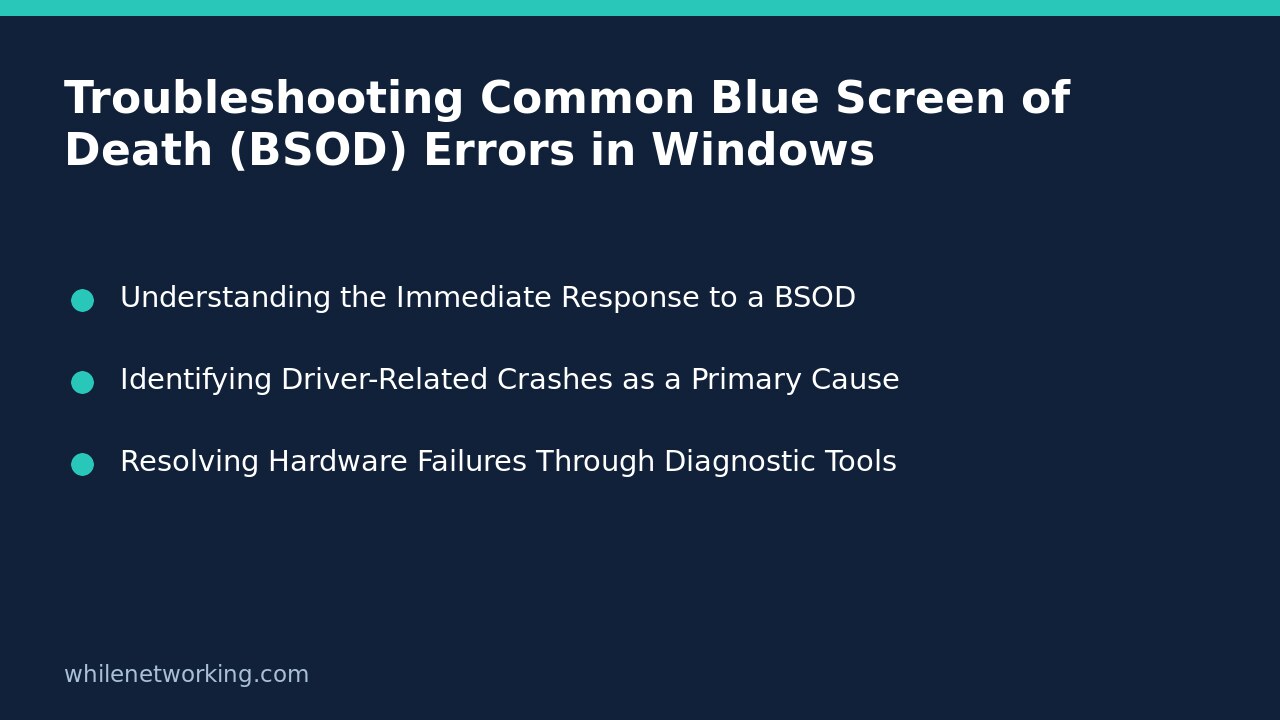
When a blue screen appears, the first instinct is often to panic, but immediate action should focus on data preservation and error identification. The system will usually display an “Stop Code” or a hex code (e.g., CRITICAL_PROCESS_DIED, PAGE_FAULT_IN_NONPAGED_MEMORY) along with a brief description of the failure. Do not simply force a restart immediately if possible, as this can lead to file corruption. If the screen offers a prompt to “Restart now,” choose that option only after noting the error code displayed at the bottom. In many cases, Windows will automatically boot into Safe Mode or present an Advanced Startup Options menu upon repeated crashes, allowing you to access diagnostic tools.
Identifying Driver-Related Crashes as a Primary Cause
One of the most common culprits behind BSODs is outdated, corrupted, or incompatible device drivers. This often occurs after installing new hardware, updating graphics cards, or following Windows updates that conflict with existing software. A frequent example involves NVIDIA or AMD graphics drivers failing to initialize correctly after a Windows 11 update, resulting in the IRQL_NOT_LESS_OR_EQUAL error. To address this, navigate to Device Manager, locate devices with yellow exclamation marks, and right-click to select “Update driver.” Alternatively, visit the manufacturer’s official website to download the latest version compatible with your specific CPU and motherboard. Always create a restore point before installing new drivers; if the issue persists after an update, use System Restore to revert to a previous state where the system was stable.
Resolving Hardware Failures Through Diagnostic Tools
While software issues are common, hardware malfunctions such as failing RAM sticks or overheating processors can also trigger stop codes. The MEMORY_MANAGEMENT error often points to defective Random Access Memory (RAM). To test your memory integrity, boot into Safe Mode and run the built-in Windows Memory Diagnostic tool by typing “Windows Memory Diagnostic” in the Start menu search bar and selecting “Restart now and check for problems.” If errors are found, reseat the RAM modules or replace them. Similarly, thermal throttling can cause crashes; ensure your cooling fans are spinning and that dust is not obstructing airflow. Use tools like HWMonitor to check core temperatures under load; sustained temperatures above 90°C (194°F) on a CPU warrant immediate cleaning of heatsinks or repasting with new thermal compound.
Addressing File System Corruption via Command Line Utilities
Corrupted system files or a damaged file allocation table can force Windows into an emergency stop. The UNMOUNTABLE_BOOT_DEVICE error suggests that the operating system cannot access critical storage areas. To repair these issues, boot into Safe Mode and open Command Prompt as Administrator. Run the following commands sequentially: chkdsk C: /f /r to scan and fix disk errors, followed by sfc /scannow to restore corrupted Windows System Files. These utilities are safe and non-destructive; they do not delete personal data but rather repair the underlying structures that Windows relies on. If the drive is external or secondary, ensure it is properly formatted with the NTFS file system before attempting repairs.
Managing Conflicting Software and Antivirus Interference
Third-party applications, particularly aggressive security suites, can interfere with kernel-level processes, leading to instability. Some antivirus programs attempt to hook into the Windows kernel for deep scanning, which may conflict with other drivers or services. If a BSOD occurs shortly after installing new software, uninstall the program via Settings > Apps. Additionally, check your startup list in Task Manager and disable unnecessary background applications. A common scenario involves legacy software designed for Windows 7 crashing on modern Windows 10/11 environments due to unsupported APIs. Keeping your operating system fully updated ensures that Microsoft has patched known vulnerabilities that could be exploited by malware or cause system instability.
Creating a Robust Recovery Plan and Checklist
Prevention is often more effective than reaction. Establishing a routine maintenance schedule can significantly reduce the frequency of BSODs. Below is a practical checklist for maintaining Windows stability:
* Update Drivers Monthly: Check manufacturer websites for GPU, network card, and chipset updates.
* Run System Scans Quarterly: Use chkdsk and sfc /scannow to ensure file integrity.
* Monitor Temperatures: Keep an eye on CPU/GPU temps during gaming or rendering tasks.
* Backup Critical Data: Regularly back up important files to an external drive or cloud service, as repeated crashes can sometimes lead to data loss even if the system reboots.
* Review Event Viewer: Access Windows Event Viewer under Administrative Tools to look for warnings preceding a crash; these logs often hint at specific failing components before they cause a total shutdown.
Conclusion: Moving Forward After a Crash
Encountering a Blue Screen of Death is an interruption, not necessarily the end of your computing journey. By methodically analyzing the stop code, updating drivers, testing hardware integrity, and repairing system files, most users can resolve these issues without replacing their entire computer. The key is patience and a structured approach to troubleshooting rather than hasty reboots that mask underlying problems. As technology evolves, Windows updates continue to improve stability, but user vigilance remains essential. If errors persist despite following these steps, consulting with a professional technician may be necessary to diagnose complex hardware faults that go beyond standard software fixes. Always remember that specific solutions depend on your unique hardware configuration and jurisdictional laws regarding data privacy and electronic waste disposal when replacing components.