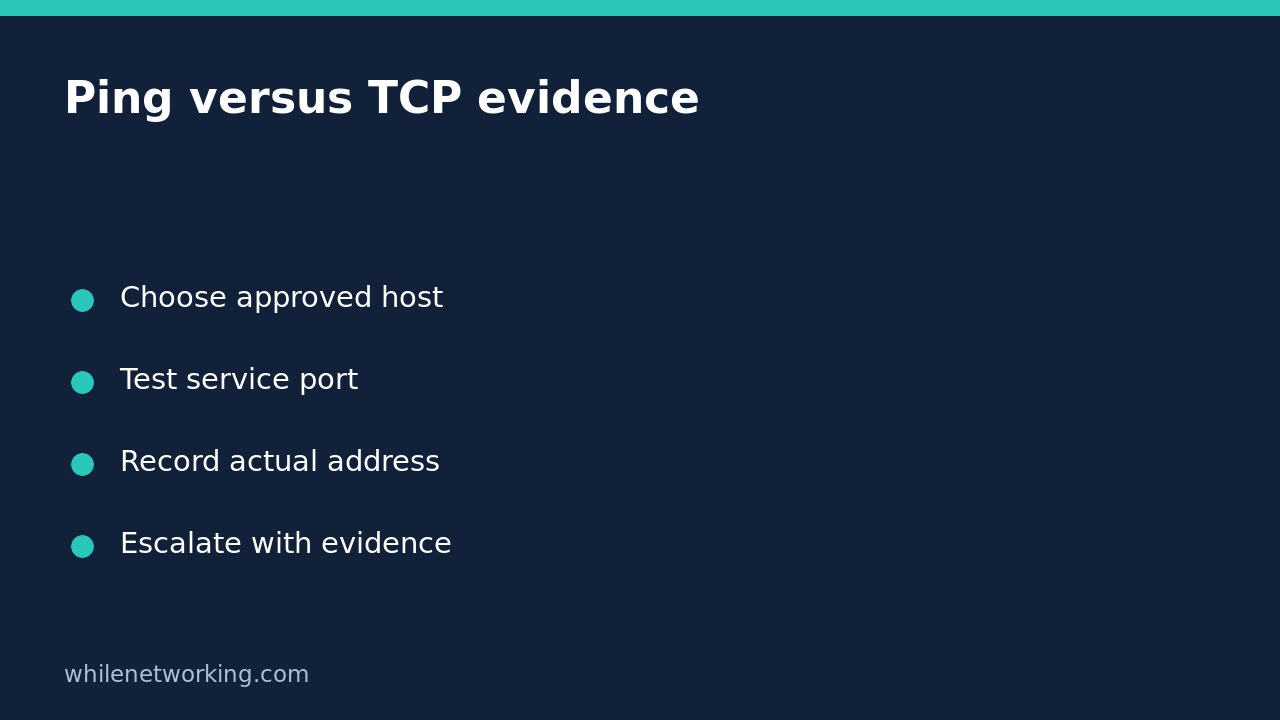

A failed ping does not necessarily mean a server or website is unreachable. Ping uses ICMP, while a website commonly accepts TCP connections on port 443. A network can permit the service while filtering ping replies. On Windows, use a targeted Test-NetConnection TCP test to check the particular service path before changing firewall rules or resetting networking.
This workflow is for an endpoint you own or are authorised to troubleshoot. It is not a port scan. Use the approved service hostname and documented port, and keep the VPN or work connection in its normal state while collecting your first result.
Start with the exact application destination
Write down the failing application, its hostname, the time of failure and whether you are using Ethernet, Wi-Fi or a required corporate VPN. A browser error against one hostname is not explained by successfully pinging an unrelated public server.
Open Windows PowerShell. Replace the example hostname below with the actual approved destination. The example domain is a placeholder, not a test result or a promise of an available service.
Test-NetConnection -ComputerName portal.example.com -Port 443 -InformationLevel DetailedThis initiates a connection attempt, but does not change your adapter, DNS settings or firewall configuration. If the command is unavailable in your shell, check whether you are running Windows PowerShell with the NetTCPIP module available rather than assuming the network failed. Do not install random diagnostic utilities from an error-message link.
Read the TCP result separately from ping
The important field for the requested TCP port is TcpTestSucceeded. A true result means the TCP connection test succeeded to the selected address and port from this computer at that moment. It does not demonstrate that a login, certificate check, web request or database query will succeed.
If you also run the following ping-oriented command, interpret it as a different test:
Test-NetConnection -ComputerName portal.example.com -InformationLevel Detailed- Ping fails, TCP succeeds: the TCP service path is reachable. Investigate the application symptom instead of treating missing echo replies as proof of an outage.
- Ping succeeds, TCP fails: answering ICMP does not establish that the service is listening or permitted. Confirm the documented service port with its owner.
- Both fail: several causes remain possible, including name resolution, a route problem, filtering or an unavailable endpoint. These results alone do not identify the faulty device.
Check which address and interface were tested
Save RemoteAddress, RemotePort, InterfaceAlias and SourceAddress when present. Detailed output can also show name-resolution results and next-hop information. These details matter when a hostname has multiple addresses or your computer has both a VPN and a physical adapter.
A successful test to one selected address is not a guarantee that every IPv4 or IPv6 address behind the hostname works. Likewise, an application using an explicit proxy may take a different path from this direct TCP test. Ask the service administrator which route is expected before deciding that a difference is a fault.
If the name resolves unexpectedly, follow the separate tutorial on comparing two DNS servers without changing Windows settings. Record evidence first; switching DNS immediately can hide the original symptom.
Build a useful support handoff
For an illustrative case, suppose a work portal fails in the browser, its ping test fails, but the targeted port-443 result is true. The sensible handoff is not simply “the internet is down”. Report that the TCP test connected, then provide the browser error, timestamp and selected remote address. The next investigation might concern TLS, a proxy, authentication or the application itself.
If TCP fails, ask the service owner to check listener health and the approved access path. Do not temporarily disable endpoint protection, open inbound ports or remove VPN controls to force a green result. Repeat once after an authorised fix and compare the same destination and port.
Quick questions and completion checklist
Does a true result prove HTTPS is healthy? No. Establishing TCP is only one layer of the transaction.
Can this test UDP? The port test described here is TCP; it does not establish UDP service health.
What should I retain? Keep the command, timestamp, selected address, interface and result. Redact internal names and IP addresses before sharing outside your organisation. No settings were changed by these tests, so there is no configuration rollback; remove saved diagnostic files when they are no longer needed.
Source: Microsoft Test-NetConnection documentation describes the TCP, ping and detailed-output parameter sets.
Safety: This tutorial is for educational purposes. Test carefully before using steps in production. The site owner is not responsible for misuse, damage, data loss or production issues.