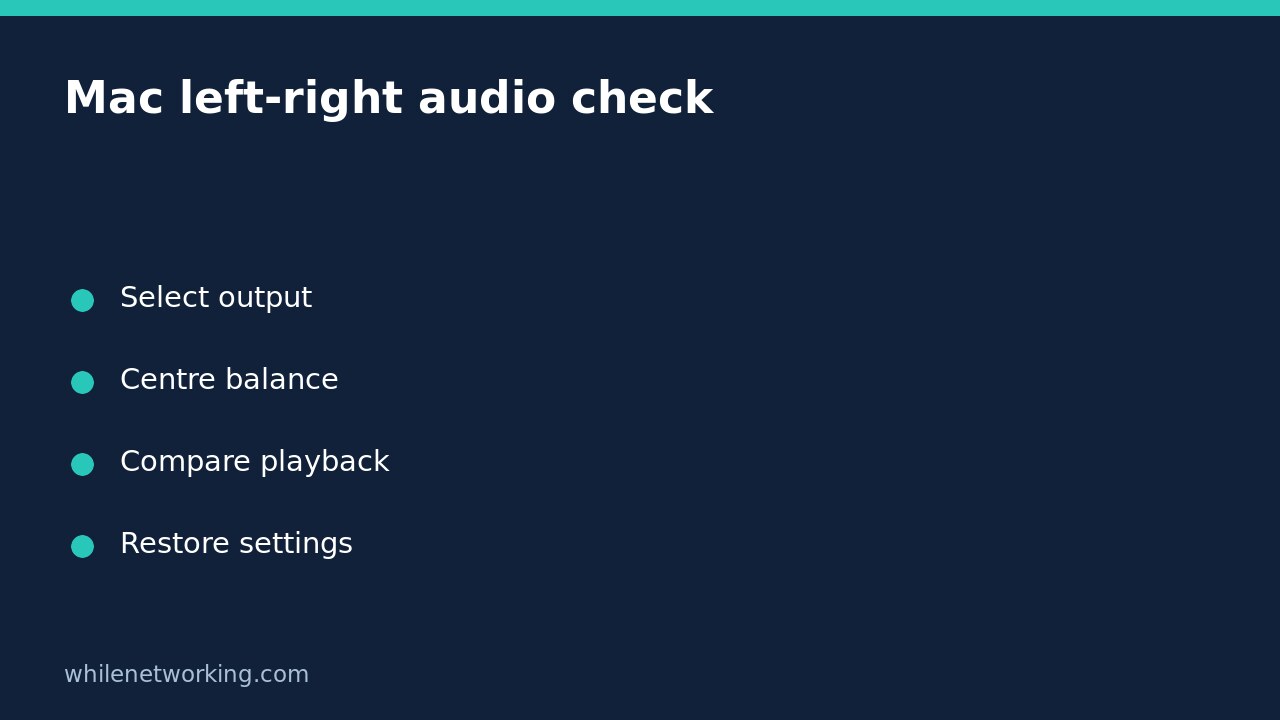

If audio on your Mac sounds louder in one ear, check the selected output device and its left-right balance before replacing your headphones. A balance slider positioned away from the centre can make working equipment seem faulty. Start at a comfortable volume, compare a second recording, and change one setting at a time so you can identify what actually helps.
This article addresses uneven left-right playback, not complete loss of sound. It does not diagnose hearing problems. If the sensation persists across different equipment or concerns your hearing, seek appropriate professional advice rather than compensating with increasingly high volume.
Confirm which device is playing the sound
Open the Apple menu, choose System Settings, then select Sound in the sidebar. Under Output, select the device you intend to hear. Depending on the Mac and connected equipment, the list may include internal speakers, headphones, USB audio equipment and wireless outputs. Labels and available controls can differ by device and macOS version.
Do not assume sound is going to the headphones just because they are connected. A monitor, dock or wireless receiver may be selected instead. Note the current output before switching, and pause playback to avoid surprising someone through room speakers.
Apple documents these controls in its guide to changing Mac sound output settings. For equipment connected to the sound port, its instructions identify the Headphones option. Some external devices manage volume differently, so an unavailable control is a reason to consult that device documentation, not to force a system reset.
Centre the balance and keep the volume modest
- With the intended output selected, look for the Balance slider in Sound settings.
- Record its starting position, particularly on a shared Mac where someone may have intentionally adjusted it.
- If a balanced left-right output is your goal, move the slider to the centre.
- Play a familiar short section at a low, comfortable level and compare the two sides.
Keep balance and overall volume separate in your reasoning. Balance changes the relationship between channels; increasing output volume is not a reliable fix for a quieter side. Also check that a physical volume knob or inline headphone control has not been moved.
If you use a deliberate accessibility adjustment, do not overwrite it simply because centred balance is the usual starting point. Preserve the setting that meets your needs, and discuss unexplained changes with whoever manages the computer.
Use a controlled comparison instead of guessing
A stereo recording can intentionally place instruments or voices off-centre. Hearing more on the left during one passage does not prove hardware damage. Compare another familiar recording and, if practical, another playback app. Keep the Mac output and listening level unchanged during that comparison.
For example, suppose one video sounds right-heavy, but a second video and a local audio file sound balanced through the same headphones. That pattern points you towards the original recording or app rather than immediately towards a broken earcup. This is a troubleshooting example, not a claim that any particular app has a fault.
Next, compare another known-working output if one is available. Pause playback before unplugging or switching equipment, and start again quietly. If the imbalance follows one headset across different sources, inspect that headset according to its manufacturer instructions. If several outputs behave oddly only on the Mac, document that pattern before seeking support.
Separate app volume from system balance
Apple notes that apps with their own volume controls cannot override the computer output-volume setting to produce a higher level. A quiet app can therefore remain quiet even when its own slider appears high. Check both controls when comparing playback, but avoid changing several sliders at once.
Alert volume is another separate control and is relative to the computer volume. A system alert is not a dependable substitute for comparing the same audio passage between outputs. If professional audio equipment is involved, Apple also points to Audio MIDI Setup for additional options; do not change sample rates, channel mappings or unfamiliar settings without understanding the device requirements.
Before you reset anything: checklist and FAQ
- Confirm the intended output is selected.
- Record and review the balance position.
- Compare two recordings at a comfortable listening level.
- Check another app, then another output where available.
- Restore experimental changes that did not help.
Should I delete preferences or run Terminal reset commands? Not as a first step. This problem can often be narrowed down through reversible settings checks, without deleting files or changing system services.
What should I send to support? Provide the Mac and macOS details, output-device name, balance position and which comparisons reproduced the issue. Avoid including private recordings in a support ticket.
For a separate file-handling setting, see changing the default PDF app for one file or all PDFs. Like audio routing, that setting works best when you distinguish the specific item from the broader default.
This tutorial is for educational purposes. Test carefully before production use, including shared or managed Macs. The site owner accepts no responsibility for misuse, damage, data loss or production issues.