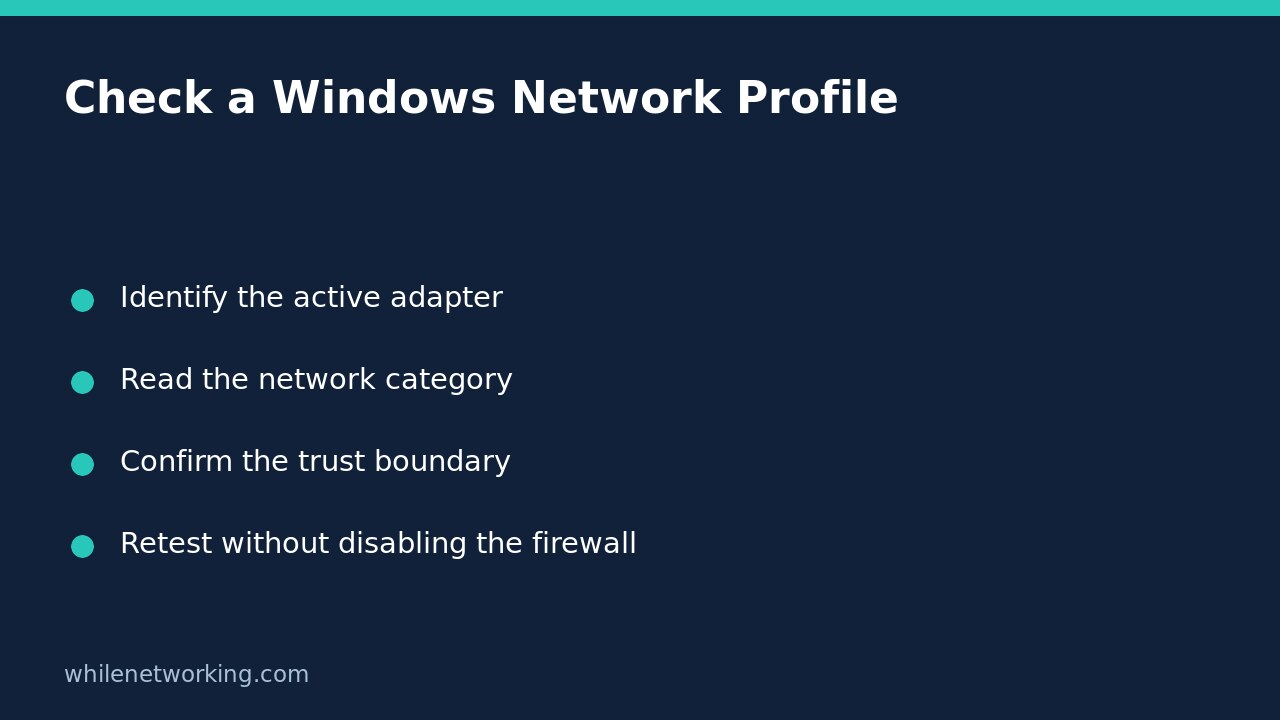

A Windows connection marked Public is not automatically a broken connection. The category describes how Windows should treat the network, and it influences which firewall rules apply. Changing the category simply to make a printer or shared folder work can hide the real fault or expose services on a network you do not trust. Start with a read-only check, then decide whether a change is justified.
Understand what you are trying to diagnose
Separate three questions: does the computer have connectivity, can it reach the intended device, and should that network be trusted for discovery or sharing? A Public profile does not by itself prove that DNS, routing or your internet connection has failed. Equally, a Private profile does not guarantee that a remote application is available.
Write down the symptom before troubleshooting. For example, a laptop might browse websites normally but fail to discover a home printer. That is a narrower problem than an adapter that has no usable network connection. Record whether the failure happens on Ethernet, Wi-Fi or a VPN, and whether it began after moving between networks.
Inspect the current connection profiles safely
Open PowerShell and run this read-only command:
Get-NetConnectionProfile | Format-Table Name, InterfaceAlias, InterfaceIndex, NetworkCategory, IPv4Connectivity, IPv6Connectivity -AutoSizeThe Microsoft documentation for Get-NetConnectionProfile describes the cmdlet and its filtering options. Match the InterfaceAlias to the adapter actually carrying your traffic. InterfaceIndex is useful when names are similar, while NetworkCategory identifies the profile classification. Connectivity fields provide additional context; do not treat them as a complete application-level test.
If there are several results, inspect the relevant interface rather than assuming that the first row is your Wi-Fi connection. A docking station, virtual switch or VPN can create additional interfaces. To filter by an adapter name, substitute the actual name shown on your own machine:
Get-NetConnectionProfile -InterfaceAlias "Wi-Fi"The example name is not universal. If it does not exist on your computer, return to the unfiltered output rather than renaming an adapter just to match a tutorial.
Decide whether this network deserves trust
Keep an unfamiliar hotel, airport, café or shared guest network treated as untrusted. Knowing the Wi-Fi password does not establish that the other connected devices are trustworthy. A home network you administer may justify different discovery settings, but consider guests, shared accommodation and how your router separates devices.
On a work-managed computer, check with your IT team before changing network or firewall policy. Domain authentication and centrally managed settings are not problems to bypass. If settings appear locked, record what you see and ask the administrator which policy applies. Do not try registry edits or disable security services to force a different label.
Test the actual service instead of weakening every rule
Hypothetical example: Priya can open her router’s management page but cannot find her printer automatically. She first confirms the laptop is on the intended household network rather than a guest network. She then checks the printer’s current address and whether the printer and laptop are allowed to communicate. This can reveal isolation or addressing problems that a profile change would not fix.
Keep the Windows firewall enabled. Check the device vendor’s documented connection method and the relevant application or sharing settings. Avoid opening broad inbound access as a diagnostic shortcut. If a permitted configuration change is necessary, record the original value, change one thing, and repeat the same test so that you can identify what actually helped.
Use a short handover checklist
- Record the adapter name, interface index and network category.
- Describe the failing service and whether general connectivity works.
- Confirm the device is on the intended network, not a guest connection.
- Note VPN involvement and any organisation-managed restrictions.
- Keep a record of approved changes and restore ineffective changes.
If you are documenting recurring support incidents, the related AI risk checklist for IT operations explains why sensitive operational details should be handled carefully when using assistance tools.
Frequently asked questions
Should I always switch Public to Private? No. Decide based on the network’s trust boundary and the service you need, not the appearance of the label.
Does this command change my firewall? No. Get-NetConnectionProfile reads connection information; the examples here do not modify profiles or firewall rules.
Why does the category return after reconnecting? Collect the interface details and check whether the connection or organisation policy changed. Do not assume a permanent fix without identifying the cause.
Educational-use disclaimer: This tutorial is for educational purposes. Test carefully before applying any changes in production, obtain the appropriate authorisation, and keep backups and rollback notes. WhileNetworking and its owner accept no responsibility for misuse, damage, data loss or production issues arising from use of this information.