
If where python behaves unexpectedly in PowerShell, first check what where means in that session. On a typical Windows PowerShell or PowerShell installation, it is an alias for Where-Object, the pipeline-filtering command. It is not the same request as running the Windows executable where.exe.
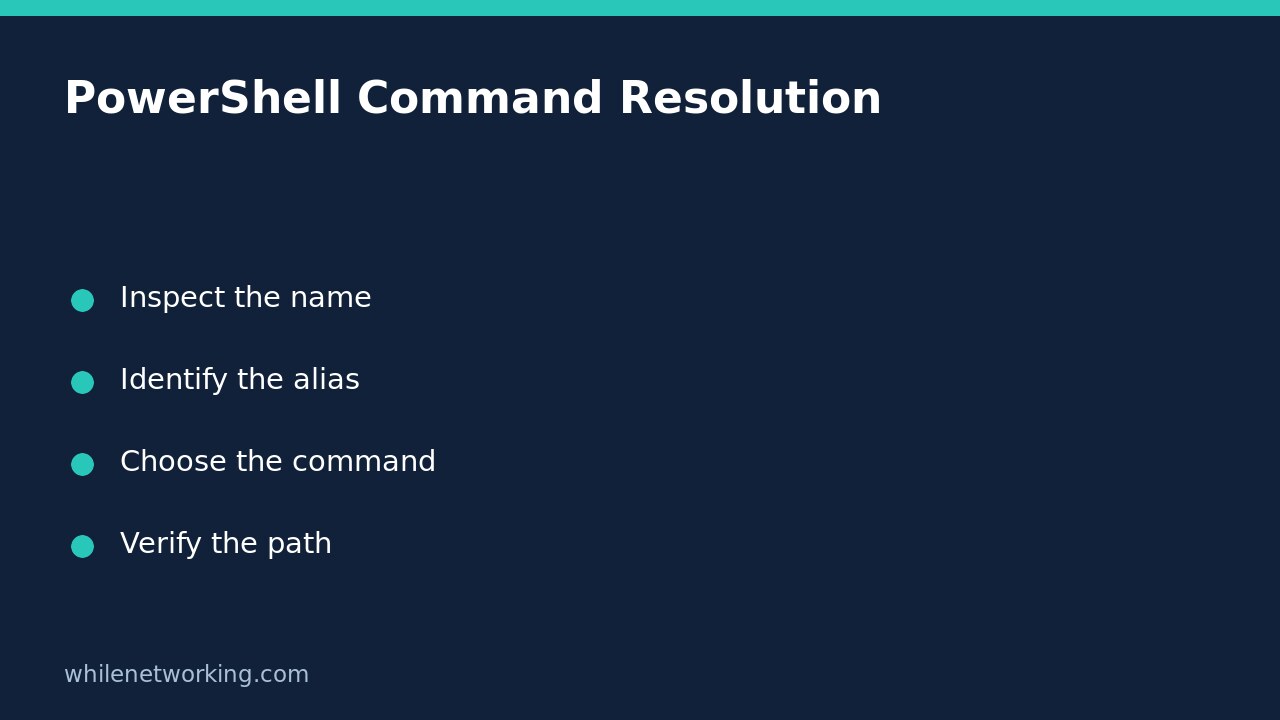
The safe fix is usually to make the command name explicit, not to delete aliases, edit PATH or reinstall Python. This walkthrough separates three questions: which PowerShell command wins, where Windows finds an executable, and which file you actually intend to run.
Inspect the name before changing anything
Open PowerShell as your normal user. Administrator rights are not required for these inspection commands. Ask PowerShell to list all matching commands:
Get-Command where -All
Get-Alias where -ErrorAction SilentlyContinue
Get-Command where.exe -All
Read the CommandType, Name and source information. The first command can reveal an alias and an application with similar names. Actual output depends on installed software and session customisations; do not assume that every computer has the same paths or aliases.
If the alias is missing, that is not automatically a broken installation. A profile or module may have changed the session. The inspection results, rather than a remembered default, should determine your next step.
Choose filtering or executable discovery
Use Where-Object when filtering objects already in a PowerShell pipeline. For example, this command selects running services from the objects returned by Get-Service:
Get-Service | Where-Object { $_.Status -eq 'Running' }
Use the Windows executable when you specifically want its executable-search behaviour:
where.exe python
where.exe git
Alternatively, ask PowerShell which commands it knows by that name:
Get-Command python -All |
    Select-Object CommandType, Name, Source, Definition
These tools answer related but different questions. Get-Command understands PowerShell aliases, functions, cmdlets and applications. where.exe is an external Windows utility, not an inventory of PowerShell functions or aliases. Neither command proves that an executable is trustworthy merely because it was found.
Understand the precedence rule behind the surprise
Microsoft documents this order for loaded commands when you do not supply a path: alias, function, cmdlet, then external executable. Consequently, an alias can hide an application with the same unqualified name. Microsoft also notes that module autoloading has additional nuances, so this simple order should not be treated as a prediction of every unloaded module.
For an executable, including the extension can disambiguate an ordinary name collision, as with where.exe. For a cmdlet hidden by a function or alias, use its module-qualified name. For example, the following explicitly selects the utility module’s date cmdlet:
Microsoft.PowerShell.Utility\Get-Date
Do not remove a corporate profile or unload a security module just to make a short command work. Explicit names are easier to review and avoid changing the rest of the session.
Diagnose a specific Python path without reinstalling
Suppose an editor starts one Python installation while a terminal appears to choose another. First record the matching applications:
Get-Command python -All -CommandType Application |
    Select-Object Name, Source
Compare those paths with the interpreter configured in the editor. Multiple entries can be legitimate. A launcher, virtual environment or application-execution alias can affect the result; a path listing alone does not establish which environment your project needs.
If you decide to check a specific interpreter’s version, inspect its location and trust it before execution. Use the call operator for a quoted path containing spaces, replacing this example with your verified path:
& 'C:\Path To Python\python.exe' --version
This is intentionally a version check, not an installer command. Avoid copying an unfamiliar executable path into a privileged terminal. If the folder is unexpected, stop and investigate its origin instead of executing it to see what happens.
Why a program in the current folder may not run by name
PowerShell does not ordinarily run an executable from the current directory merely because you typed its filename. Microsoft explains that you must specify its path or have it available through PATH. After verifying a local program, .\tool.exe identifies the file in the current directory. This is a separate issue from the where alias collision.
Do not add the current directory to PATH as a blanket workaround. That can make command selection less predictable. Prefer a reviewed explicit path for an occasional local tool.
Quick checks and common questions
- Inspect
Get-Command NAME -Allbefore changing aliases or PATH. - Use
Where-Objectfor filtering andwhere.exefor the Windows utility. - Compare actual executable paths when tools disagree.
- Verify a file’s origin before invoking it explicitly.
Must I change execution policy? No. Resolving a command-name collision does not require relaxing script execution policy. Script-policy errors are a separate diagnostic problem.
Is a reinstall the first fix? No. Establish which command and path are being selected first. For related defensive habits, read secure PowerShell usage for IT administrators.
Educational-use disclaimer: Test examples carefully before production use. The site owner is not responsible for misuse, damage, data loss or production issues.
Source
Microsoft Learn: PowerShell command precedence documents aliases, hidden commands, module-qualified names and explicit executable paths.