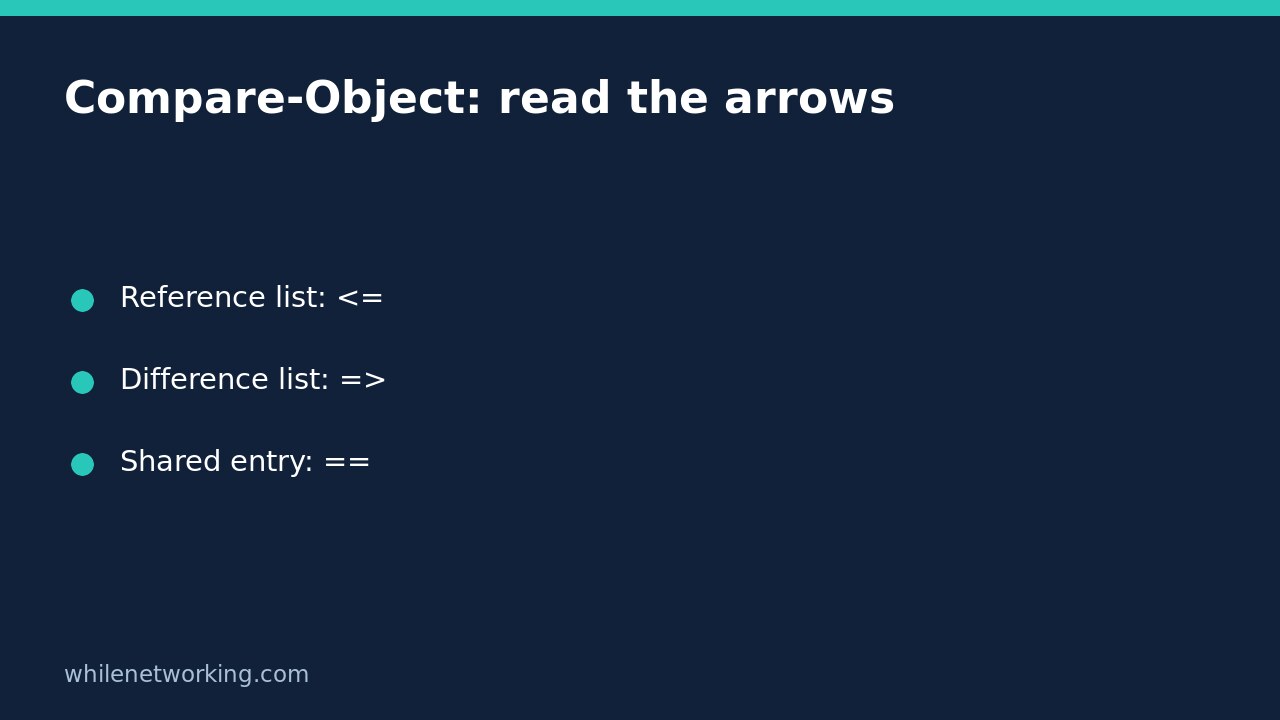

PowerShell Compare-Object labels entries with a SideIndicator. The marker <= means the entry appears only in the list supplied to ReferenceObject; => means it appears only in DifferenceObject. These arrows describe your chosen inputs, not whether a machine is broken or a change is authorised. Name the two sides before interpreting the result.
This is useful when reviewing two small inventories, such as an approved list of application names and a newly collected list. The command compares the supplied data; it does not install software, change permissions or repair a discrepancy.
Start with a small, labelled example
Open PowerShell in a normal, non-administrator session. This example uses only in-memory arrays and does not read or modify files. The reference list represents an expected inventory, while the difference list represents an observed inventory:
$expected = @('Editor', 'Terminal', 'Browser')
$observed = @('Editor', 'Terminal', 'Viewer')
Compare-Object -ReferenceObject $expected -DifferenceObject $observed |
    Select-Object InputObject, SideIndicator
Look for Viewer with => and Browser with <=. Viewer occurs only in the observed list, whereas Browser occurs only in the expected list. Editor and Terminal are omitted because matching entries are hidden by default. Do not rely on the display order of the rows when explaining the result; use the named properties and their values.
Swapping the two arguments swaps the meaning of the arrows. It does not change the underlying inventories. If your report calls something added or removed, record which snapshot was the reference and when each snapshot was captured.
Show shared entries when you need context
Add IncludeEqual to show matching entries alongside differences:
Compare-Object -ReferenceObject $expected -DifferenceObject $observed -IncludeEqual |
    Select-Object InputObject, SideIndicator
The shared names now have ==. This does not certify that the corresponding applications have identical versions, publishers, installation locations or settings. Those facts are not present in these string arrays. A name-only inventory can establish only a name comparison.
Microsoft documents version-specific behaviour for ExcludeDifferent. For a beginner checklist intended to show both shared and differing values, the explicit IncludeEqual example above is easier to interpret than relying on implicit switch interactions.
Choose the comparison rules deliberately
String comparison is case-insensitive by default. If letter case matters to your reader task, request it explicitly:
Compare-Object -ReferenceObject @('Config') -DifferenceObject @('config') -CaseSensitive |
    Select-Object InputObject, SideIndicator
This produces two differing entries rather than treating the spellings as equal. It is a comparison choice, not a way to change Windows filesystem case handling. Similarly, do not trim spaces or remove duplicates merely to make a report look clean. First decide whether those distinctions matter to the inventory you are reviewing.
When comparing structured objects, select the properties that express your actual question. Microsoft shows that comparing only a Length property can consider different strings equal if their lengths match. Matching a convenient property is not the same as matching the full underlying record.
Understand what an empty result does not prove
With default settings, equivalent inputs produce no output. That is different from a command failure, and different again from failing to collect one inventory. Microsoft documents a terminating error for null reference or difference inputs. Validate your collection step before interpreting an empty comparison as success.
Compare-Object is not a byte-for-byte file verifier or a positional text-diff tool. Reordered entries can match. It does not explain line-number changes, validate a backup, prove publisher trust or establish that a remote inventory was complete. For files, choose a separate integrity workflow appropriate to that task rather than using this name comparison as proof.
Review checklist and quick questions
- Label the reference and difference inputs in the report.
- Confirm both inventories were collected successfully.
- Interpret the SideIndicator, not row order.
- Decide whether case and selected object properties matter.
- Investigate differences before making any changes.
Does the arrow mean copy this entry? No. It identifies the side on which the entry occurs; there is no synchronisation action in these examples.
Can I compare result counts instead? Equal counts can hide different values. If you also need totals, see our explanation of counting PowerShell pipeline results reliably, but keep counts separate from membership comparisons.
Source: Microsoft Learn: Compare-Object syntax, examples and comparison behaviour.
Safety: This tutorial is for educational purposes. Test carefully before using commands in production. The site owner is not responsible for misuse, damage, data loss or production issues.