
You can inspect the digital signature of a downloaded Windows installer without opening the installer. In PowerShell on Windows, Get-AuthenticodeSignature returns signature information for a file. Use that information to check the reported status and signing identity against the publisher you intended to download from, rather than treating an attractive filename or icon as evidence of trust.
A signature check is one layer of review, not a guarantee that software is harmless. Even a valid signature is not an instruction to run a file. This walkthrough keeps the download unexecuted while you gather evidence.
Start with the exact downloaded file
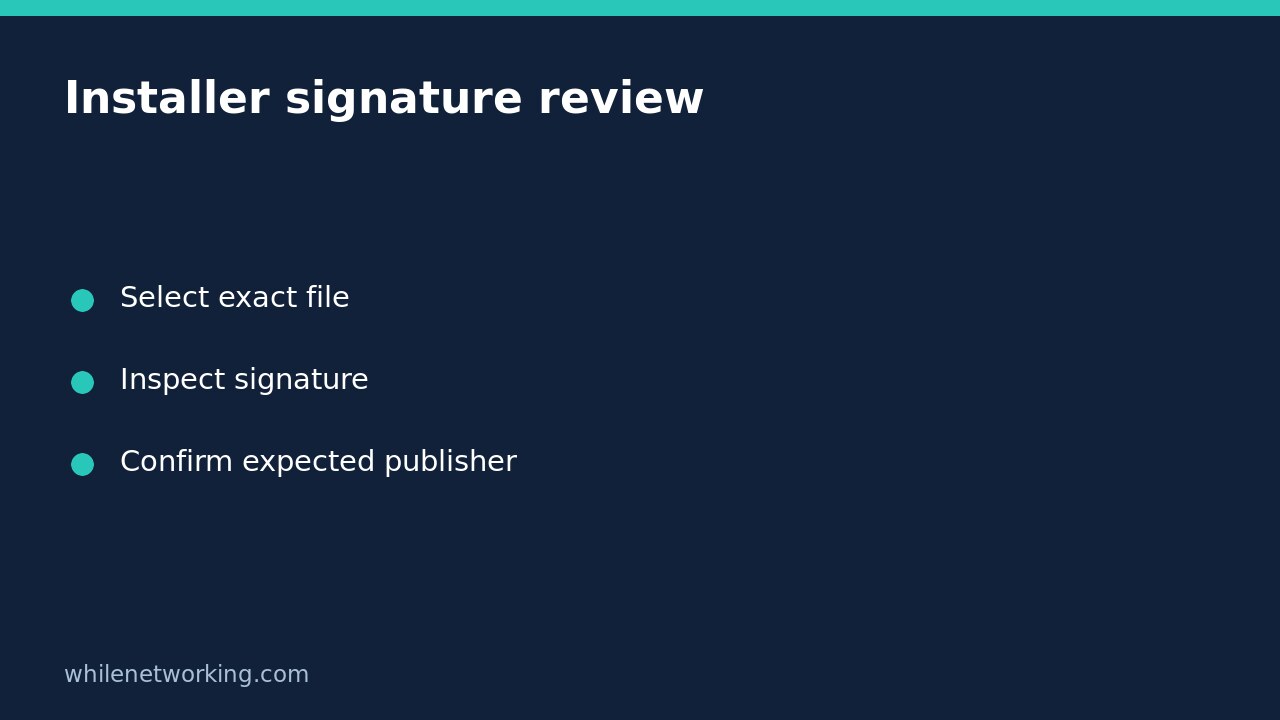
Use the official publisher download page or your organisation’s approved software portal. Save the installer and note its actual location. Do not double-click it just to find out what it is. If Windows hides file extensions, inspect the full name and extension before comparing it with the intended package.
Open PowerShell normally; this inspection does not inherently require an elevated administrator session. Microsoft documents the signature cmdlet as Windows-only, so a PowerShell installation on Linux or macOS is not an equivalent environment for this procedure.
Replace the illustrative path below with the real file path. Single quotes preserve the path as typed, and -LiteralPath prevents wildcard characters in the filename from being treated as matching patterns.
$file = 'C:\Users\YourName\Downloads\VendorSetup.exe'
$sig = Get-AuthenticodeSignature -LiteralPath $file
$sig | Format-List Status, StatusMessage, Path, SignatureType
$sig.SignerCertificate | Format-List Subject, Issuer, Thumbprint, NotBefore, NotAfter
These commands read signature metadata; they do not launch the installer. The example contains no expected output because the result depends on the file, its signature and the checking environment.
Review status and publisher as separate questions
First read Status and StatusMessage. Microsoft shows filtering signature objects for a status of Valid in its reference examples. If your result is anything else, pause rather than assuming the installer is approved. Keep the exact message for the publisher or help desk instead of replacing it with a guessed explanation.
Next inspect the signer certificate subject. Does that legal organisation match the publisher you intended to obtain? The name may differ from a product’s marketing brand, but an unexplained difference requires verification through an independently reached official support channel. A familiar certificate issuer alone does not establish that you downloaded the intended application.
A certificate thumbprint identifies a certificate, not the installer file. Do not compare it with a published SHA256 file checksum: those values describe different objects. For the separate integrity check, see verifying a downloaded file with SHA256 in PowerShell. A checksum is useful only when its reference value comes from a source you have reason to trust.
Handle absent or unexpected information safely
Microsoft explains that unsigned files still produce signature information, but signing fields can be blank. An absent signer therefore is not proof of a PowerShell malfunction, and unsigned does not by itself prove malicious intent. It does mean that this method has not established a trusted signing identity for that file.
For a missing-file error, check the exact path and whether the browser renamed the download. For a result you cannot interpret, preserve the status and consult your security team. For an unexpected signer, return to the official publisher page and confirm the package identity before considering another download. Do not disable endpoint protection, weaken execution policy or install a random certificate to make the result look acceptable.
Also avoid judging validity solely from the certificate expiry dates displayed in this simple inspection. Signature validation can involve additional context. The cmdlet’s reported result and a qualified investigation are more useful than an improvised date-only verdict.
Understand which signature you are seeing
The Microsoft reference states that when a file has both an embedded signature and a Windows catalog signature, this cmdlet uses the catalog signature. That matters when comparing your result with a screenshot from another tool: a difference in displayed details is something to investigate, not immediate proof of tampering.
For a practical handoff, record the download source, full local path, status message and signer subject. Keep the file unexecuted until the discrepancy is resolved under your organisation’s process. Avoid uploading proprietary installers or sensitive local paths to public analysis sites without approval.
Quick decision checklist
- Did the file come from the intended official source?
- Did you inspect the correct path without launching it?
- Is the signature status acceptable under your software policy?
- Does the signer identity match an independently confirmed publisher?
- Are any checksum, security scan and organisational approval checks still outstanding?
Can I skip antivirus because the signature is valid? No. Signature inspection does not replace malware protection or software approval. Is there a rollback? No file or security-setting change is made by these inspection commands.
Source: Microsoft Get-AuthenticodeSignature documentation.
This tutorial is for educational purposes. Test carefully before using steps in production. The site owner is not responsible for misuse, damage, data loss or production issues.