
Your home Wi-Fi router is the gateway to your digital life, controlling access to smart devices, personal data, and private communications. Despite its critical role, many routers ship with default settings that leave them vulnerable to automated hacking attempts. Cybercriminals frequently scan the internet for unsecured networks, exploiting known vulnerabilities or weak authentication methods. Securing your router is not a one-time task but an ongoing process of hardening defenses against evolving threats. By understanding common attack vectors and implementing specific countermeasures, you can significantly reduce the risk of unauthorized access. This guide provides actionable steps to fortify your network, ensuring that your home remains a secure digital environment.
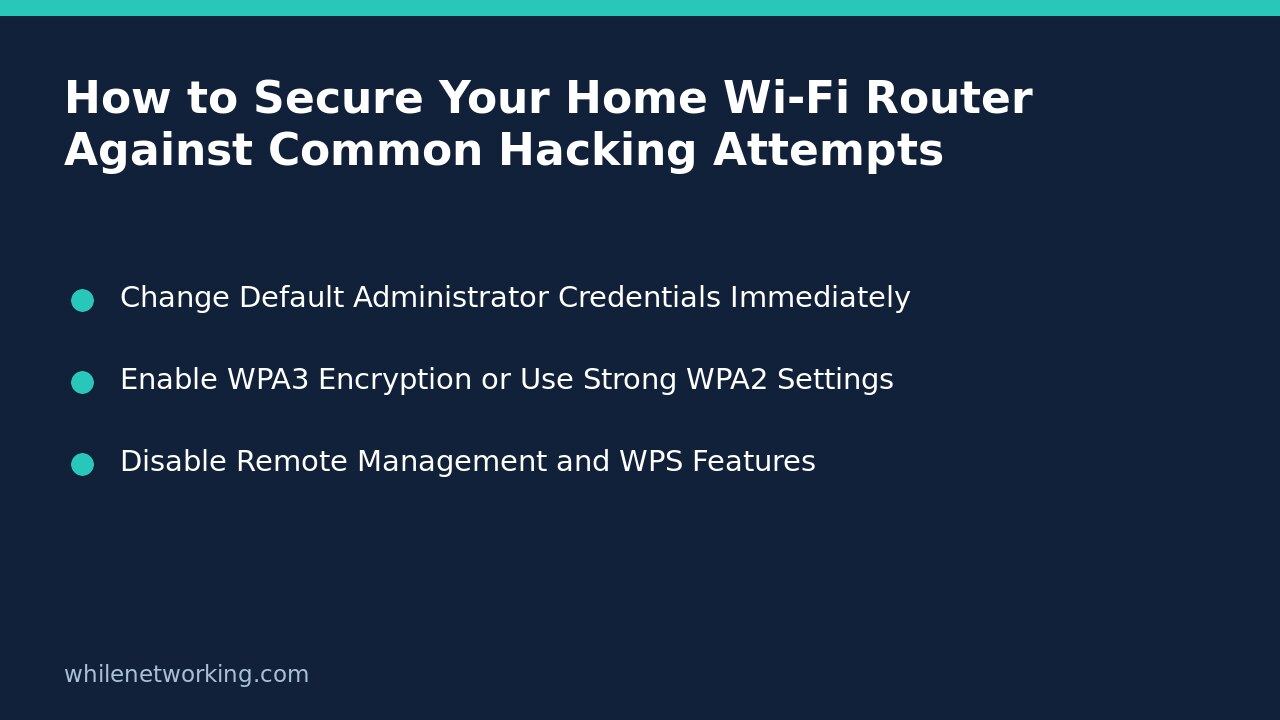
Change Default Administrator Credentials Immediately
The most critical step in securing your router is changing the default administrator username and password. Many manufacturers ship routers with generic credentials such as “admin/admin” or “admin/password.” These are publicly documented on the internet, making it trivial for attackers to gain full control over your device’s settings. When an intruder accesses your admin panel, they can reset your Wi-Fi name, redirect traffic to malicious sites, or install malware that controls every connected device.
To secure this access, log into your router’s web interface (usually via a browser at 192.168.0.1 or 192.168.1.1) and navigate to the administration settings. Create a strong password that combines uppercase and lowercase letters, numbers, and symbols. Avoid using common phrases like “password123” or variations of your own name. It is also best practice to create a unique username rather than using the default one. If your router model does not allow you to change the username, at minimum, ensure the password is sufficiently complex and long. Regularly updating these credentials is essential if the router supports remote management features, as attackers often target routers that are accessible from outside your local network.
Enable WPA3 Encryption or Use Strong WPA2 Settings
Wi-Fi encryption protocols protect data transmitted between your devices and the router. Older standards like WEP (Wired Equivalent Privacy) and WPA are obsolete and easily cracked. Even WPA2, while more secure, has had vulnerabilities found in recent years, such as the KRACK attack. The current gold standard is WPA3 (Wi-Fi Protected Access 3), which offers stronger encryption and protects against brute-force password attacks.
Check your router’s wireless security settings to ensure you have selected WPA3-SAE or WPA2/WPA3 mixed mode if WPA3 devices are not yet ubiquitous in your home. If your router only supports WPA2, configure it to use AES (Advanced Encryption Standard) cipher suites rather than TKIP. Avoid using “Open” networks, which transmit data in plain text, and never rely on WPA-PSK with weak passwords. Remember that while encryption prevents eavesdropping, a weak password can still allow an attacker to brute-force access within minutes if the dictionary is large enough. Therefore, pairing strong encryption with a complex pre-shared key (password) is mandatory.
Disable Remote Management and WPS Features
Many routers come with features designed for convenience that inadvertently open security holes. Wireless Protected Setup (WPS), intended to simplify connecting new devices by pushing a button or entering an 8-digit PIN, is widely considered insecure. The PIN method often allows attackers to guess the network password through brute-force attacks because the last digit of the PIN is sometimes predictable. Consequently, most cybersecurity experts recommend disabling WPS entirely in the router’s settings.
Similarly, remote management allows you to configure your router from anywhere in the world using a public IP address. While useful for IT professionals managing enterprise networks, this feature exposes your home network to global scanning bots looking for vulnerabilities. Unless you have a specific, verified need and understand how to secure the connection with a VPN or strong firewall rules, you should disable remote management. Additionally, look for settings labeled “UPnP” (Universal Plug and Play) and consider disabling them if you do not strictly require automatic port forwarding for gaming servers or file sharing, as UPnP can be exploited to bypass firewalls.
Segment Your Network with Guest Wi-Fi
A robust security strategy involves isolating guest devices from your primary network where sensitive data resides. Most modern routers include a “Guest Network” feature that creates a separate SSID (network name) with no access to your main LAN. This segmentation ensures that if a guest device, such as a smartphone borrowed by a visitor or an IoT device like a smart plug, is compromised, the attacker cannot pivot to reach your computer, phone, or NAS storage.
When setting up guest Wi-Fi, ensure it has its own password and does not share the same credentials as your main network. Configure the guest network with bandwidth limits if necessary, but prioritize access control. Be cautious about which devices connect to this network; ideally, only temporary guests should use it. For home networks that do not support multiple SSIDs on a single router, consider upgrading to a dual-band or tri-band router that offers better isolation capabilities. This architectural change is often the most effective way to contain potential breaches without sacrificing connectivity for family members.
Implement a Regular Firmware Update Schedule
Manufacturers frequently release firmware updates to patch security vulnerabilities discovered after a device’s launch. A router running outdated software may have known exploits that hackers can leverage to take control of the device. However, many users neglect to update their routers because the process is manual or they fear breaking their configuration. To mitigate this risk, you must establish a routine for checking and applying updates.
Access your router’s administration panel and look for a “Firmware Update” or “System Upgrade” section. Check the manufacturer’s official support website regularly for new releases, as the update menu on the device might not always show the latest version available. Before updating, it is wise to write down your current Wi-Fi name and password settings, just in case an update resets them. After applying an update, reboot the router and verify that all devices reconnect automatically. If a specific firmware version causes instability, contact the manufacturer’s support team rather than reverting to an older, potentially vulnerable version immediately.
Real-World Checklist for Router Hardening
To consolidate these concepts into a practical workflow, use this checklist when setting up or auditing your home network:
1. Factory Reset: Perform a factory reset on a new router to wipe any pre-configured default settings before first use.
2. Login Credentials: Change the admin username and password to unique, complex strings not found online.
3. Encryption Protocol: Set wireless security to WPA3 or WPA2-AES; disable WEP and Open modes.
4. Feature Audit: Disable WPS, UPnP, and remote management unless absolutely necessary and secured.
5. Network Segmentation: Enable the Guest Network and assign it only to visitors, never for personal devices.
6. Firmware Maintenance: Check for updates weekly or monthly and apply them immediately upon release.
7. Device Monitoring: Periodically review connected device lists in the admin panel to identify unknown hardware.
By following these steps, you create a layered defense that addresses the most common hacking attempts targeting home routers. Security is not static; as new threats emerge, maintaining vigilance and updating your defenses ensures long-term protection for your digital household.