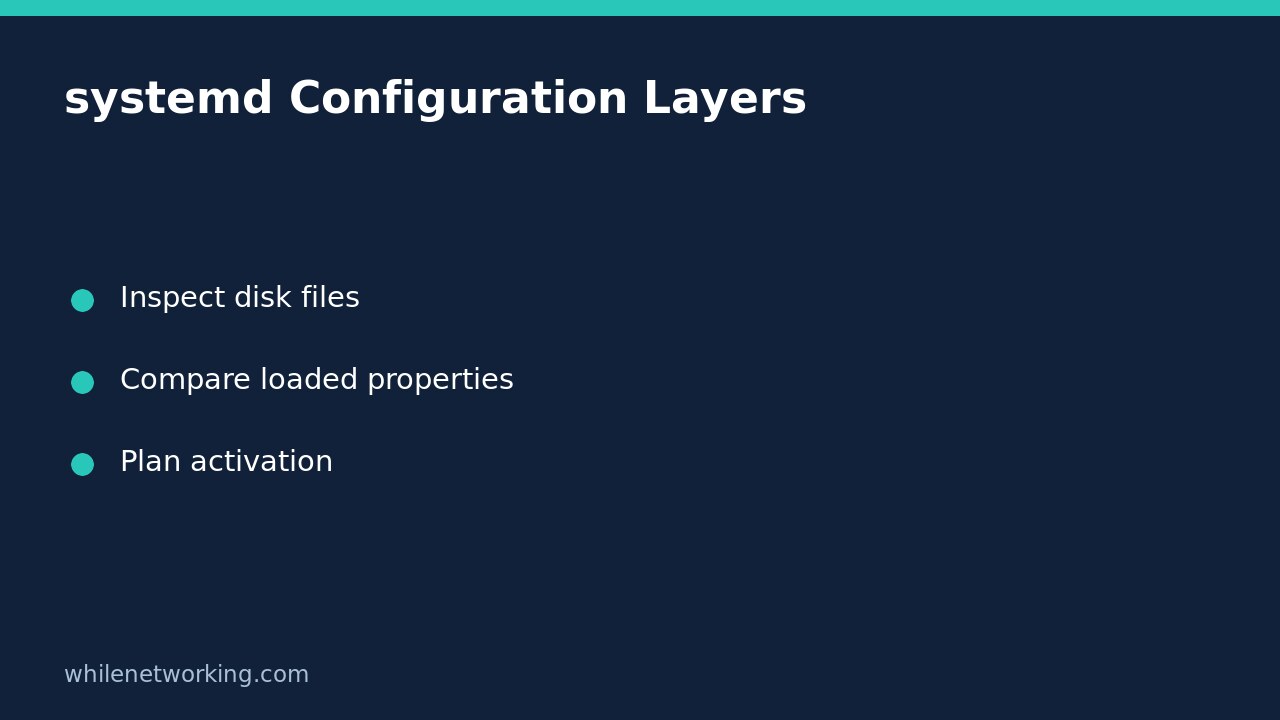

If you edited a systemd service file but the service still behaves as before, separate three things: the files currently on disk, the unit configuration loaded by systemd, and the process already running. These layers can disagree without the edit being lost. Start with read-only inspection rather than repeatedly restarting a production service.
This workflow applies to Linux systems using systemd as their service manager. Replace example.service with the exact unit you administer. Commands below target the system manager; for a per-user service, consistently use systemctl --user instead.
1. Identify the service and its backing files
systemctl status example.service --no-pager
systemctl cat example.service
The status output helps establish whether the unit exists and whether it is running, failed or inactive. The cat command prints the main unit fragment and its drop-in files, with filenames identifying their origins. Look for your changed directive in the correct file, rather than assuming an identically named file elsewhere is active.
The official manual explicitly warns that cat shows backing files on disk. Its output can differ from the manager’s understanding when files changed without a subsequent daemon reload. Seeing your new line here therefore proves only that the disk content is visible, not that a running process has adopted it.
Check for drop-ins that set the same property. Do not assume the last line you edited wins: directive-specific merge and reset rules matter, particularly for list-valued settings. Consult the manual for that directive before deleting another administrator’s override.
2. Compare the manager’s loaded properties
systemctl show example.service --property=FragmentPath --property=DropInPaths --property=ExecStart --property=User --property=MainPID --property=NeedDaemonReloadThese selected properties provide a focused comparison: source locations, the normalized start command, the configured account, the current main process ID and whether a reload is needed. Some empty properties may be omitted; add --all if you need empty values displayed. Availability and presentation can vary with the installed systemd version.
Do not compare formatting alone. The manual describes show output as normalized, lower-level properties plus runtime state. For example, ExecStart may contain structured details instead of reproducing your configuration line verbatim. Compare the executable and intended arguments, and avoid pasting configuration output containing credentials into public tickets.
3. Choose the right operation for the changed layer
- Unit file or drop-in changed: a daemon reload makes the manager reread unit configuration. It does not itself restart the service process.
- Application configuration changed: a service reload asks a supporting application to reload its own configuration. It does not substitute for reloading systemd unit files.
- Process launch settings changed: a controlled restart is commonly required for a new process to receive changed startup arguments, environment or identity.
For an approved maintenance window, the unit-configuration operation is sudo systemctl daemon-reload. This affects the manager’s configuration view, so coordinate other pending unit edits first. A subsequent sudo systemctl restart example.service is a separate, potentially disruptive decision. Do not execute it merely to see whether an edit was noticed. Restart also starts a currently inactive unit.
4. Work through a concrete mismatch
Suppose an approved edit changes an application’s startup argument from one configuration path to another. First inspect cat and locate the new path. Next inspect show: if ExecStart still references the old path and NeedDaemonReload indicates a pending reload, preserve that evidence. Validate the unit syntax and application configuration using the tools appropriate to your installed versions before activating anything.
After an authorized daemon reload, repeat show. If the loaded start command now contains the intended path but the application still uses its previous configuration, remember that the old process may still be running. Plan its activation separately. An unchanged MainPID alone is not proof that every setting failed; it is a useful clue about process continuity.
Verification checklist and common questions
Does daemon-reload restart every service? No. It reloads manager configuration; it is not a blanket application restart. Can reload replace restart? Only where the application supports reloading and that operation applies the particular change.
Record the original files before an authorized edit. If rollback becomes necessary, restore only your approved changes, reload the manager when unit files changed, and separately assess whether process activation is required. Confirm application health, not just an active unit state. For scheduled jobs, continue with checking whether a systemd timer actually ran its service successfully.
Source: official systemctl documentation, especially cat, show, reload, daemon-reload and restart.
This tutorial is for educational purposes. Test carefully in a lab before production use. The site owner is not responsible for misuse, damage, data loss or production issues.