
Linux powers the majority of the world’s servers, from cloud infrastructure to high-performance computing clusters. For system administrators, mastering the command line is not just a preference; it is a requirement for efficiency, security, and troubleshooting. While graphical user interfaces (GUIs) are convenient for desktop environments, they often lack the depth needed for server management. The terminal provides direct access to the kernel and filesystem operations, allowing admins to perform tasks with precision that scripts cannot match. This guide focuses on the most critical commands that form the backbone of daily Linux administration. Whether you are managing a fresh Ubuntu installation or maintaining a legacy RHEL system, these tools will streamline your workflow.
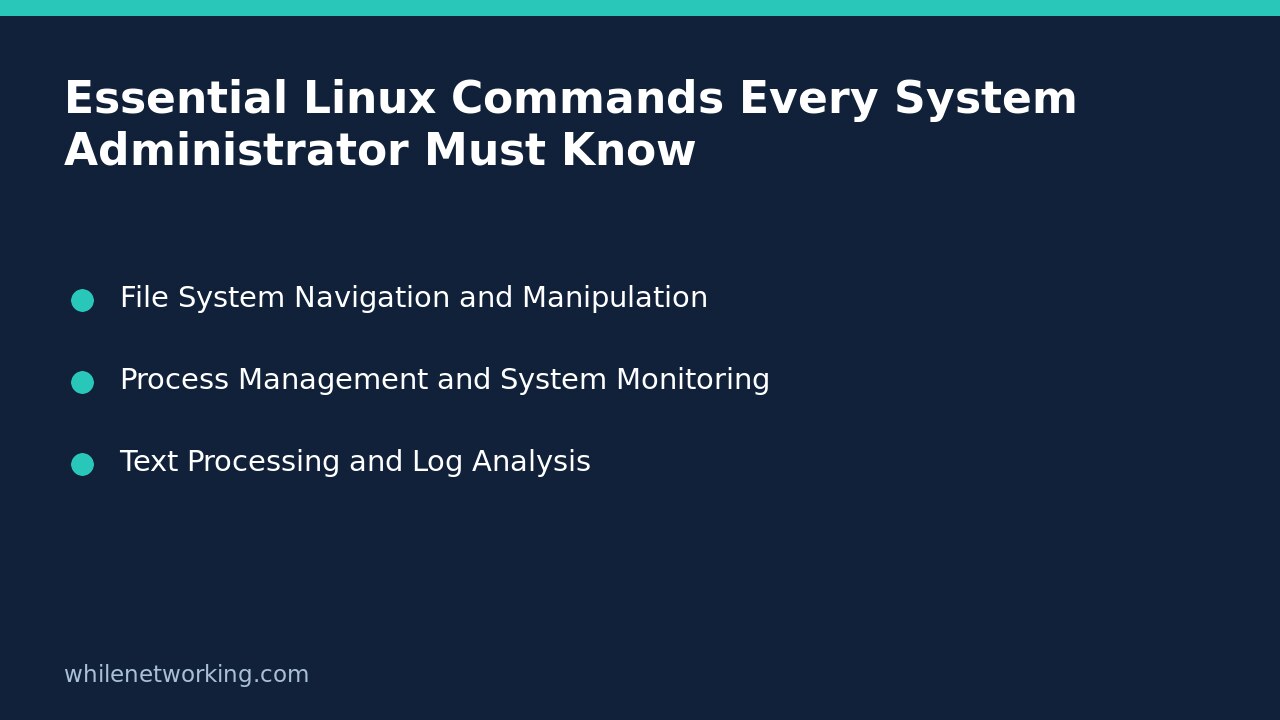
File System Navigation and Manipulation
Before you can manage a server, you must understand where data lives. The cd (change directory) command is fundamental for moving through the filesystem hierarchy. However, advanced users often rely on ls -la. This variant lists all files, including hidden ones (those starting with a dot), and displays permissions, ownership, and size in long format. Understanding this output is crucial for identifying security risks, such as world-writable files that should never exist in sensitive directories like /etc or /root.
For file manipulation, cp, mv, and rm are the standard tools. A common mistake beginners make is using rm without caution. Always verify the path before deletion. The mkdir -p command is essential for creating nested directory structures in a single step, saving time when organizing complex log folders or project repositories. When dealing with large datasets, find becomes indispensable. For instance, searching for all files modified in the last 24 hours can be achieved with find /var/log -type f -mtime -1. This specific query helps administrators quickly locate rotated logs or detect unauthorized file changes without manually browsing through gigabytes of data.
Process Management and System Monitoring
A system administrator spends a significant amount of time monitoring running processes to ensure stability. The ps command offers a snapshot of current processes, but combining it with grep allows for targeted filtering. For example, ps aux | grep nginx instantly isolates the web server process tree. To view real-time changes, top and htop are standard. While top is built into most distributions, htop provides a more user-friendly interface with color-coded processes and mouse support. If htop is not installed, it can be added via package managers like apt or yum.
When a process consumes excessive resources or hangs, immediate action is required. The kill command sends signals to terminate processes. However, simply typing kill PID only sends the default SIGTERM signal, which allows the process to shut down gracefully. If a process ignores this signal, you must use kill -9 PID, which sends SIGKILL to force termination. This should be a last resort, as it does not allow the application to clean up resources or save state. Always check the process status first using pgrep or pidof before attempting to kill anything.
Text Processing and Log Analysis
Servers generate massive amounts of log data. Relying on GUI tools for this is inefficient; the command line offers superior speed and flexibility. The cat, less, and more commands are used to view file contents, but less is preferred because it allows navigation backward and forward without loading the entire file into memory. For parsing logs, grep is the primary tool. Regular expressions within grep (e.g., grep -E "error|critical" /var/log/syslog) allow admins to filter specific error patterns instantly.
When files are too large to fit in the terminal window, tail -f is invaluable for following log entries in real-time, mimicking a live feed from an application server. To combine multiple logs or redirect output, tee and >> (append) operators are essential. For complex text processing, sed and awk are powerful stream editors. A simple sed command can replace all instances of a deprecated library name across configuration files in a directory, ensuring consistency without opening each file individually. These skills are particularly useful during incident response when time is critical and data volumes are high.
Network Diagnostics and Connectivity
Network issues are among the most frequent challenges for system admins. The ping command tests reachability to a remote host by sending ICMP echo requests. If packets drop, it indicates potential network congestion or firewall blocks. For deeper analysis, traceroute (or tracepath) maps the path packets take to reach a destination, revealing where latency or failures occur along the route. The ss command has largely replaced netstat on modern Linux distributions because it is faster and provides more detailed socket information. Using ss -tuln lists all listening TCP and UDP ports, helping administrators verify that only necessary services are exposed to the network.
To diagnose connectivity issues further, curl and wget allow you to test HTTP endpoints directly from the terminal. Checking headers with curl -I https://example.com reveals server configuration details like SSL certificates and caching policies. Additionally, mtr combines ping and traceroute functions, providing a continuous stream of latency data in a single view. These commands form the first line of defense when troubleshooting external connectivity problems or verifying DNS resolution issues.
Security and User Management
Security is paramount in Linux administration. The chmod, chown, and chgrp commands control file permissions and ownership. Understanding the symbolic notation (rwx) versus octal notation (755, 644) is vital. A common security misconfiguration involves setting executable scripts in /tmp to be world-writable; using chmod o-w /tmp/* ensures no one else can modify temporary files. The useradd, usermod, and userdel commands manage system accounts. It is best practice to disable root login via SSH and use sudo for administrative tasks, managed through the /etc/sudoers file edited with visudo.
Password policies are enforced using passwd, while chage allows administrators to set password expiration dates for user accounts to prevent stale credentials from remaining active indefinitely. Finally, auditing user activity can be done by reviewing authentication logs with lastlog or analyzing failed login attempts via grep -v "Accepted" /var/log/auth.log. Regularly updating the system with apt upgrade or yum update ensures that known vulnerabilities are patched promptly.
Real-World Scenario: The Daily Maintenance Checklist
To illustrate how these commands work together, consider a routine Friday evening maintenance task for a web server. First, log in via SSH and check disk space using df -h. If the root partition is over 85% full, locate large files with du -sh /* | sort -rh | head -n 10. Next, rotate logs to free up space: find /var/log -name "*.gz" -mtime +7 -delete. Verify that the web server is running and listening on port 80/443 using ss -tuln | grep -E ":80|:443". Check for any new critical errors in the application logs by running grep -i "error" /var/log/syslog | tail -n 50. Finally, ensure no unauthorized users have been added since the last check with lastlog -u username and verify that system updates are pending but not blocking services. This sequence of commands represents a robust, repeatable workflow that minimizes downtime and maintains security posture without needing to reboot the entire machine.
Conclusion
Mastering these essential Linux commands transforms a novice user into an efficient system administrator. From navigating complex filesystems and managing processes to analyzing logs and securing user accounts, the command line offers unparalleled control. While GUI tools have their place, they often obscure the underlying mechanics of the operating system. By integrating these commands into your daily routine, you can respond faster to incidents, automate repetitive tasks with scripts, and maintain a more secure and stable infrastructure. Remember that proficiency comes with practice; setting up a local virtual machine to experiment with these commands without risking production data is an excellent way to build confidence and competence.