
In the world of Linux and Unix-based operating systems, file permissions are the fundamental mechanism that controls who can access what data on your system. Unlike Windows, where permissions are often managed through graphical interfaces with broad categories like “Full Control” or “Read Only,” Linux uses a granular, numeric, and symbolic system based on the principle of least privilege. This design ensures security by preventing unauthorized users from modifying critical system files or reading sensitive personal data. Whether you are managing a personal server, developing an application, or troubleshooting why a script won’t run, mastering read (r), write (w), and execute (x) permissions is essential for system administration.
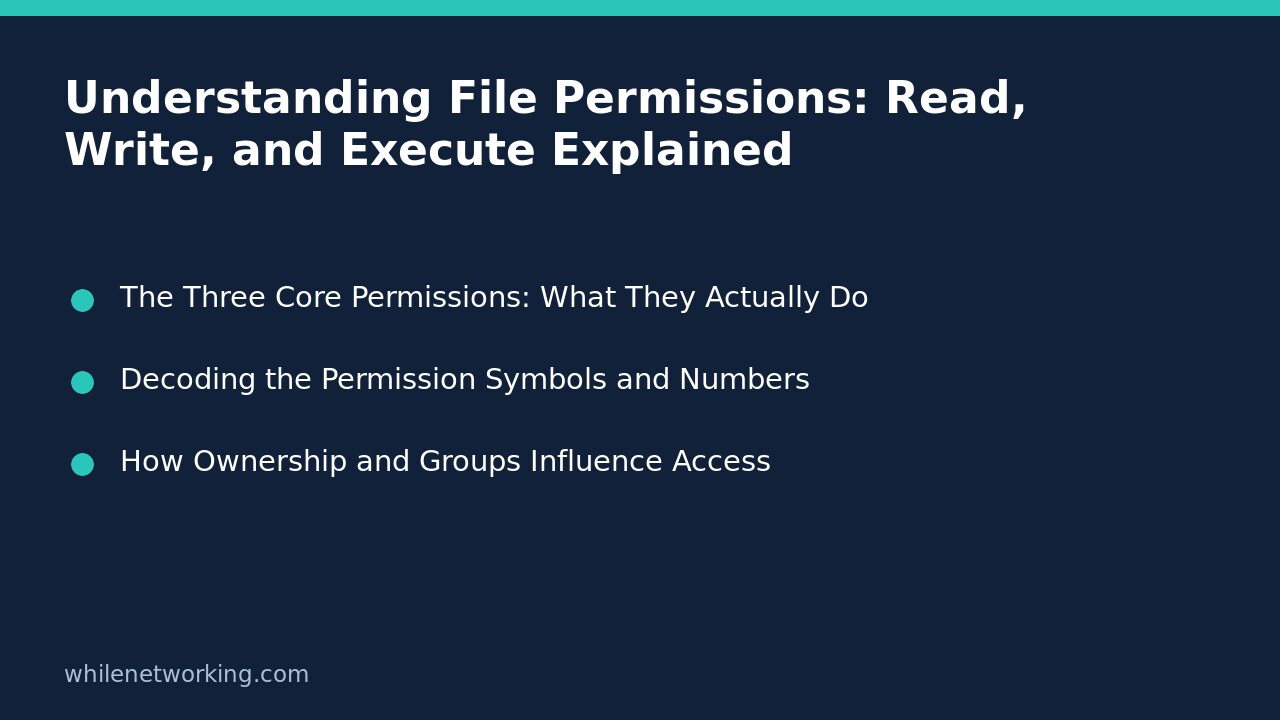
The Three Core Permissions: What They Actually Do
To understand file permissions, you must first distinguish between the three specific actions allowed on a file or directory. Each permission grants a specific capability to a user or group.
Read Permission (r)
The read permission allows a user to view the contents of a regular file or list the names of files within a directory. If a file has read permissions set, you can open it in a text editor or use cat to display its contents. However, having read access does not necessarily mean you can modify the file. For directories, read permission is specifically required to list the directory contents using the ls command. Without this bit set on a directory, even if you own the directory, you might be unable to see what files are inside it.
Write Permission (w)
The write permission allows a user to modify the data within a file. For regular files, this means appending text, changing values, or deleting parts of the file. Crucially, for directories, write permission does not mean you can read the contents; it grants the ability to create new files, delete existing files, and rename items within that directory. A common security pitfall occurs when a user has write access to a directory but lacks read access; they could potentially delete or overwrite files owned by others if they know the filenames, though this is restricted by execute permissions as well.
Execute Permission (x)
The execute permission allows a file to be run as a program. For regular files, this is required for scripts (like .sh files) and binaries to actually launch. Without the execute bit set, attempting to run a script will result in a “Permission denied” error. For directories, the execute permission does not allow you to run the directory itself, but rather grants the ability to enter or traverse it. You cannot cd into a directory if the execute bit is not set for your user, effectively locking them out of that folder regardless of read or write status.
Decoding the Permission Symbols and Numbers
Linux represents permissions using a combination of letters and numbers. When you run the ls -l command, you see output like -rw-r--r--. The first character indicates the file type (e.g., - for a regular file, d for a directory), followed by nine characters representing the permissions.
These nine characters are grouped into three sets of three: Owner, Group, and Others. Each set contains three symbols corresponding to Read (r), Write (w), and Execute (x).
* Owner: The user who created the file.
* Group: A collection of users that share access rights to this file.
* Others: Everyone else on the system who is not the owner or in the group.
You can also represent these permissions numerically using octal notation. Read is worth 4, Write is worth 2, and Execute is worth 1. To calculate the number for a specific permission set, add the values of the active permissions. For example, read and write (rw-) equals $4 + 2 = 6$. If only execute is present (--x), it equals $1$. A file with full permissions (rwx) is $4 + 2 + 1 = 7$. Thus, 755 translates to owner having full access (rwx), while group and others have read and execute access (r-x).
How Ownership and Groups Influence Access
Permissions do not exist in a vacuum; they are tied to specific identities. Every file in Linux has an owner and a owning group. The chown command changes the owner, while chgrp changes the group. When you set permissions using chmod, you are defining rules for these three categories: Owner, Group, and Others.
For instance, if you create a project directory and want only your team to access it, you would add your teammates to a specific group (e.g., developers) and then set the group permissions on that directory to rwx. This allows anyone in the developers group to read, write, and execute files within that folder, while “others” are restricted to nothing. This approach is more secure than giving broad access to “everyone,” as it limits the attack surface to a defined circle of trusted users.
Common Mistakes and Security Risks
One of the most frequent errors in Linux administration is setting world-writable permissions on sensitive files or directories. For example, setting a configuration file to 666 (read-write for everyone) allows any user on the system to modify that configuration, potentially injecting malicious code or altering security settings. Similarly, setting a critical script to 777 makes it executable by anyone but also writable by anyone, creating a significant vulnerability where an attacker could replace the legitimate script with a backdoor before running it.
Another common mistake involves confusing directory permissions with file permissions. A user might set a directory to 700 (owner only) intending to keep it private, but forgets that without the execute bit on subdirectories within it, they may not be able to navigate into them properly if those subdirectories have different ownership structures. Always ensure that directories meant for storage have the execute bit set for the appropriate groups so users can traverse the path to reach their files.
Practical Example: Securing a Web Server Script
Consider a scenario where you are deploying a PHP application on a Linux server. The web server user (often www-data) needs to read your scripts and write to an upload directory, but you want to prevent other system users from tampering with the code.
- Set Ownership: Change the owner of the main application folder to your personal user account, and the group to a dedicated group like
webapp.
bash

sudo chown -R $USER:webapp /var/www/myapp - Set Directory Permissions: Give the owner full access (
rwx) and the group read and execute access (rx). Others get no access (---). This allows your team to work inside the folder while preventing outsiders from listing or entering it.
bash

sudo chmod -R 750 /var/www/myapp - Configure Upload Directory: For a specific
uploadssubdirectory where users can upload images, you must allow the web server user to write files. You would set the group towww-dataand give them write permissions, but keep read-only for others to prevent them from viewing uploaded private data or executing malicious scripts.
bash

    sudo chgrp www-data /var/www/myapp/uploads

    sudo chmod 775 /var/www/myapp/uploads

    # Note: In strict security environments, you might use ACLs instead of standard group perms for finer control.
Checklist for Safe Permission Management
Before finalizing any permission changes, run through this quick checklist to ensure compliance with security best practices:
- [ ] Default to Restrictive: Always start with
700or600and only open up permissions when absolutely necessary. - [ ] Avoid 777: Never use
chmod 777unless it is a temporary measure for debugging, and even then, revert immediately. - [ ] Verify Execute Bits: Ensure directories have the execute bit set if you intend to navigate into them.
- [ ] Check Ownership: Confirm that sensitive files are owned by the correct user (e.g., root or a dedicated service account).
- [ ] Test Access: After making changes, try to read, write, and execute the file as different users to verify the permissions behave as expected.
Understanding file permissions is not just about memorizing numbers; it is about grasping the balance between usability and security in a multi-user environment. By carefully managing read, write, and execute rights, you protect your system from accidental data loss and malicious intrusion.