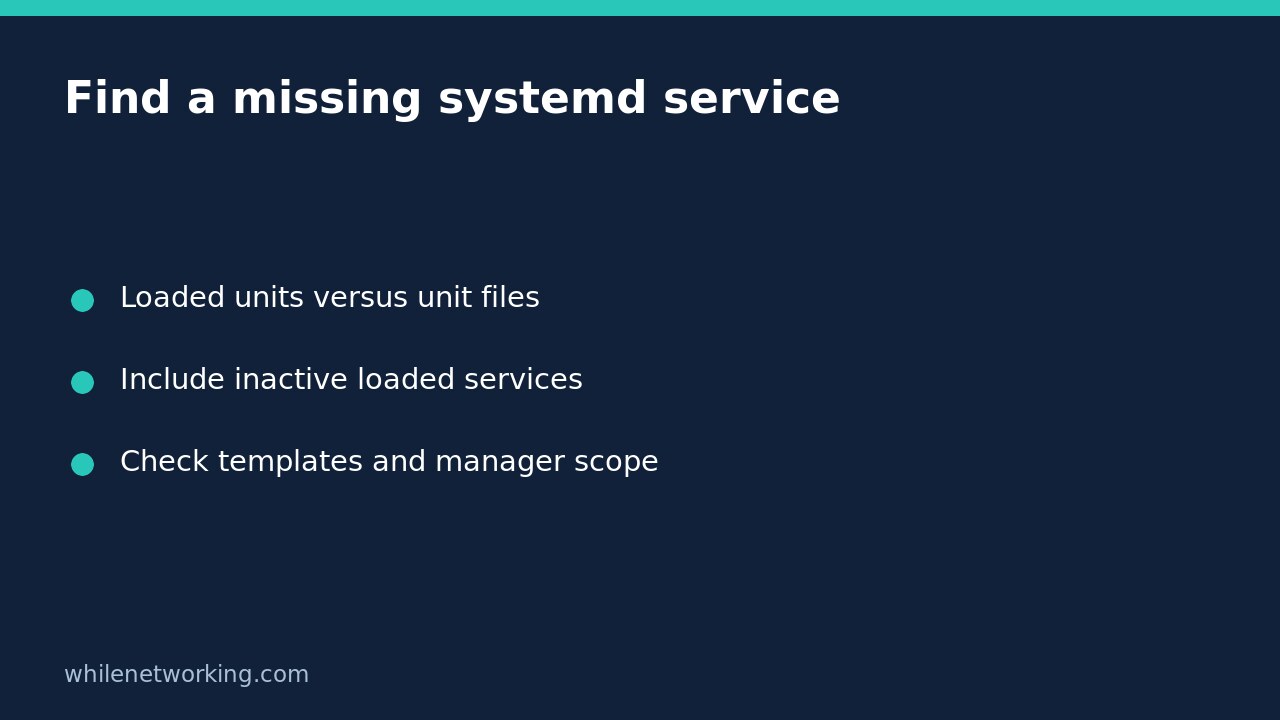

A service missing from a plain systemctl listing is not automatically uninstalled. The default listing describes units currently held in the manager’s memory and applies visibility filters. To investigate a missing service, compare list-units with list-unit-files before installing packages, editing files or enabling anything.
This workflow is for Linux systems using systemd. It inspects state without starting, stopping or enabling services. Replace the example name with the service you actually need; names can differ between distributions.
Start with two different inventories
systemctl list-units --type=service --no-pager
systemctl list-units --type=service --all --no-pager
systemctl list-unit-files --type=service --no-pager
The first command normally shows active units, units with pending jobs and failed units. The second includes inactive units that are loaded in memory. Crucially, --all does not turn that list into an inventory of every installed service file.
The third command lists installed unit files with their enablement states. It answers a different question: which unit definitions are available, rather than which units the manager currently retains. A service can appear here without appearing in the loaded-unit listing.
Narrow the search without changing the service
systemctl list-units --type=service --all --no-pager 'example*'
systemctl list-unit-files --type=service --no-pager 'example*'
Quote the pattern so the shell does not expand it against filenames in your current directory. These are unit-name patterns, not searches for arbitrary filesystem paths. The name example is a placeholder, not an expectation that such a service exists.
If the installed-file listing finds the expected service but the loaded listing does not, record that difference. It does not demonstrate a broken installation. If neither command finds it, check the documented service name and whether it belongs to a different manager before concluding that software is missing.
Recognise templates and their instances
A template such as example@.service is a definition used to create named instances, such as example@blue.service. Upstream documents that list-unit-files includes templates, while list-units lists instances rather than the uninstantiated template.
Consequently, searching only for the literal template in a loaded-unit inventory can mislead you. First find its installed definition, then look for an actual instance name supplied by the application’s documentation or deployment record. Do not create or start an instance merely to make the inventory look complete: the instance identifier may select a configuration, tenant or workload.
Keep system and user managers separate
systemctl --user list-units --type=service --all --no-pager
systemctl --user list-unit-files --type=service --no-pager
Run these as the relevant signed-in user when investigating that user’s services. A user’s manager and the system manager do not have identical inventories. Running a command as root does not automatically query another person’s user manager.
If the user command reports that it cannot connect to the bus, retain the error. That is a manager/session access problem, not proof that no user services exist. Avoid adding sudo indiscriminately or changing login settings just to silence the message.
Interpret columns without jumping to health conclusions
In loaded-unit output, LOAD concerns loading the definition, ACTIVE is the high-level activation state and SUB supplies unit-type-specific detail. In unit-file output, the state concerns enablement. Neither a file’s presence nor an enabled state proves the application is healthy or listening on the expected address.
If a service is already failed, follow the failed-service evidence capture workflow before restarting or clearing its state. If you recently edited its definition, distinguish the disk file from the configuration loaded by the manager; an inventory mismatch alone does not authorise a reload.
Quick checklist and common questions
- Record the exact unit name, machine and system-versus-user scope.
- Compare default loaded units with loaded units including inactive entries.
- Check installed unit files separately, including templates.
- Preserve command errors and check the application’s documented naming.
- Only plan a state-changing action after identifying the actual fault.
Does –all show every installed service? Not with list-units; it expands the view of loaded units. Does enabled mean running? No. Enablement and activation are separate dimensions, and activation itself is not an application-level health check.
Source: The upstream systemctl manual describes the inventories, template distinction and activation/enablement separation. Available states and options can vary with your installed systemd release.
Safety: This tutorial is for educational purposes. Test carefully before production use. The site owner is not responsible for misuse, damage, data loss or production issues.