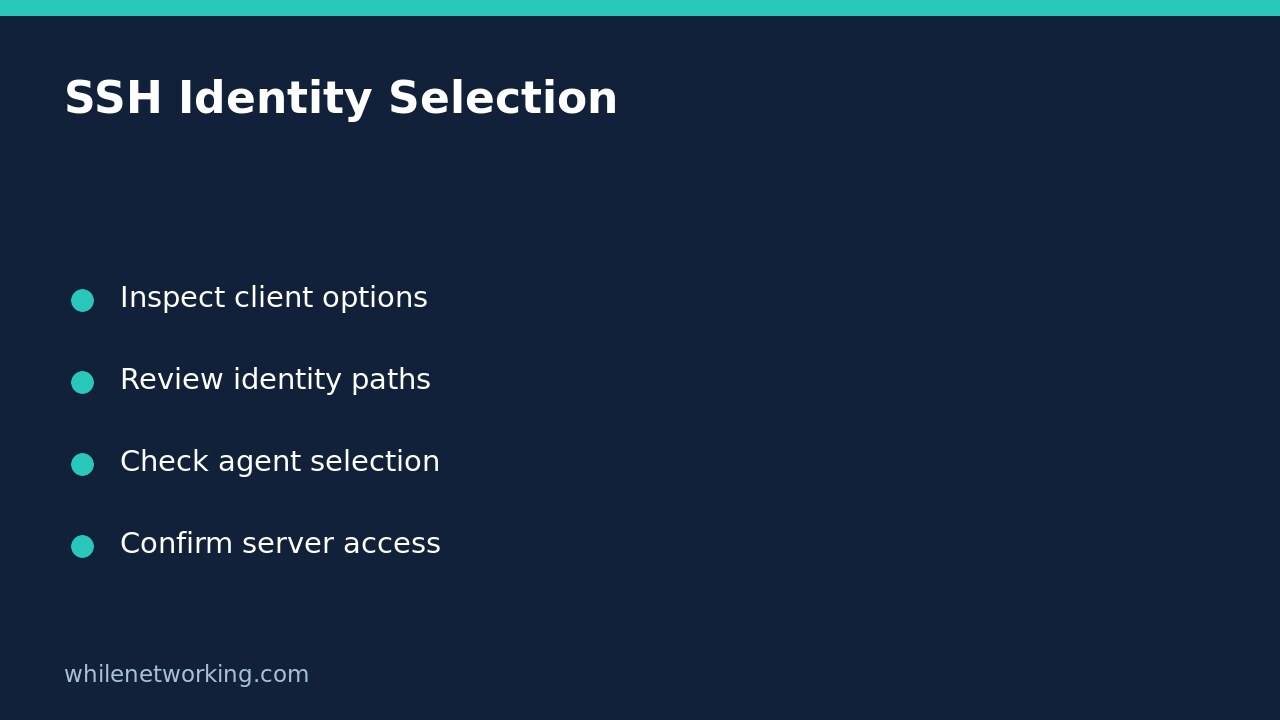

When an SSH connection reports too many authentication failures, inspect which identities the client is configured to consider before deleting keys or changing server authentication limits. OpenSSH’s ssh -G prints evaluated client configuration and exits instead of opening the normal remote session. Review identityfile and identitiesonly together: a named key does not necessarily exclude other agent identities.
Understand the question this inspection answers
This tutorial concerns OpenSSH clients in a Bash-compatible terminal. Other SSH applications can have different configuration systems. The goal is to understand intended identity selection for one destination, not to prove a private key exists, that an agent has it loaded, or that the server authorises its public key.
An authentication failure can have several causes. Multiple agent identities are one possibility, not a diagnosis established by the error message alone. Wrong usernames, incorrect key registration and server policy need separate evidence. Keep your existing working administrative session open while investigating production access, and do not increase server limits simply to hide an unexplained client configuration.
Inspect the exact alias and login context
For an alias already defined in your trusted SSH configuration, replace work-server below with that exact alias. Review the complete output rather than initially filtering away context.
ssh -G work-serverFind hostname, user, port, every identityfile entry and identitiesonly. If the real connection uses an explicit username, port or identity option, include those same options in the inspection. Checking a different alias or invocation can evaluate different Host or Match conditions and therefore answer the wrong question.
Only evaluate configurations you trust. Although -G does not establish the normal remote session, the configuration language supports Match exec, which can run a local shell command while evaluating a condition. Hostname canonicalisation and environment-dependent conditions are further reasons not to call every configuration dump an unconditional offline sandbox.
Interpret IdentityFile and IdentitiesOnly together
IdentityFile identifies authentication identity files. OpenSSH permits multiple entries, and unlike many settings these entries add to the list. Do not assume that an additional identity line replaces everything inherited earlier.
IdentitiesOnly yes restricts authentication to configured identity and certificate files, including defaults or explicitly supplied identities, even when an authentication agent or supported provider offers additional ones. With the default no, an agent can contribute identities beyond the listed file. This is why selecting a file and restricting extra identities are different operations.
Neither setting is an instruction to disable server host-key verification. The client identity authenticates you to the server; the server’s host key authenticates the server to you. Preserve host verification and established change-control procedures while troubleshooting.
Use a disposable configuration to understand precedence
The following Bash example creates only a temporary local configuration, evaluates it and removes the temporary directory on exit. It does not generate keys, modify your normal SSH configuration or attempt a remote login. Run it as one block in a test shell.
(
set -eu
work=$(mktemp -d)
trap 'rm -rf -- "$work"' EXIT
printf '%s\n' 'Host identity-demo' '    HostName example.invalid' '    User demo' '    IdentityFile ~/.ssh/id_ed25519_demo' '    IdentitiesOnly yes' 'Host *' '    IdentitiesOnly no' > "$work/config"
ssh -G -F "$work/config" identity-demo
)
Inspect the resulting hostname, user, identity path and identitiesonly yes. The specific block appears before the general default because OpenSSH normally uses the first obtained value for each setting. The -F option selects this alternate user configuration and ignores the normal system-wide file, making this a learning fixture rather than a dump of your ordinary environment.
Turn the findings into a controlled next step
If your intended connection lists unexpected identities, check your trusted Host blocks and included files. Make a backup before any later edit, limit changes to the intended destination and repeat the configuration inspection. Then, only with authorisation, test an actual connection and compare its evidence with the earlier configuration. An evaluated path alone is not proof that authentication succeeded.
Before registering a replacement public key, use the separate tutorial on checking an SSH public-key fingerprint. Do not paste private keys into a support ticket. Configuration dumps can also expose internal hostnames, usernames and paths, so redact unnecessary details before sharing.
Will IdentitiesOnly guarantee access? No. It narrows client identity selection; it does not create a key, authorise a user or override server policy.
Sources: the OpenSSH ssh manual for -G and -F, and client configuration manual for identity selection, precedence and Match evaluation.
This tutorial is for educational purposes. Test carefully before using steps in production. The site owner is not responsible for misuse, damage, data loss or production issues.