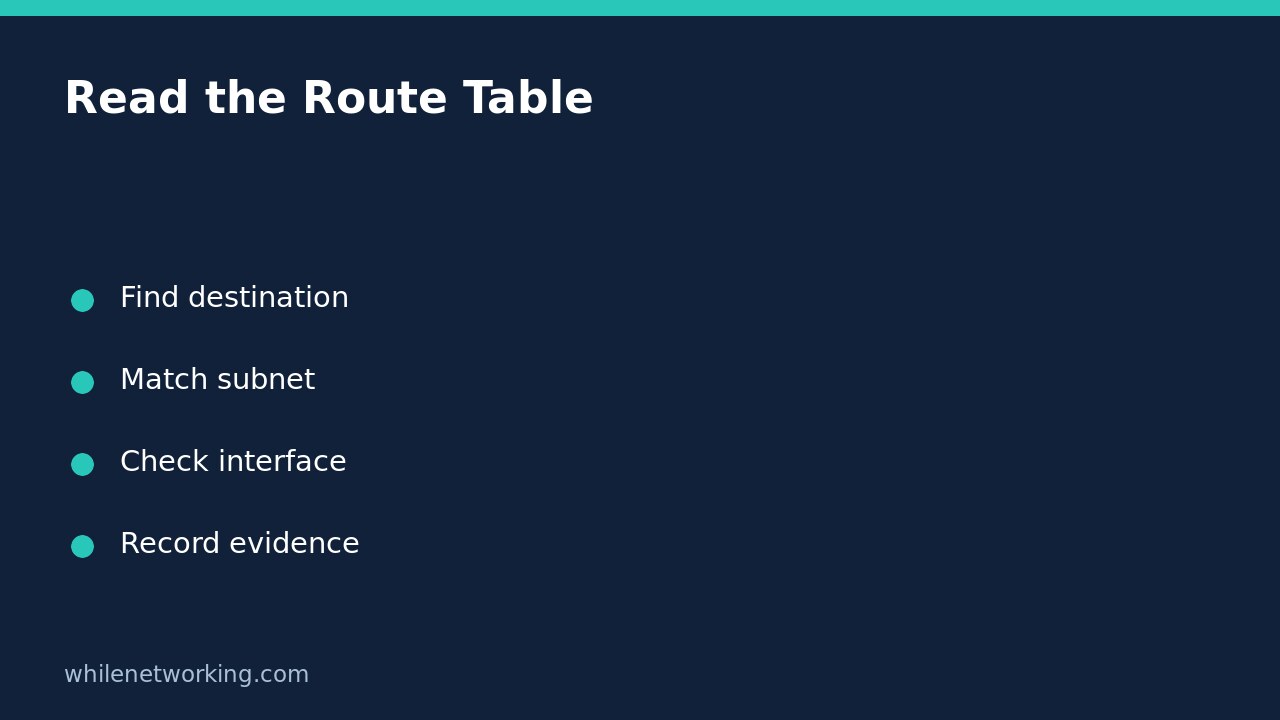

Before changing a Windows default gateway, inspect the routing table with route print. It shows the destinations Windows knows about, their next hops and the local interfaces involved. This is a read-only starting point when a PC has Ethernet, Wi-Fi and a VPN, or when only one internal resource is unreachable. A gateway edit made without that context can break a working path while leaving the original problem untouched.
Capture the table while the problem is present
Open Command Prompt on the affected Windows PC and run:
route printCopy the output into your support notes along with the time, VPN connection state and affected destination. Record the actual IP address used by the failing application if known; a hostname can resolve to different addresses. Treat the output as sensitive network information and remove internal addresses before posting it publicly.
The interface list identifies adapters and their indexes. The routing sections describe active paths; a persistent-routes section may also appear. Do not mistake a stored persistent entry for independent proof that traffic is successfully reaching its destination. Read the active table and preserve the full output before filtering anything.
Identify the default route without assuming it wins
In the IPv4 active table, look for a network destination of 0.0.0.0 with netmask 0.0.0.0. That is a default route: a general fallback when no more-specific destination matches. Note its gateway, interface address and metric. Multiple default routes can be legitimate on a multihomed computer; their mere presence does not establish a fault.
Now look for a route that more closely matches the failing destination. Route selection is not simply choosing the smallest number anywhere in the metric column. Microsoft describes metrics as the cost used among routes that most closely match the destination. A more-specific route can therefore matter even when a default route has an attractive metric.
Keep IPv4 and IPv6 evidence separate. The IPv4 default entry does not explain an application connection that actually uses IPv6. This article focuses on reading IPv4 entries, not proving every path a dual-stack application might use.
Work through a fictional destination
Suppose your support notes show a resource at 10.41.8.20, a route for network 10.41.0.0 with mask 255.255.0.0, and an ordinary internet default route. These addresses are a fictional illustration, not measured output from your PC. The specific network route covers the example destination, so investigate its next hop and interface before blaming the internet gateway.
Check whether the interface address belongs to the expected local or VPN adapter. If it points at an unexpected connection, save that observation for the network administrator. Do not replace it with an address copied from a tutorial: a next hop must make sense on the actual network. An on-link entry means no separate gateway is listed for that route, not that the destination is necessarily responding.
For a shorter follow-up view, Microsoft documents this filter:
route print 10.*This displays matching destination entries beginning with 10. It is a display filter, not a reachability test, and it can hide the default route. Always retain the unfiltered capture for context.
Choose the next check from the evidence
- Expected route absent: ask whether the approved VPN or network connection should provide it. Reconnect only through normal support procedures.
- Expected route present: test the intended application port and investigate the next hop or service rather than assuming routing is correct end to end.
- Only a hostname fails: confirm which address it resolves to before changing a gateway.
- Large metrics: do not lower them blindly. Microsoft notes that automatic interface metrics can produce large displayed values.
For the application-port branch, see interpreting Test-NetConnection when ping and TCP disagree. A failed ping alone does not justify rewriting routes.
Quick questions and handoff checklist
Does route print change settings? The print operation displays routes. Other route operations can change them, so avoid substituting add, change, delete or the clearing option while collecting evidence.
What should support receive? Send the destination address, failure time, connection state, relevant active entries and expected adapter. Ask which specific mismatch justifies a proposed change and how it would be reversed. This inspection itself needs no network-setting rollback.
Source: Microsoft route command reference, including print syntax, destination masks, interface indexes and metric behaviour.
Safety: This tutorial is for educational purposes. Test carefully before making changes in production, and follow your organisation’s access and change-control rules. The site owner is not responsible for misuse, damage, data loss or production issues.