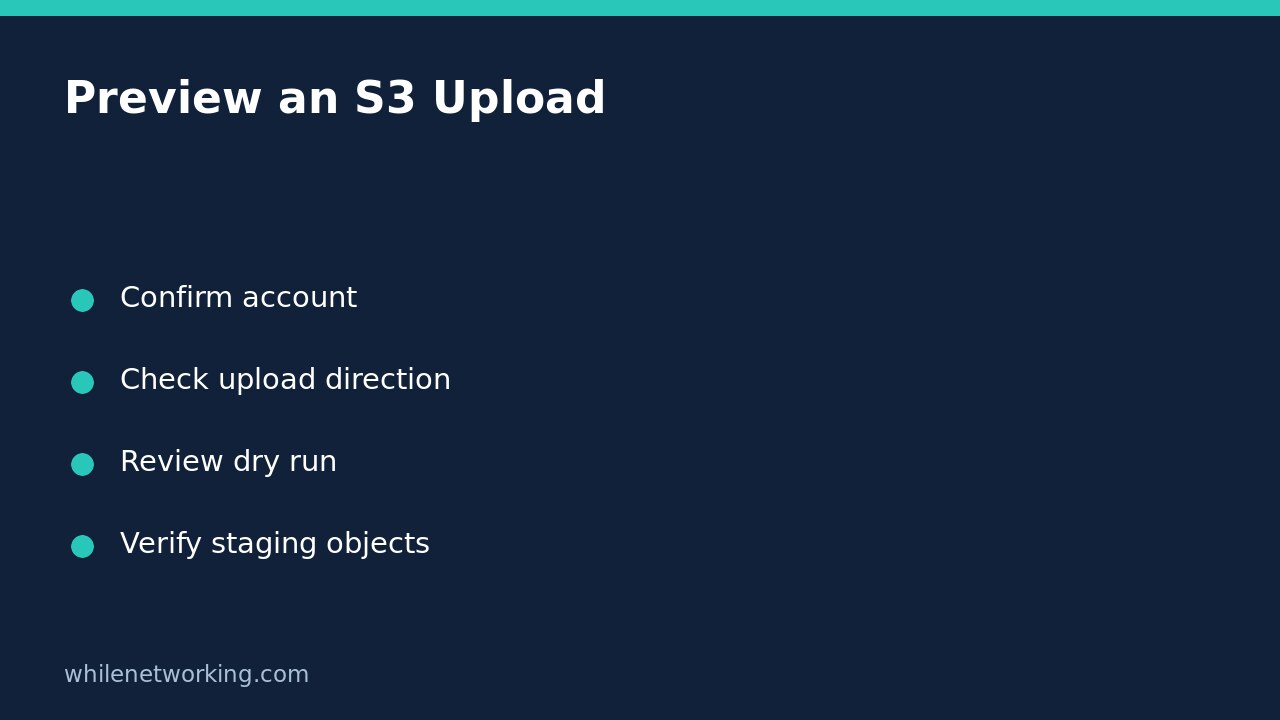

Use aws s3 sync with --dryrun to see the upload operations the CLI proposes without performing those transfers. Start with a small local directory and a dedicated staging prefix, check the source and destination carefully, and leave --delete out. A preview is a planning aid, not proof that a later upload will have permission to succeed.
This walkthrough is for an AWS account and bucket you are authorized to use. The commands use an example bucket name that you must replace. A dry run still contacts AWS and needs appropriate access to inspect the destination; it is not an offline simulation.
Confirm identity and upload direction first
Before preparing cloud commands, follow the AWS CLI account and role preflight. Choose a named profile with the minimum permissions required for your staging task. Do not attach broad administrator permissions merely to get past an error.
In an upload, the local directory comes first and the S3 URI comes second. Reversing those arguments changes the task into a download. A prefix is part of the destination object key, not a separate bucket or a permission boundary by itself. A narrowly scoped role or bucket policy should enforce access where isolation matters.
aws s3 sync ./upload-preview/ s3://YOUR-BUCKET/staging/upload-preview/ --profile lab --region ap-southeast-2 --no-follow-symlinks --dryrunEnter the example on one line. Replace the region with the bucket’s actual region rather than assuming the example is correct.
Prepare a deliberately small source directory
Create a dedicated practice folder using your file manager and put two harmless text files inside. Avoid a home directory, a repository root or a folder holding credentials. Inspect the files, including hidden files, before previewing anything. A narrow source directory is easier to reason about than a long list of exclusions.
The official AWS CLI sync reference explains that sync recursively copies new and updated files. It also documents that upload symlinks are followed by default. The example explicitly uses --no-follow-symlinks to reduce the chance of accidentally uploading a linked file from outside your intended source tree.
That flag is not a secret scanner. Sensitive material stored as an ordinary file inside the selected directory can still be uploaded. Review actual contents, not just filenames.
Read the preview as a list of proposed changes
For each proposed upload, compare the local source with the full destination key. Every destination should begin with your intended bucket and staging prefix. An unexpected parent folder, unrelated file or production path is a reason to stop and correct the command.
No listed uploads does not automatically prove an identical backup. The documented default upload comparison uses criteria including size and modification time; it is not a guarantee that every source byte has been compared with every destination byte. Likewise, a proposed upload does not mean its later write, encryption or policy checks will succeed.
If you need to exclude temporary files, add a simple filter and preview again:
aws s3 sync ./upload-preview/ s3://YOUR-BUCKET/staging/upload-preview/ --profile lab --region ap-southeast-2 --no-follow-symlinks --exclude '*.tmp' --dryrunQuote the pattern so your shell passes it to the CLI rather than expanding it locally. For multiple include and exclude rules, consult the linked command reference and test the resulting file list; do not assume a pattern behaves like your operating system’s file search.
Why delete should stay out of the first attempt
With --delete, destination entries absent from the source can be deleted during sync. A source directory that is unexpectedly empty or incomplete can therefore be dangerous. A staging upload usually does not require deletion at all.
A deletion preview can be useful in a separately approved maintenance procedure, but it is not authorization to delete anything. Confirm the inventory, recovery mechanism and scope first. Bucket versioning may help in some recovery scenarios, but do not assume it is enabled or that it replaces a tested recovery plan.
Apply only the reviewed staging command
When authorized, rerun the exact reviewed command with only --dryrun removed. Keep the same source, profile, region, filters and prefix. Actual transfers may incur storage, request and data-transfer charges. If local files or remote objects changed since preview, review again before applying.
Afterward, inspect the staging prefix in the console or use an authorized listing command. Compare expected keys and sizes, and download a harmless sample to a separate folder if you need a content check. Record any failures rather than claiming the whole upload succeeded because one object appeared.
Quick FAQ and handoff checklist
Does dry run lock the destination? No. It does not reserve the observed state for your later command. Other users and jobs can change objects between preview and upload.
- Correct account, role and region confirmed.
- Local source inspected for secrets and symlinks.
- Every preview destination uses the staging prefix.
- No unapproved deletion or access-control changes.
- Real transfer results and sample objects verified.
Safety: This tutorial is for educational purposes. Test carefully before production use. The site owner is not responsible for misuse, damage, data loss or production issues.