
Public Wi-Fi networks are ubiquitous in modern life, offering free internet access in coffee shops, airports, and libraries. While convenient, these open networks pose significant security risks to your personal data. Hackers can intercept unencrypted traffic, steal login credentials, and install malware with relative ease. Encryption acts as the primary defense mechanism against these threats, transforming readable data into an indecipherable format for anyone attempting to eavesdrop. Understanding how encryption works and ensuring it is active on your devices is essential for maintaining privacy in public spaces.
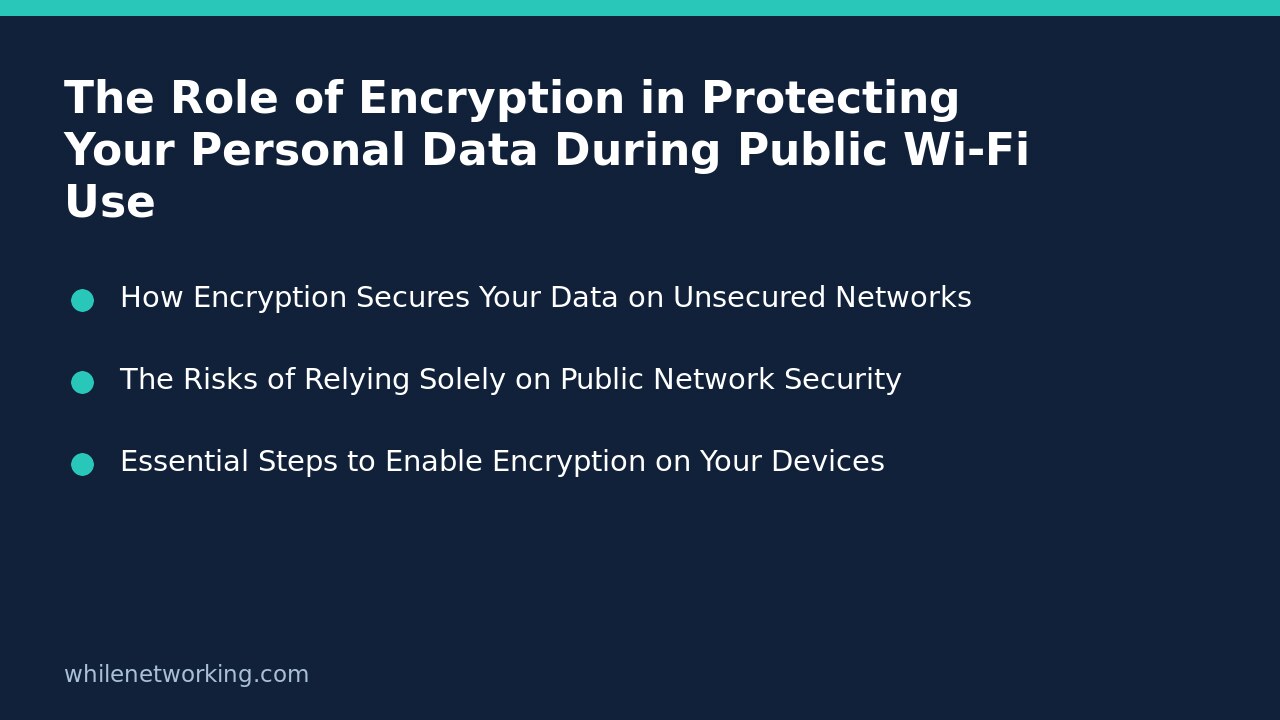
How Encryption Secures Your Data on Unsecured Networks
At its core, encryption is the process of encoding information so that only authorized parties with the correct decryption key can access it. When you connect to a public Wi-Fi network, your device communicates with the router and other servers. Without encryption, this data travels across the network in plain text, meaning anyone within range using packet-sniffing tools can read your emails, passwords, and browsing history instantly.
With encryption enabled, specifically through protocols like TLS (Transport Layer Security) or SSL (Secure Sockets Layer), your data is scrambled before it leaves your device. Even if a malicious actor captures the data packets traveling over the public Wi-Fi network, they will encounter only gibberish. To read this information, they would need to possess the specific cryptographic keys used by the website or service you are accessing.
It is important to distinguish between network-level encryption and application-level encryption. Many public Wi-Fi networks offer WPA2 or WPA3 security for the connection itself. However, once connected, the router often acts as a “man-in-the-middle,” allowing it to inspect traffic. If you visit a website that does not use HTTPS (indicated by a padlock icon in your browser), your data remains vulnerable even if the Wi-Fi network is encrypted. Therefore, relying solely on the Wi-Fi password is insufficient; end-to-end encryption via secure websites is the critical layer of protection.
The Risks of Relying Solely on Public Network Security
A common misconception is that connecting to a secured public Wi-Fi network makes you safe. In reality, many public networks are poorly configured or intentionally left vulnerable. Attackers can perform “evil twin” attacks, where they set up a rogue access point with the same name (SSID) as a legitimate coffee shop network. When your device connects to the stronger signal of the fake router, all your data is sent directly to the attacker’s computer rather than the internet.
Furthermore, some public networks implement transparent proxy systems that decrypt user traffic for logging purposes before re-encrypting it. If you are not using end-to-end encryption on your specific applications (like banking apps or messaging services), your sensitive information could be exposed during this process. Relying on the network provider’s security without verifying the integrity of the connection leaves you exposed to man-in-the-middle attacks, data theft, and session hijacking.
Essential Steps to Enable Encryption on Your Devices
To maximize protection, you must ensure that encryption is active at both the application and system levels. The first step is to verify that your web browser supports modern encryption standards. Most contemporary browsers default to HTTPS-only mode or offer extensions like “HTTPS Everywhere” that automatically redirect connections to encrypted versions of websites. Always look for the padlock icon in the address bar; if it is missing, do not enter sensitive information.
For mobile devices, ensure that you have updated your operating system to the latest version. Updates often include patches for known vulnerabilities and improvements to built-in encryption protocols. Additionally, enable “Private DNS” features available on iOS and Android. By configuring your device to use a trusted DNS-over-HTTPS (DoH) provider, you prevent your ISP or local network administrator from seeing which websites you visit, adding another layer of obscurity to your browsing activity.
On desktop computers, check the settings within your operating system to ensure that hardware-based encryption features, such as TPM (Trusted Platform Module) support, are enabled. While this primarily protects data at rest on your hard drive, it complements network encryption by ensuring that even if a device is stolen, the data stored locally remains inaccessible without proper authentication and decryption keys.
Practical Checklist for Safe Public Wi-Fi Usage
To implement these security measures effectively, follow this practical checklist before connecting to any public Wi-Fi:
- Verify HTTPS: Before logging into any account or entering payment details, check that the URL begins with “https://” and displays a valid padlock icon in the browser address bar.
- Avoid Sensitive Transactions: Do not perform banking, shopping, or logins on public networks unless absolutely necessary. Use cellular data (4G/LTE/5G) for these activities instead, as mobile carriers typically provide stronger encryption standards than open Wi-Fi.
- Update Software Immediately: Ensure your phone and computer are running the latest security patches before connecting to a new network.
- Use a Trusted VPN: Consider using a reputable Virtual Private Network (VPN). A good VPN encrypts all traffic between your device and the VPN server, rendering local network inspection useless. Note that not all free VPNs offer true encryption; verify their privacy policy.
- Disable Auto-Connect: Turn off the feature in your Wi-Fi settings that automatically connects to known networks. This prevents your device from accidentally joining a rogue “evil twin” network with the same name as a legitimate hotspot.
- Clear Cache and Cookies: After using public Wi-Fi, clear your browser cache and cookies to remove any potential tracking data or session tokens that were captured during the session.
Real-World Example: The Coffee Shop Scenario
Imagine you are sitting in a popular coffee shop working on a laptop. You connect to the “FreeCoffee” Wi-Fi network to check your email and reply to a work message. Without encryption, a hacker monitoring the local network can see every keystroke you make. If you accidentally type a password into an unencrypted field, they capture it instantly.
However, if you have enabled HTTPS on your browser and are using a secure messaging app that supports end-to-end encryption (like Signal or WhatsApp), your data is scrambled before it leaves your laptop. Even if the hacker intercepts the packets, they see only encrypted blobs of data. They cannot read your emails or messages without the private keys held exclusively by you and the service provider. This scenario illustrates why encryption protocols are non-negotiable for digital safety in public spaces.
Conclusion: Encryption as a Fundamental Security Layer
Encryption is not just an optional feature; it is a fundamental requirement for protecting personal data during public Wi-Fi use. While no system is entirely immune to threats, proper implementation of encryption standards significantly raises the barrier for attackers. By understanding the limitations of public networks and actively enabling encryption on your devices and applications, you can browse the internet with greater confidence. Always prioritize secure connections, keep your software updated, and remember that convenience should never come at the expense of your digital privacy.