
Potentially Unwanted Applications (PUAs) are a persistent nuisance in the modern digital landscape. Unlike traditional malware that demands ransom or encrypts files, PUAs often slip past standard antivirus defenses by masquerading as legitimate software, browser extensions, or free utility tools. They may appear harmless initially but eventually degrade system performance, hijack search results, inject unwanted advertisements, or harvest sensitive browsing data. The challenge lies in their subtlety; they are frequently installed through deceptive practices known as “bundling,” where users inadvertently agree to extra software during the installation of a primary program. Identifying and removing these applications requires a proactive approach that combines behavioral analysis with specific technical removal steps.
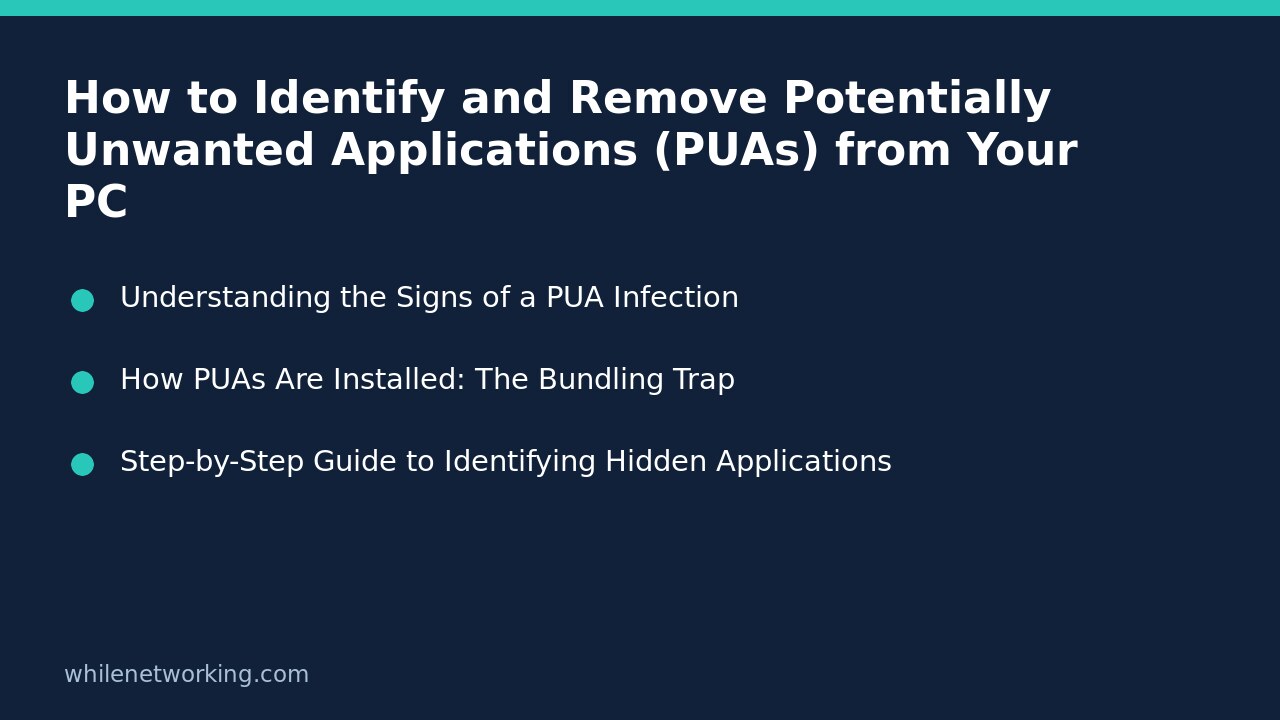
Understanding the Signs of a PUA Infection
Before attempting removal, it is crucial to recognize the tell-tale signs that an application on your computer has crossed the line from useful tool to unwanted intruder. PUAs often manifest through changes in browser behavior or system performance issues that seem unrelated to hardware failure. Common indicators include a sudden proliferation of pop-up ads even when no websites are open, search engine redirects to unfamiliar domains, and the appearance of unknown toolbars or extensions in your web browser.
Another significant red flag is the modification of default settings without user consent. For instance, if your home page changes automatically, or if your default search provider switches from a trusted option like Google or Bing to a lesser-known alternative, you likely have a PUA active. Additionally, some PUAs install background processes that consume excessive CPU or memory resources, causing the system to lag. If you notice unfamiliar icons in your Start menu (Windows) or Applications folder (macOS), or if certain apps refuse to uninstall through standard methods, these are strong indicators of a potentially unwanted application.
How PUAs Are Installed: The Bundling Trap
To effectively identify and remove PUAs, one must understand how they enter the system. The primary vector is “bundling.” This occurs when users download a free application from a third-party website rather than an official app store or the developer’s site. During the installation wizard, the installer presents a series of checkboxes. While the first box might say “Install [Primary Software],” subsequent boxes often include options for extra utilities, adware, or toolbars. Users frequently click “Next” without reading these terms, inadvertently agreeing to install PUAs alongside the desired software.
Another method is deceptive download sites that host fake buttons labeled as the actual software but link to installer files containing bundled payloads. Even reputable software can be compromised by malicious actors injecting code into the distribution channels of smaller developers. Furthermore, some PUAs exploit browser vulnerabilities or trick users into running an .exe file thinking it is a document like a PDF or Word file. Recognizing these installation vectors helps in preventing future infections and understanding why certain applications appear on your PC without your explicit permission.
Step-by-Step Guide to Identifying Hidden Applications
Identifying which specific programs are causing issues requires a systematic audit of your system. The process varies slightly between operating systems, but the core principle remains the same: inspect installed software and running processes.
On Windows:
1. Navigate to Settings > Apps > Installed apps.
2. Sort the list by date installed or name to spot recent entries you do not recognize.
3. Look for generic names like “Update,” “Helper,” “Optimizer,” or brands associated with free toolbars.
4. Right-click on suspicious entries and select Uninstall. If the option is grayed out, proceed to manual removal.
On macOS:
1. Open the Finder, go to Applications, and sort by date modified.
2. Check the Trash for items that were recently moved there but not emptied.
3. Look for apps with vague names or those you do not recall installing. Drag them to the Trash and empty it.
Using Task Manager and Activity Monitor:
Open the Task Manager (Ctrl+Shift+Esc on Windows) or Activity Monitor (Cmd+Space, type “Activity Monitor” on macOS). Look for processes with high resource usage that have names you cannot identify. Right-clicking a suspicious process usually allows you to end it and investigate its file location via Google Search to verify its legitimacy.
Manual Removal Techniques for Stubborn PUAs
Standard uninstallers often fail to remove PUAs completely because they leave behind registry keys, scheduled tasks, or browser extensions. A thorough manual cleanup is necessary to ensure total removal.
Cleaning Browser Extensions:
PUAs frequently embed themselves as browser extensions. Open your browser’s menu (Chrome, Firefox, Edge, or Safari) and navigate to the Extensions or Add-ons page. Review the list carefully. Remove any extension you do not remember installing or that does not serve a clear purpose. Do not rely solely on the “Remove” button; check if the extension has a toggle switch to disable it first, then remove it.
Clearing Browser Settings:
Many PUAs modify browser settings like the homepage or search engine. In your browser settings, reset these to their default values. This action often removes associated extensions and restores the original configuration. Additionally, clear your cache, cookies, and site data. Some PUAs store tracking scripts in the cache; clearing this data helps prevent immediate reinfection after removal.
Deleting Leftover Files:
After uninstalling an app, navigate to the C:\ProgramData folder on Windows or check the /Library/Application Support folder on macOS. Delete any folders that match the name of the removed application. Also, scan your startup programs in Task Manager > Startup or System Preferences > Users & Groups > Login Items to ensure no PUA components are set to launch automatically upon boot.
The Role of Specialized Removal Tools
While manual removal is effective for many cases, some PUAs employ sophisticated techniques to hide their files or resist deletion. In these instances, specialized uninstaller tools can be invaluable. Programs like Malwarebytes Free, HitmanPro, or AdwCleaner are designed specifically to detect and remove adware, PUPs (Potentially Unwanted Programs), and browser hijackers. These tools scan the system for known signatures of PUAs and behavioral patterns associated with them.
When using these tools, ensure you download them from their official websites to avoid installing another PUA. Run a full system scan after disconnecting your internet connection temporarily; this prevents the PUA from communicating with its command-and-control server during the scan. Follow the tool’s instructions to quarantine and delete detected threats. Always review the list of items found before approving deletion, as some legitimate software might be misidentified if it has been modified or renamed by a PUA.
Preventing Future PUAs: Best Practices for Security
The most effective way to manage PUAs is prevention. Adopting strict installation habits significantly reduces the risk of infection. Always download software from official vendor websites or trusted app stores like the Microsoft Store, Apple App Store, or Google Play. Avoid third-party download aggregators that host “cracked” or “premium-free” versions of software, as these are prime vectors for bundling.
During installation, always choose Custom or Advanced installation options rather than clicking “Next” on a default setup wizard. This allows you to review every checkbox and deselect any unwanted offers. Read the End User License Agreement (EULA) briefly; if it mentions third-party software installation, stop the process immediately. Finally, keep your operating system and browser updated to patch security vulnerabilities that PUAs might exploit. Regularly reviewing your installed applications and removing unused programs ensures a clean, secure computing environment.