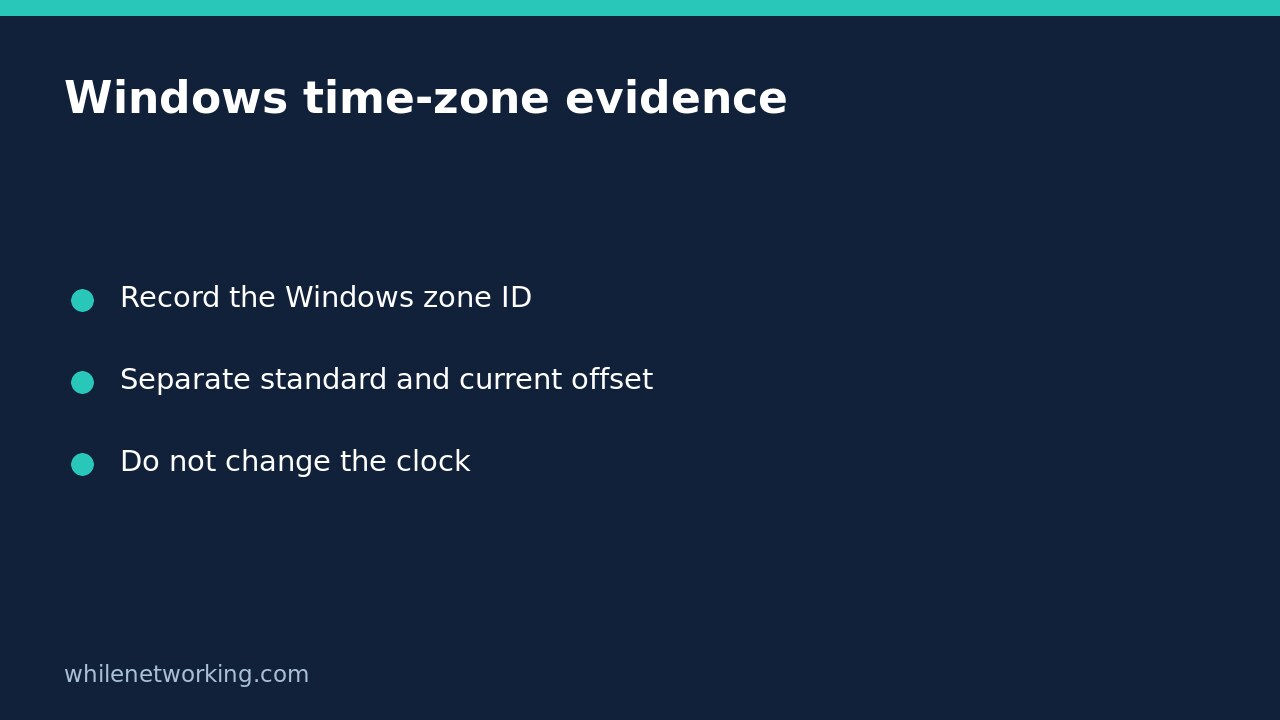

To document a Windows computer’s time zone, use Get-TimeZone in PowerShell. Record the zone ID separately from its UTC offset: a zone’s standard offset does not necessarily equal the offset currently in effect. Daylight-saving adjustment rules can make those values different without indicating a fault.
This is an inspection workflow, not a clock repair. It does not change the zone, force time synchronisation or prove that the computer’s clock is accurate.
Start with the configured Windows zone
Open Windows PowerShell or PowerShell on the Windows computer you are investigating. Microsoft documents Get-TimeZone as a Windows-only cmdlet. Running a similarly named command in a Linux environment is not a substitute for inspecting the Windows host.
$zone = Get-TimeZone
$zone | Select-Object Id, DisplayName, StandardName, DaylightName, BaseUtcOffset, SupportsDaylightSavingTime
The ID identifies the configured Windows zone. DisplayName is a human-readable label, while StandardName and DaylightName describe names associated with the zone. Save the ID in your support notes rather than relying only on a friendly label that another person might read differently.
SupportsDaylightSavingTime describes the zone’s support for daylight-saving rules. It is not, by itself, a statement that daylight saving is active at the moment you ran the command. Likewise, a display label containing an offset is not a reliable substitute for calculating the offset for a specific instant.
Compare the standard offset with the offset now
Microsoft’s .NET documentation makes a precise distinction: BaseUtcOffset is the difference between UTC and standard time, while GetUtcOffset applies the zone’s adjustment rules for a particular point in time. Capture one instant and use that same instant for the comparison.
$instant = [DateTimeOffset]::UtcNow
[pscustomobject]@{
    ZoneId = $zone.Id
    ObservedAtUtc = $instant.ToString('o')
    StandardOffset = $zone.BaseUtcOffset
    OffsetAtObservation = $zone.GetUtcOffset($instant)
}
The two offset values can match. They can also differ in a zone observing a seasonal adjustment. Do not correct the clock merely because the values differ. First establish whether the configured zone is the one intended for this device and whether the observation falls within its applicable adjustment rules.
The observation timestamp comes from the computer being inspected. Recording it makes your evidence clearer, but it does not independently verify the clock against a trusted time source. Keep clock accuracy and time-zone interpretation as separate troubleshooting questions.
Check available IDs without selecting a new zone
If a support request names a location ambiguously, inspect the zones available on that computer. The following command lists them; it does not apply a different zone.
Get-TimeZone -ListAvailable | Select-Object Id, DisplayNameAsk the device owner or administrator to confirm the intended zone ID before proposing a change. Two locations can share an offset today yet have different seasonal rules. Conversely, an application may deliberately display UTC or a user-profile zone rather than the Windows local zone.
For a log investigation, preserve an original timestamp and any offset written alongside it. Compare the application’s documented timestamp convention with your captured Windows zone. Do not silently reinterpret an offset-free historical log entry as UTC or local time just because one interpretation looks convenient.
Use a small evidence checklist before escalating
- Record which Windows device and shell you inspected.
- Keep the configured zone ID and observation timestamp together.
- Label BaseUtcOffset as standard offset, not necessarily today’s offset.
- Preserve the exact application timestamp that appears wrong.
- State that no clock or zone settings were changed.
Does this prove time synchronisation works? No. These commands inspect zone information and compute an offset using local rules; they do not test a time server or establish synchronisation health.
Why did my saved command output disappear in a new window? PowerShell command history is a separate issue. See why Get-History can be empty in a new PowerShell window. Preserve important support evidence explicitly rather than treating session history as a permanent record.
Sources: Microsoft Get-TimeZone documentation and the standard-versus-adjusted offset distinction.
This tutorial is for educational purposes. Test carefully before using commands in production. The site owner is not responsible for misuse, damage, data loss or production issues.