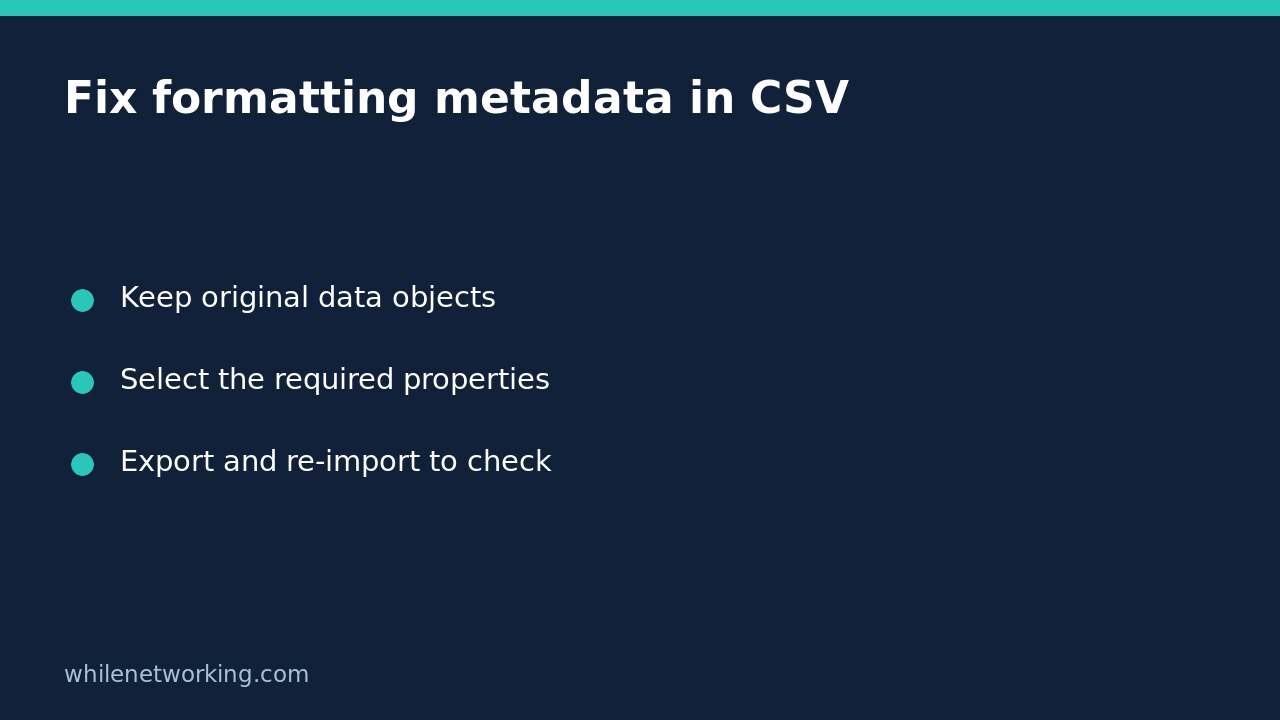

If a PowerShell CSV contains headings such as ClassId2e4f51ef21dd47e99d3c952918aff9cd instead of the fields you expected, check whether Format-Table appears before Export-Csv. Formatting commands produce display instructions, not a table-shaped version of your original business data. Remove that formatting stage and select properties with Select-Object instead.
This is a pipeline repair, not a spreadsheet display setting. Changing column widths in Excel cannot recover object properties that were never exported. Keep the original report and generate a separate corrected file while you investigate.
Why a good-looking table becomes a bad CSV
PowerShell pipelines pass objects. A service, process or custom record has named properties that an export command can turn into columns. Format-Table changes the purpose of the pipeline: its output describes how PowerShell should present a table on screen.
Microsoft’s Export-Csv documentation demonstrates this exact failure in its formatting example. The export succeeds technically, but serialises formatting objects rather than the original date properties. A successful command therefore does not prove that the report has the intended schema.
Try a small, isolated report first
The following example uses invented support records, not real account or device information. It creates a uniquely named temporary folder and uses -NoClobber so an existing output file is not silently overwritten. Run it in PowerShell, not Command Prompt.
$lab = Join-Path ([System.IO.Path]::GetTempPath()) ('csv-format-' + [guid]::NewGuid().ToString('N'))
New-Item -ItemType Directory -Path $lab -ErrorAction Stop | Out-Null
$records = @(
    [pscustomobject]@{ Device = 'LAB-A'; OpenTickets = 2 }
    [pscustomobject]@{ Device = 'LAB-B'; OpenTickets = 0 }
)
$csv = Join-Path $lab 'tickets.csv'
$records | Select-Object Device, OpenTickets | Export-Csv -LiteralPath $csv -NoTypeInformation -NoClobber -ErrorAction Stop
$loaded = @(Import-Csv -LiteralPath $csv -ErrorAction Stop)
if ($loaded.Count -ne 2) { throw 'Unexpected record count' }
if (($loaded[0].PSObject.Properties.Name -join ',') -ne 'Device,OpenTickets') { throw 'Unexpected columns' }
if ($loaded[0].Device -ne 'LAB-A' -or $loaded[1].OpenTickets -ne '0') { throw 'Unexpected field values' }
$loaded | Format-Table Device, OpenTickets
Write-Output ('CSV location: ' + $csv)
Here the formatting command is on a separate display branch after import. It cannot contaminate the earlier export. The checks deliberately include a zero value, which must remain a real field value rather than being mistaken for a missing record. Imported CSV values are strings; this example does not claim that CSV preserves numeric property types.
Repair the real report at the object stage
- Find the command that originally collects the report records. Preserve those records in a variable before any formatting.
- Choose the required property names explicitly with
Select-Object. Check spelling against the actual objects; an incorrect property name can produce an empty column. - Export to a new destination you have permission to write. Do not use force or append options simply to silence an unrelated error.
- Import the new CSV and inspect its property names, record count and representative values before handing it to another system.
If the variable already contains formatted output, selecting the desired business properties from it will not restore the lost originals. Rerun the original collection safely, or recover the unformatted objects from a variable you retained. Treat Out-String similarly: text intended for a person is not a substitute for structured records.
Verify content separately from appearance
A correct-looking terminal table is only one view. Confirm that the imported headers match the receiving application’s expected names and order. Check records containing zero, punctuation or blank optional fields. If a spreadsheet still opens the repaired CSV strangely, investigate delimiter or encoding expectations separately; formatting metadata and spreadsheet import settings are different problems.
For result-count checks beyond this two-record example, see counting PowerShell pipeline results with the array subexpression operator. An empty result may also require special handling: do not assume an export from no records has a usable schema.
Quick questions and cleanup
Should I remove every Format-Table command? No. Keep it for human-readable display, but not upstream of a structured export.
Is the original bad CSV repairable by renaming its columns? Usually that does not restore the original values. Re-export from the source objects instead.
The example leaves its temporary folder for inspection. After checking the displayed location and keeping any report you need elsewhere, remove only that disposable folder. No production files or system settings need changing for this demonstration.
This tutorial is for educational use. Test carefully before applying steps in production. The site owner is not responsible for misuse, damage, data loss or production issues.