
If a PowerShell export contains a string where you expected another JSON object, check the depth used by ConvertTo-Json. Its default depth is two. JSON can be syntactically valid while no longer preserving the nested structure your application expects. Pretty formatting, a successful upload, or a file ending in .json does not establish that all required fields survived.
This tutorial uses a small in-memory object rather than exporting a live Windows inventory. The commands are a documentation-based exercise to run in your own PowerShell session; no particular output from your computer is assumed.
Understand what depth controls
Microsoft documents -Depth as the number of levels of contained objects included in the JSON representation, with accepted values from zero to 100. That is a structural limit, not a limit on the number of records or the length of the output file. A report with one record can still contain deeply nested objects.
Starting with PowerShell 7.1, the cmdlet warns when an input object exceeds the specified depth. Do not assume older Windows PowerShell sessions will give the same warning. Also, do not treat the absence of a warning as a complete schema check: you still need to inspect the values your downstream process uses.
Create a harmless nested example
Open PowerShell and build a fictional support record. Nothing in this example changes services, files, registry settings, or remote systems.
$record = [pscustomobject]@{
    Computer = 'LAB-PC'
    Check = [pscustomobject]@{
        Network = [pscustomobject]@{
            Dns = [pscustomobject]@{
                Server = '192.0.2.53'
                Reachable = $true
            }
        }
    }
}
$shallow = $record | ConvertTo-Json -Depth 1
$shallow
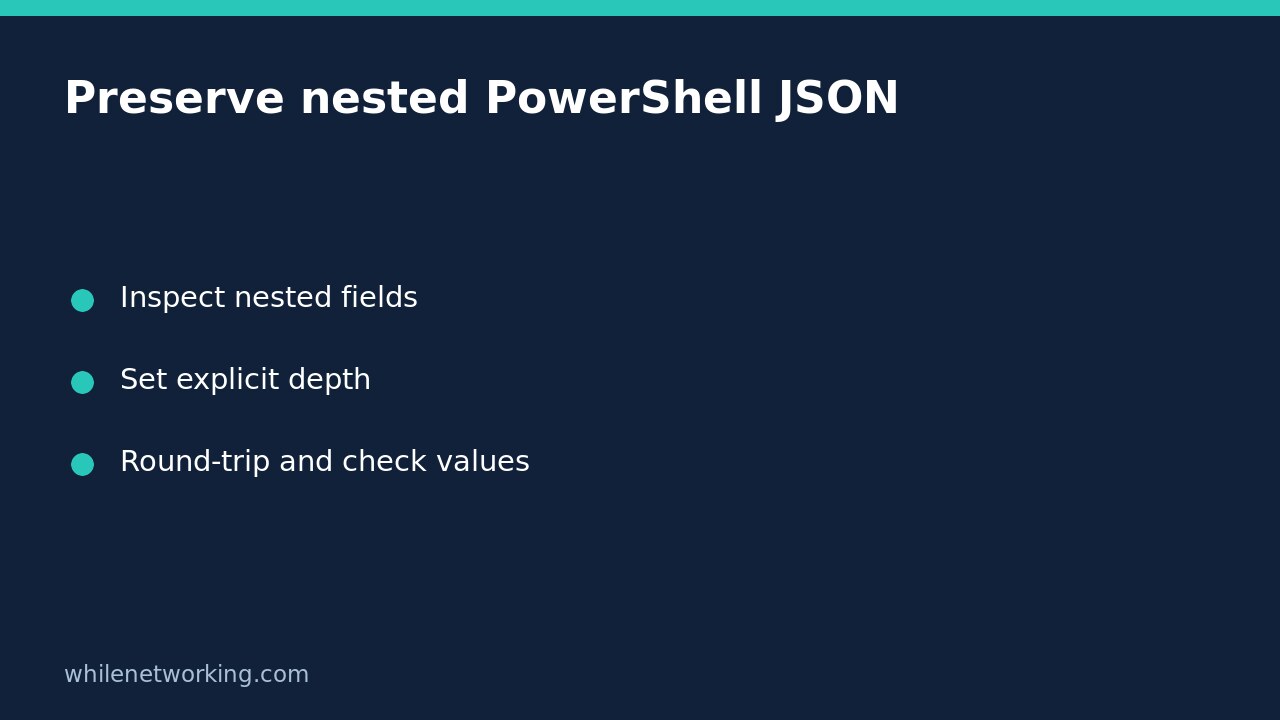
The deliberately shallow conversion is for comparison, not for production export. Inspect the nested Network value. The important question is whether it is still an object containing Dns and Server, rather than a textual representation of a deeper object. Do not copy the precise rendered string into a parser: display details may differ between versions.
Set enough depth and check the round trip
Convert the same original object again, this time with room for its known nesting. Do not convert the already shallow JSON string and expect lost structure to reappear.
$json = $record | ConvertTo-Json -Depth 6
$restored = $json | ConvertFrom-Json
if ($restored.Check.Network.Dns.Server -ne '192.0.2.53') {
    throw 'DNS server field did not survive serialization.'
}
if ($restored.Check.Network.Dns.Reachable -isnot [bool]) {
    throw 'Reachable was not restored as a Boolean.'
}
$json
These checks target one required value and one required type. A successful run does not prove every property in a larger report is correct. Add assertions for other required fields, optional values, arrays, and nulls before using an export in automation. Converting back produces deserialized data; it is not a promise to restore the original object’s methods or exact .NET runtime type.
Fix the export shape before increasing every limit
For a real inventory, select the fields the recipient actually needs and deliberately build nested objects for those fields. Sending an entire complex system object can create a large, confusing payload containing irrelevant details. Raising depth to the maximum without understanding that shape is not a substitute for a report design.
Keep troubleshooting separate from cosmetic options. Microsoft explains that -Compress removes whitespace and indentation. It does not increase serialization depth or repair missing fields. Retain readable output during review, then compress only if the receiving workflow benefits from smaller text.
Record the PowerShell version alongside your test results and avoid silently suppressing conversion warnings. For reports built from command pipelines, also check how many records you collected; our guide to counting PowerShell pipeline results with an array subexpression addresses that separate source of confusion.
Quick questions before sending the report
- Does valid JSON prove completeness? No. Check the expected nested paths and meaningful values.
- Can a larger depth recover an earlier shallow export? Not reliably. Serialize again from the original structured data.
- Should every report use depth 100? No. Choose an explicit sufficient depth for the intended data shape and verify it.
- Must this example create a file? No. Review the in-memory string first, then use your approved export process.
Source: Microsoft’s ConvertTo-Json reference, including depth, warning-version and compression behaviour.
Safety: This tutorial is for educational purposes. Test before using examples in production. The site owner is not responsible for misuse, damage, data loss, or production issues. Avoid putting credentials or sensitive inventory details in shared JSON reports.