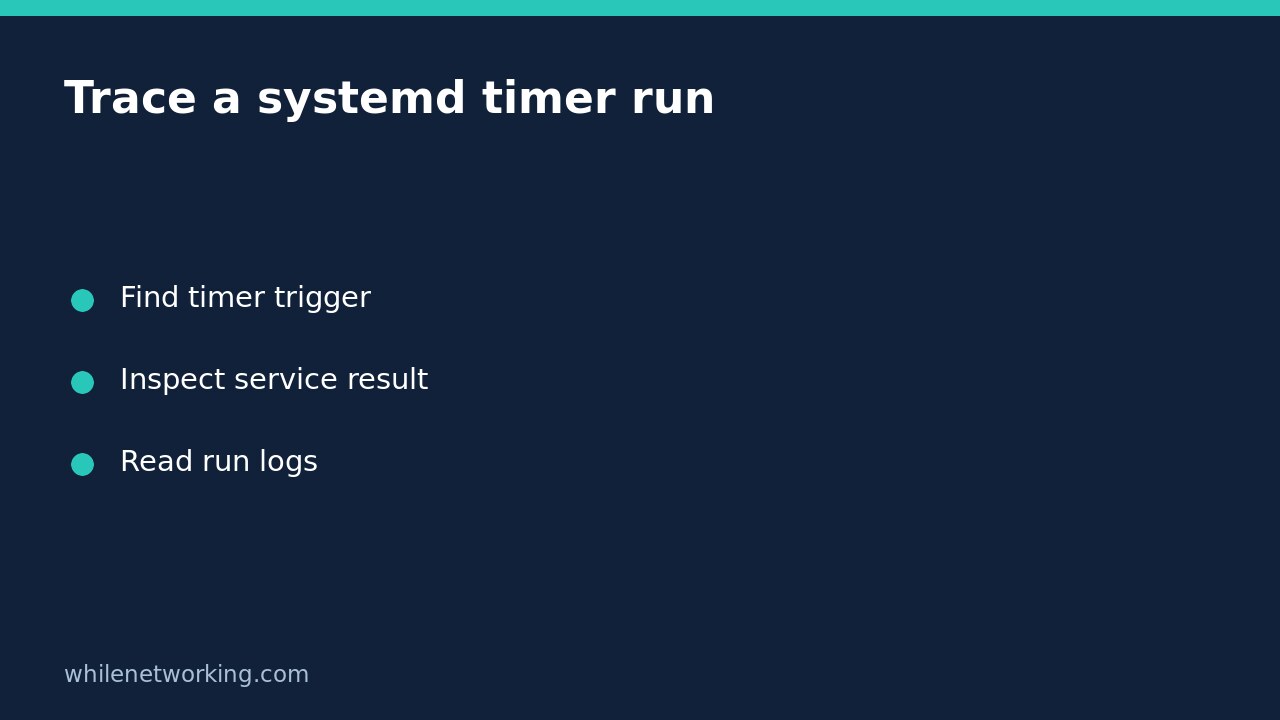

A systemd timer showing a recent LAST timestamp does not, by itself, prove that its service completed successfully. Diagnose the timer and the service separately: check when the timer triggered, identify the service it activates, inspect that service’s result, then read its logs and verify the intended output. Start with read-only commands rather than manually starting the job again.
Identify the timer and the service it activates
This workflow applies to Linux hosts using systemd. The sample names below are placeholders for an existing timer and service, not units you should create. For a system-level timer, begin with:
systemctl list-timers --all
systemctl status example-backup.timer --no-pager --full
Find your timer in the list. The official systemctl documentation defines NEXT as the next elapse time, LAST as the last time the timer ran, UNIT as the timer name and ACTIVATES as the service it activates. Record the actual ACTIVATES name instead of assuming it must match the timer filename.
The –all option helps include inactive timers in the listing. An absent row is a reason to investigate the unit’s configuration and scope, not evidence that its application task never existed. For a timer belonging to your own user session, use systemctl –user consistently instead. A user timer and a system timer are managed in different scopes.
Distinguish enabled, active and successful
These are different questions. Enabled concerns how a unit is wired for activation; active concerns its current runtime state. Neither label alone proves that a backup archive, report or synchronisation completed as intended.
systemctl is-enabled example-backup.timer
systemctl is-active example-backup.timer
systemctl status example-backup.service --no-pager --full
A timer can be active and waiting while its most recent service execution failed. Conversely, a short-lived service may correctly be inactive after finishing its work. Read the service status details, including any process exit information, rather than treating inactive as an automatic failure.
Microsoft-style scheduled-task intuition can be misleading here: the timer is the trigger mechanism, while the service performs the actual action. Document both names in a support ticket so another administrator does not investigate only the waiting timer.
Inspect the latest service result and relevant logs
Use show for selected machine-readable properties and status for a human-readable summary. The systemctl manual explicitly distinguishes these uses.
systemctl show example-backup.service --property=Result,ExecMainCode,ExecMainStatus
journalctl -u example-backup.service --since 'today' --no-pager
For a copyable single-line alternative to the first command, enter systemctl show example-backup.service --property=Result,ExecMainCode,ExecMainStatus. Read Result together with the exit information and journal messages. Some service types have additional processes or special success rules; an isolated numeric field is not a universal application-health verdict.
Use a time window matching the suspected run rather than collecting an entire server history. If logs require additional privileges, use your organisation’s approved access method. Do not change log permissions or service settings just to complete a diagnosis.
Current status is not a permanent execution history. The manual notes that status describes the current or most recent invocation still retained by the manager; earlier invocations may require journalctl. Logs may also be unavailable because of retention settings. Missing evidence should remain an explicit uncertainty.
Work through a concrete failure investigation
Suppose the timer lists a recent LAST time, but the expected backup file is absent. That is a hypothetical diagnostic scenario, not a test result. First confirm the ACTIVATES service name. Next inspect its status and journal around that timestamp. A permissions error points toward destination access; an unavailable mount points toward a storage dependency; a successful exit with no expected file calls for checking the application’s configured output path and own reporting.
Do not immediately run systemctl start on the service. Backup retention, uploads, billing exports and cleanup scripts may have side effects when repeated. Preserve the logs and ask the service owner to confirm retry safety and any application-level idempotency before authorising another run.
Finish with an evidence checklist
- Correct system or user manager selected.
- Timer name, LAST time and actual ACTIVATES service recorded.
- Service result and relevant journal interval inspected.
- Expected application output checked independently.
- Unknowns documented without calling a trigger a successful job.
What if old logs are missing? Record that limitation and plan better monitoring for future runs. Do not delete more logs during investigation. Our explanation of journalctl vacuum and disk usage provides related context for journal retention troubleshooting.
Source: Official systemctl manual: timer listings, unit state, status and show. Installed versions can differ; consult your host’s local manual when an option is unavailable.
Safety: This tutorial is for educational purposes. Test carefully before production use. The site owner is not responsible for misuse, damage, data loss or production issues. These inspection steps do not require configuration changes, so no configuration rollback is needed.