
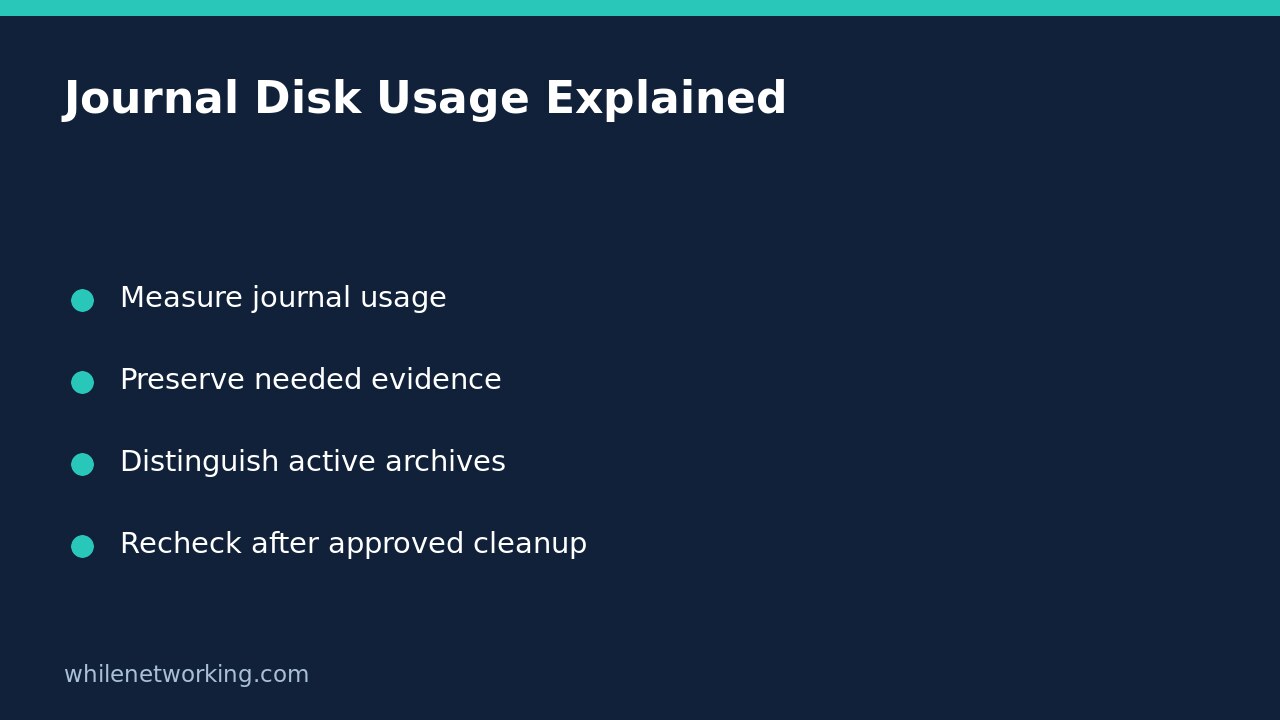

If journalctl still reports substantial disk usage after vacuuming, it does not necessarily mean the command failed. The key distinction is that journalctl --disk-usage counts both active and archived journal files, while vacuum operations remove only archived files. An active file can therefore keep the displayed total above the archive size target.
This distinction matters when a Linux server is low on space: repeating increasingly aggressive cleanup commands can destroy useful historical evidence without solving the underlying logging problem. Start with inspection and retention approval, not manual deletion of journal directories.
Measure the right filesystem and journal scope
On a systemd-based Linux machine, begin with these read-only checks. Use sudo only if your account is authorized to inspect system logs; access restrictions can otherwise give an incomplete view.
df -h /var/log /run/log
sudo journalctl --disk-usage
sudo journalctl --list-boots
journalctl --version
The filesystem check helps distinguish persistent log storage from runtime storage. One path may not exist on your distribution; that error alone does not mean journald is broken. Check the paths present on your machine rather than creating new storage locations during an investigation.
Write down the reported usage and which filesystem is nearly full. Journal usage is not the same as all disk usage. Application log files, container data, package caches, or deleted files still held open can occupy space outside the journal. A large journal figure deserves investigation, but a small one should redirect your troubleshooting elsewhere.
Consult the installed man journalctl page before adopting examples from newer documentation. The cited upstream manual may describe options your older distribution does not provide. The inspection commands here are intended for systems that already use systemd journaling, not every Linux installation.
Understand active files before changing retention
Active journal files are currently available for writing. Archived files are rotated files that are no longer actively written. The official manual states that size, time, and file-count vacuum options operate on archived files only.
Consider a hypothetical system with 700 MB of active journal files and 200 MB of archives. An archive size target of 100 MB cannot promise a total below 100 MB, because active files remain outside that deletion process. This is an illustration of the distinction, not a measurement from your server.
Also distinguish a time target from a guaranteed history window. Vacuuming by age removes qualifying old archives; it does not guarantee that every message from the remaining interval exists. Earlier storage pressure, prior cleanup, or nonpersistent storage may already have removed data.
Preserve evidence before any irreversible cleanup
If the machine is under incident investigation, or logs support contractual or compliance obligations, obtain retention approval first. Deleting old journal entries cannot be undone simply by changing a configuration value back.
You can capture a relevant service interval before cleanup. Replace the service name and timestamps with the actual investigation scope, and ensure the destination has enough space. In this example, the dates are illustrative rather than a request to change the system clock.
sudo journalctl -u example.service \
  --since '2026-11-03 08:00:00' \
  --until '2026-11-03 09:00:00' \
  --no-pager -o short-iso > service-incident.txt
Timestamps without a timezone are interpreted in the machine’s local context, so record that timezone alongside the export. Protect the output because logs can contain usernames, addresses, or other sensitive information. A text export is useful for review but is not a complete native-journal backup and does not preserve every field in every format.
Rotate and vacuum only with explicit approval
If approved retention cleanup must also make current files eligible, journalctl supports rotating before vacuuming in one command. The following example changes journal storage and deletes archived history. It is not a read-only diagnostic or a universal recommended limit.
# DELETES archived journal history; approve retention first.
sudo journalctl --rotate --vacuum-size=500M
sudo journalctl --disk-usage
df -h /var/log /run/log
According to the manual, combining rotation with vacuuming first archives active files, then performs the requested cleanup. New active files and ongoing writes can still affect the final total. The 500M value is an example: choose a limit appropriate to storage, recovery needs, and approved retention requirements.
There is no ordinary undo for vacuumed history. Restore needed records from a verified backup or retained central log system if available. Do not substitute manual removal of live journal files when the result differs from your expectation.
What to check if space fills again
Rapid regrowth suggests an ongoing source of messages. Review a bounded recent sample, then filter by the implicated service rather than repeatedly deleting everything:
sudo journalctl --since '15 minutes ago' -n 100 --no-pager
sudo journalctl -u example.service --since '15 minutes ago' -n 100 --no-pager
Look for repeated failures and correlate them with service health. Avoid restarting unrelated services merely to quiet logs. For a broader diagnostic sequence, see our Linux home-lab troubleshooting workflow.
FAQ: Why did a file-count target leave more files than requested? Active files are not removed by archive vacuuming, so the remaining total can exceed the archive target.
Completion checklist: record before-and-after usage, identify the relevant filesystem, preserve required evidence, document any deletion, and investigate recurring message volume. One successful cleanup is not a durable retention policy.
Source: Official systemd journalctl manual, particularly disk usage, vacuuming, rotation, and output filtering.
Safety notice: This tutorial is for educational purposes. Test carefully before production use. The site owner is not responsible for misuse, damage, data loss, or production issues. Never delete logs subject to an investigation or retention hold without authorization.


