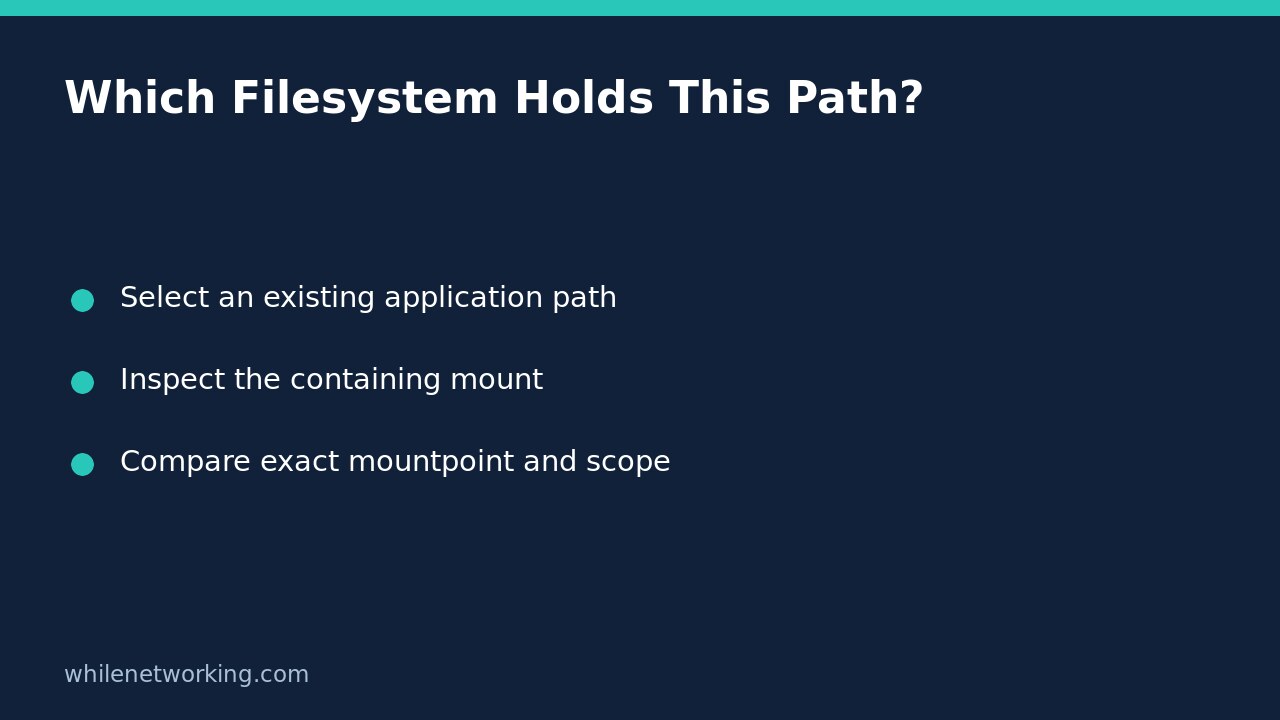

Use findmnt --target to identify the mounted filesystem containing a Linux file or directory. This is useful before investigating storage warnings, read-only mounts or an application writing to an unexpected disk. Checking a directory name alone can be misleading: a path intended for a separate volume may currently belong to the root filesystem instead.
Start with the application’s actual path
Choose an existing file or directory the application really uses. For the introductory command below, /var/log is an example; replace it with your own existing path. Keep quotation marks when the path contains spaces.
findmnt --target /var/log --output TARGET,SOURCE,FSTYPE,OPTIONSTARGET identifies the mountpoint, SOURCE identifies its source, FSTYPE shows the filesystem type, and OPTIONS shows mount options. Requesting explicit columns makes the intended information clear and avoids relying on the tool’s changeable default column selection.
A result whose target is / means the queried path is on the root mount in the command’s current view. A target of /var or /var/log indicates a more specific containing mount. These are examples of interpretation, not sample output from your server. Do not assume every source is a simple disk partition: network filesystems, bind mounts and container arrangements need different interpretation.
Distinguish a containing filesystem from an exact mountpoint
The target query answers, ‘Which mounted filesystem contains this path?’ It does not answer, ‘Is this exact directory itself mounted?’ To ask the second question, use:
findmnt --mountpoint /var/log --output TARGET,SOURCE,FSTYPE,OPTIONSIf /var/log is an ordinary directory on the root filesystem, the first query can show the root mount while the exact-mountpoint query finds no matching mount. That difference is expected. It does not mean the directory has disappeared.
The manual documents exit status zero when there is something to display and one for errors, including no match. A nonzero result is therefore not enough to diagnose a broken disk. Check spelling, path existence, the exact query and any error message before deciding what failed.
Recognise a missing application volume
Consider a hypothetical application configured to write below /srv/archive. Your deployment documentation says that directory should be a dedicated data mount. A containing-filesystem query returns the root mount, while an exact query finds no mount at /srv/archive. Together, those observations support a narrow conclusion: the expected dedicated mount is not visible at that location in this command’s view.
They do not prove why it is missing, whether the data volume is damaged, or whether the application is using that same filesystem view. Preserve the findings and compare them with the intended mount configuration. Avoid immediately mounting another filesystem over a directory containing recent application files; doing so can hide those files from that path without moving or deleting them.
Separate diagnosis from repair. Do not remount, format, edit /etc/fstab or restart a busy service merely to make the output resemble your expectation. Any repair should have an approved maintenance plan, data checks and a rollback procedure.
Check namespace and configuration boundaries
By default, findmnt reads the live kernel mount information associated with its own process. A command run on the host can have a different view from a command inside a container or a service with mount isolation. Run the read-only inspection in the appropriate authorised environment, or ask the responsible administrator to collect that view. Do not treat a host-level result as automatic proof about an isolated application.
Also distinguish live state from intended startup configuration. The --fstab option searches configuration rather than simply proving a filesystem is mounted now. The manual explains that the parent-path search used by --target is not available for fstab searches. Keep these questions separate instead of combining flags and assuming they mean the same thing.
Use a short troubleshooting checklist
- Confirm the application path and inspect an existing file or directory there.
- Record the containing target, source, filesystem type and relevant options.
- If a dedicated mount is expected, check the exact mountpoint too.
- Confirm the command and application share the relevant mount namespace.
- Compare observations with the approved storage layout before proposing changes.
FAQ: Does a matching mount prove storage is healthy? No. It identifies the mount visible at that moment, not capacity, device health, backup coverage or application write success. Likewise, a displayed rw option does not prove the application has permission or free space to write.
If your storage investigation involves large journal files, the related tutorial on why journalctl vacuum may not reduce disk usage addresses a separate cleanup question. First establish which filesystem you are investigating.
Source and operational safety
The util-linux findmnt manual documents target lookup, exact mountpoint selection, columns, mount information and exit status. This educational tutorial uses read-only commands; they make no mount changes and need no rollback. Test carefully before production use. The site owner is not responsible for misuse, damage, data loss or production issues.