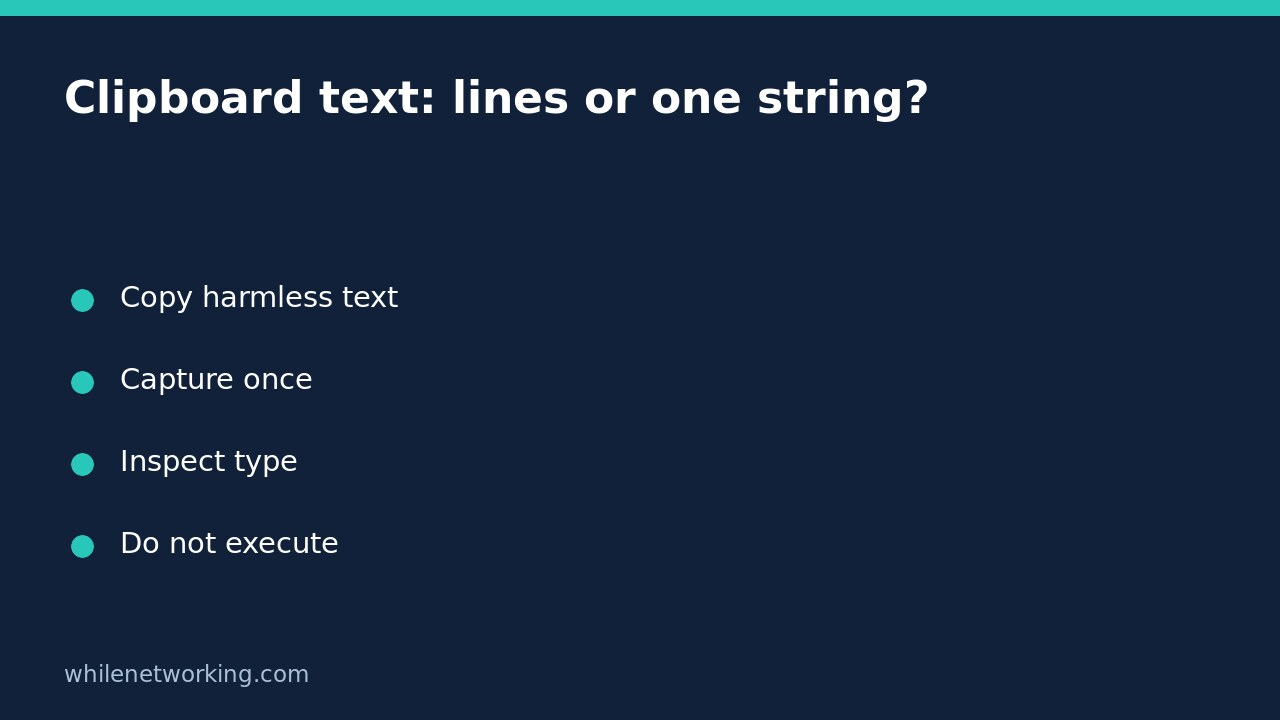

If copied multiline text behaves unexpectedly in a Windows PowerShell task, check the object you captured before changing clipboard settings. Microsoft documents that Get-Clipboard normally returns multiline text as an array of strings, one per line. Get-Clipboard -Raw instead returns one multiline string. This distinction matters when passing a whole JSON document, ticket note or other text block to a function that expects a single string.
Start with harmless copied text
Open an ordinary PowerShell terminal in your Windows desktop session. This is a text-inspection workflow, not a Command Prompt example, and it does not require elevation. Copy a small two-line sample from a text editor, such as the word alpha on the first line and beta on the second. Do not use passwords, recovery codes, customer records or a downloaded command as your demonstration.
Capture the clipboard once in each mode while keeping its contents unchanged. Another copy action, clipboard manager or application can replace the clipboard between calls, so an unexpected comparison is not automatically a PowerShell conversion fault.
$lines = @(Get-Clipboard)
$text = Get-Clipboard -Raw
$lines.Count
$text -is [string]
The array wrapper makes the first capture consistently countable as a collection. For the deliberately copied two-line sample, expect two line entries when the copied selection contains exactly those two lines. The second type check should be true for the text sample. A final newline or a different selection can affect line-oriented observations; inspect what you actually selected rather than treating every extra entry as corruption.
Use Raw when the document is the unit of work
A line array and a multiline string can look similar when printed in a terminal, but they are not interchangeable inputs. A function that iterates a collection may process each line separately. A function expecting one complete document may need a scalar string instead. The Raw parameter addresses that boundary without requiring you to reconstruct text by joining an array with a guessed separator.
Use the captured variable for subsequent inspection rather than repeatedly rereading the live clipboard. This avoids accidentally analysing one document and passing a later copy to the next step. When the source is sensitive, even a local variable needs care: do not print or export the contents to shared logs. The following command reports only character count, including newline characters, rather than displaying the document:
$text.LengthCharacter count does not validate the document, identify an encoding or prove byte-for-byte equivalence with an original file. The clipboard exposes text through this cmdlet, not a faithful backup of every original application format. For exact file preservation, work with the original file and an appropriate file-reading method instead.
Keep captured text separate from commands
Reading clipboard text is different from running it. Do not pipe an unknown clipboard value to Invoke-Expression or paste it into an active prompt simply to inspect it. A valid-looking configuration fragment can contain executable instructions when placed in the wrong context. Use a text editor for reviewing content and a suitable parser for the intended data format.
If the copied text contains JSON, Raw gives the next parser one text block; it does not repair missing commas, duplicate fields or schema errors. If your later workflow calls an external executable, resolve that executable explicitly as well. The related article on PowerShell command discovery with where.exe and Get-Command explains why a familiar command name can resolve differently than expected.
Troubleshoot scope before resetting Windows
If the captured text is old or empty, first confirm the copy action succeeded in the same interactive desktop session. Copy the harmless sample again and inspect the result. A remote session, a service account or a background task is not automatically the same clipboard context as the desktop you are viewing. Do not change managed clipboard-redirection or security policies merely to force a diagnostic result.
Microsoft’s current documentation describes the text behaviour and the Raw parameter; this article does not claim a runtime test of Windows clipboard access on your device. If the cmdlet is unavailable or a host reports an error, record the PowerShell version, host and actual error before deciding on a remedy. Avoid reinstalling components or clearing clipboard history as a first response to an object-type mismatch.
Quick checklist and common questions
- Copy a harmless, deliberately selected sample.
- Use ordinary capture for line-oriented processing and Raw for a whole text block.
- Store the capture once and check its type before passing it onward.
- Keep secrets out of terminal output and shared logs.
- Parse data; never execute it merely to inspect it.
Does Raw enable clipboard history? No. It changes the returned text representation, not Windows history or synchronisation settings.
Does one string mean valid input? No. Content validation remains a separate step for the receiving application.
Source: Microsoft Learn: Get-Clipboard description, Raw parameter and output behaviour.
Safety: This tutorial is for educational purposes. Test carefully before production use. The site owner is not responsible for misuse, damage, data loss or production issues.