
A reusable meeting agenda is useful until someone opens the master, types this week’s notes, and saves over the blank version. Finder’s Stationery Pad option offers another workflow: opening the marked document opens a copy for new work, rather than treating the master as today’s working document. It is worth trying with a harmless sample before relying on it for an important form.
This guide covers the Finder document option described in Apple’s current Mac User Guide. It is not an email stationery feature, an application template gallery, a backup service, or a restriction that prevents other people changing a shared file. Menu wording can vary with macOS and the application opening the document.
Choose a real, editable document rather than a shortcut
Start with an ordinary document you own, such as a short text agenda. Remove private names, client information and old meeting notes before making it reusable. Keep the first experiment in a folder you control, rather than a shared business directory or a system folder.
Check what you selected. An alias points to another item; it is not another independent document. Apple notes that Stationery Pad may be missing or unavailable when the selection is a folder, an alias, or a document you cannot edit. Do not change permissions across a shared folder just to enable this checkbox.
If shortcut behaviour is the real goal, see our explanation of creating a Finder alias without duplicating a working folder. Stationery and aliases solve different problems: fresh work versus another route to existing work.
Record the starting point before changing the option
Select the sample in Finder and choose File > Get Info, or press Command-I. Reading this window does not itself change the document. Check its name and location so you know which file is the master. A familiar filename is not enough when Downloads, Documents and a cloud folder contain similar copies.
Write a clear name such as Meeting Agenda Master. Inside the sample, add neutral headings for attendees, decisions and follow-up actions. Save it and close the application before proceeding. This makes the starting state easy to recognise when you later compare the original with a newly saved document.
For files already used by colleagues, agree who maintains the master before changing workflow. A personal Finder setting is not a substitute for a shared document ownership process.
Enable Stationery Pad and perform one small trial
- Select the intended document in Finder, not an alias to it.
- Open File > Get Info.
- Expand General if necessary, then select Stationery pad.
- Close the information window and open the document normally from Finder.
- In the opened document, add an unmistakable trial line, such as Practice agenda only.
- Save the new work with a distinct name in a separate practice folder.
Apple documents that opening stationery opens a copy and leaves the original untouched. The exact new-document title and save dialogue belong to the application, so do not depend on an assumed automatic filename. Choose and inspect the destination explicitly.
If the app reports an unsupported format, access problem or unexpected save location, stop the experiment. Do not click through replacement prompts simply to finish the procedure. Keep the known master and investigate the application-specific behaviour first.
Verify independence instead of trusting the window title
Close the saved trial. In Finder, locate it and use Get Info to confirm its location. Then open the master again. The practice line should not be part of the reusable starting document. You now have two separate questions answered: where new work was saved, and whether the master still contains the intended blank structure.
For a meeting example, the master should retain headings and instructions; the saved meeting copy should contain that meeting’s attendees and decisions. If both contain the practice line, do not deploy the workflow. Check which file was marked, whether an alias was involved, and whether you edited the master while the option was disabled.
This is a suggested verification exercise, not a claim that we tested your Mac or every application. Repeat it in the particular editor and storage location you intend to use.
Update the master deliberately when the form changes
Stationery should not make routine maintenance mysterious. Apple’s documented method is to deselect Stationery pad in the master’s Get Info window, open the original, make the changes and save. After closing it, enable Stationery pad again.
Before editing a valuable master, retain a separate backup under a clear version name. For example, keep an archive of the old agenda layout before adding a decision-owner field. Do not leave several nearly identical files all labelled current; that recreates the selection problem this workflow was meant to reduce.
After maintenance, repeat the small trial. A checkbox restored from memory is not evidence that the revised master opens as intended. Check that a new copy includes the revised headings but not the prior meeting’s content.
Keep the limits and rollback simple
To stop using this behaviour, deselect Stationery pad on the original. That changes the workflow for that file; it does not merge previously created documents or undo their edits. Keep useful meeting copies in their own folders, and remove practice files only after confirming which ones they are.
Stationery is not access control, encryption, version history or protection from disk failure. Continue to use suitable backups and normal sharing permissions. An app’s native template format may be preferable when you need template-specific formatting or centrally managed distribution.
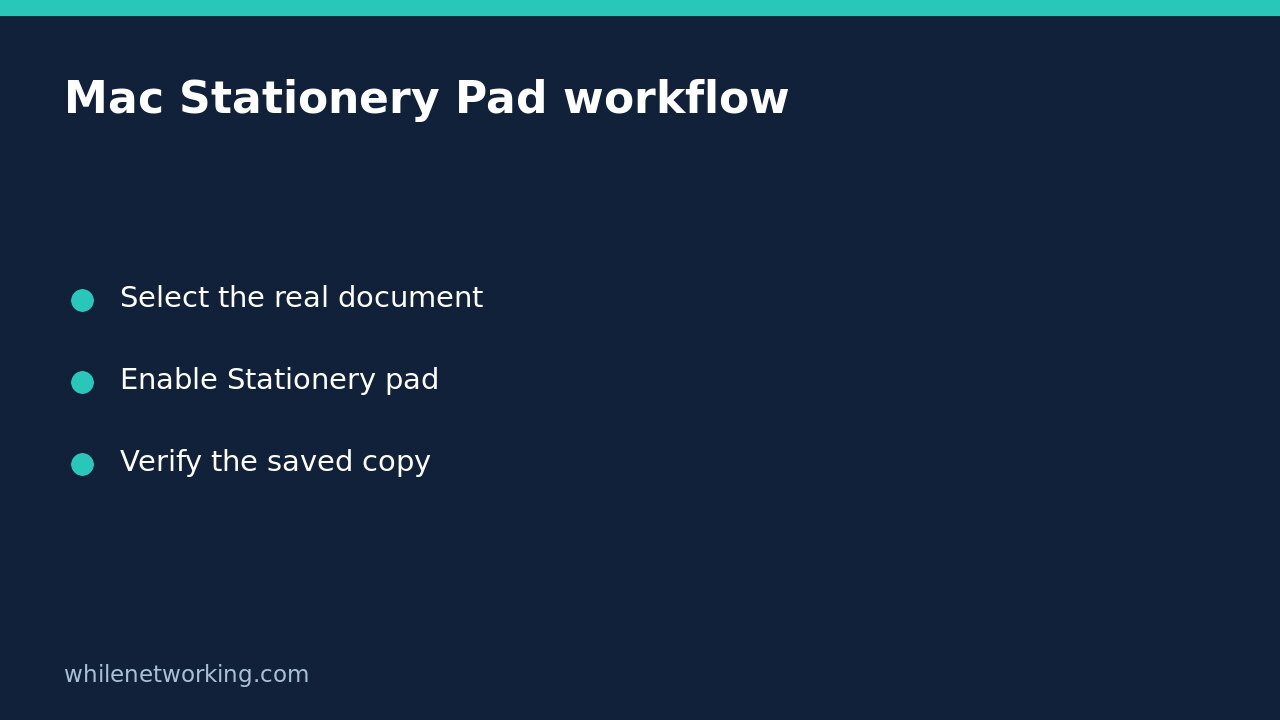
The practical checklist is short: verify the original item, enable the option, save a clearly named trial, confirm the original stayed clean, and repeat that check after every master update. These checks are more valuable than merely seeing a tick beside Stationery pad.
Sources and safety
Read Apple’s Create document templates on Mac for the stationery behaviour and maintenance steps, and Get file, folder, and disk information on Mac for Finder’s inspection tools.
This tutorial is for educational purposes. Test carefully on disposable copies before production use. The site owner accepts no responsibility for misuse, damage, data loss or production issues.