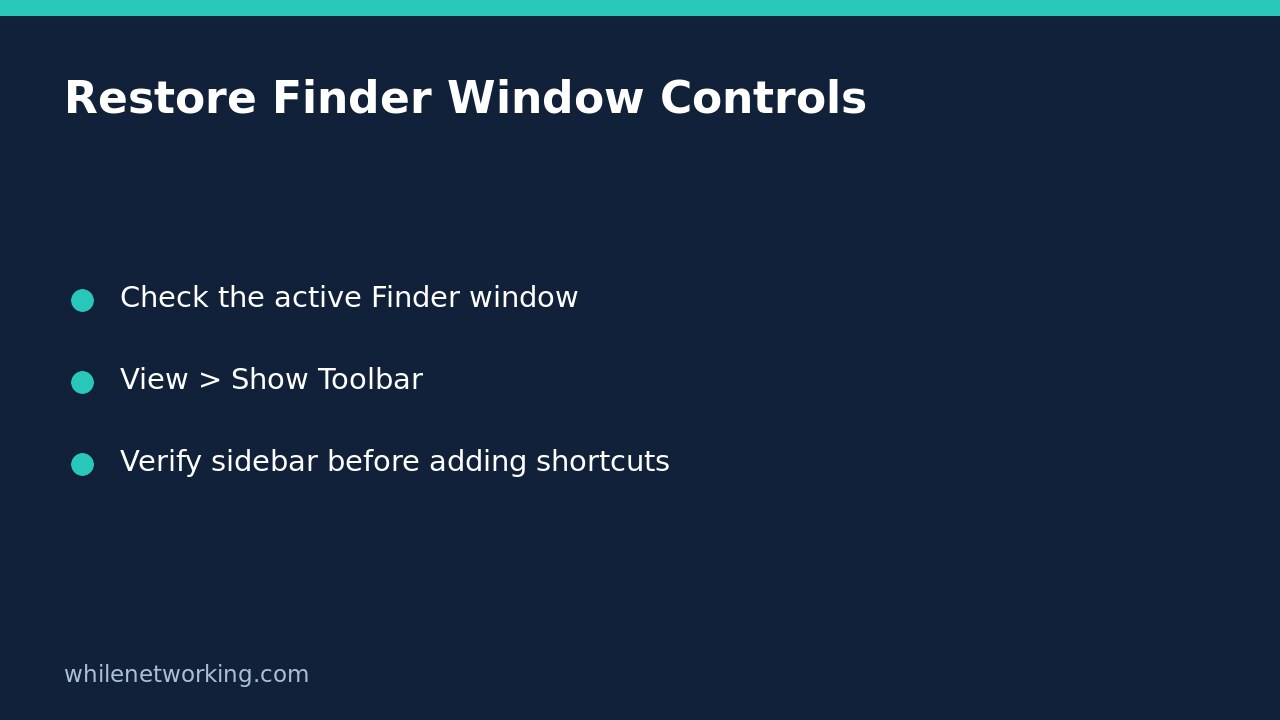

If both the toolbar and sidebar disappear from a Finder window, check View > Show Toolbar before recreating your shortcuts. Apple documents that hiding the toolbar also hides the Finder sidebar. The two missing areas can therefore have one display-setting cause rather than two separate problems with your files.
This workflow is for a Finder window whose navigation controls have disappeared. It does not assume that a folder has been deleted, that an external drive has disconnected, or that every missing sidebar item has the same explanation. Start with the window presentation and only investigate individual locations if they are still missing afterward.
Confirm that Finder is the active app
Click Finder in the Dock to open a Finder window, then click inside that window. The menu bar at the top of the screen should belong to Finder. This matters because a View menu in another application controls that application’s interface, not Finder’s toolbar.
Before changing anything, note what is actually missing. Are the toolbar buttons absent from the top of the window? Is the entire sidebar absent, or is just one favourite missing? Can you still see the files in the main area? These observations keep a cosmetic problem from being mistaken for missing data.
Do not drag files, empty the Trash, remove preferences, or reinstall anything as an initial response. Restoring a display control should not require altering your documents.
Show the toolbar, then reassess the sidebar
- With the affected Finder window active, open View in the menu bar.
- If the menu offers Show Toolbar, choose it.
- Check whether the toolbar returns and whether the sidebar is now visible.
- If the menu instead offers Hide Toolbar, leave it alone: the toolbar is already shown, so this particular explanation does not fit.
Apple explicitly describes the connection: hiding the toolbar also hides the sidebar and moves the status bar from the bottom of the window to the top. An unfamiliar strip at the top can therefore be a clue to the window’s presentation, not evidence that Finder has lost your folders.
If the toolbar returns but a sidebar issue remains, treat that as a separate next check. Inspect the available sidebar controls and the individual location you expected. Do not repeatedly toggle unrelated options or add duplicate shortcuts just because the first change did not solve every symptom.
Distinguish a hidden button from a hidden toolbar
A toolbar that is visible but seems to lack a particular button is a different situation. Apple explains that a window can be too small to show all its toolbar items. Enlarge the Finder window or use the overflow control at the right end, if one is shown, to inspect the remaining items.
If there is enough room but the tool you need is still absent, choose View > Customize Toolbar. That interface lets you choose which tools appear and whether icons have text. Change only the item you need, rather than rebuilding the entire interface from memory.
A practical example: suppose the sidebar and every toolbar button disappeared together after a display change. Check Show Toolbar first. By contrast, if navigation buttons remain but one tool is absent in a narrow window, check the window width and overflow before customising. These are alternative diagnoses, not steps that every Mac must require.
Verify locations without rebuilding them unnecessarily
Once the controls return, open a familiar folder through the sidebar and confirm that it contains the expected documents. Visibility of the shortcut and availability of its destination are separate checks. A restored sidebar does not prove an external volume is connected or a network location is reachable.
If only a single favourite is missing, compare that narrower problem with removing a Finder sidebar shortcut without deleting the original folder. The distinction helps avoid treating a navigation link as the document itself. Find the original location before deciding whether a shortcut needs adding again.
Quick questions and a safe stopping point
Does showing the toolbar restore deleted files? No. It restores interface controls; it is not a recovery operation.
Should I remove toolbar items to fix this? Not initially. Apple supports removing items through toolbar customisation, but that changes the layout rather than diagnosing why the whole toolbar is hidden.
How do I undo the display change? The corresponding View > Hide Toolbar command reverses it, with the sidebar effect Apple describes. Leave the controls visible if that is the layout you wanted.
Before stopping, confirm the toolbar is visible, the sidebar has been reassessed, and an expected location opens. Record any remaining specific symptom instead of escalating to destructive resets.
Source: Apple’s Finder toolbar instructions document toolbar visibility, sidebar interaction, overflow and customisation. Labels can vary with macOS version.
Educational use only. Test changes carefully before applying workflows in production. The site owner is not responsible for misuse, damage, data loss or production issues.