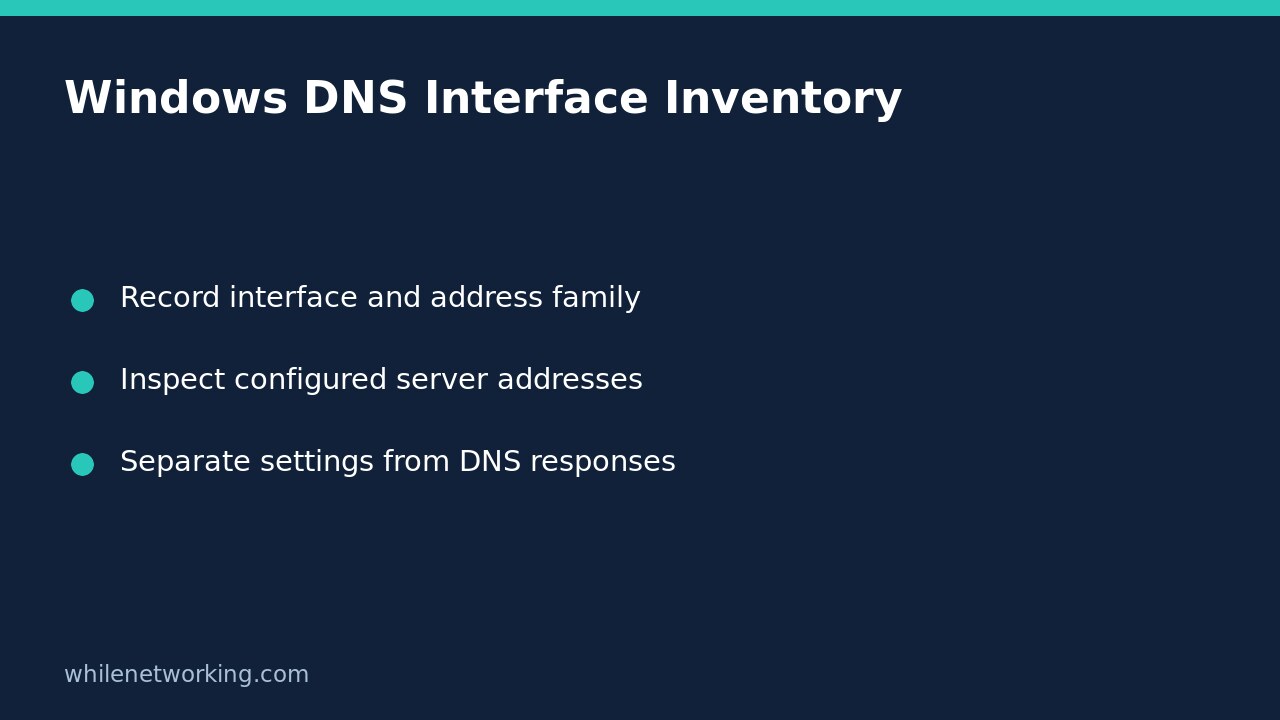

To see which DNS server IP addresses Windows has associated with its network interfaces, run Get-DnsClientServerAddress in PowerShell. The command reads configuration; it does not replace servers, clear the resolver cache or restart an adapter. Keep the interface identity and address family beside each server list so addresses from a VPN are not mistaken for those on Wi-Fi.
The important limitation is equally simple: a configured server address is not a successful DNS response. This inventory is an evidence-gathering step before changing settings or investigating which resolver a particular application actually uses.
Start with an unfiltered inventory
Open Windows PowerShell on the Windows computer you are investigating and run:
Get-DnsClientServerAddressMicrosoft describes this as retrieving DNS server IP addresses configured on all interfaces. Look at the interface alias or index, the address family, and the server-address collection together. A computer may have wired, wireless, VPN and virtual interfaces; do not assume the first row belongs to the connection involved in the fault.
Keep IPv4 and IPv6 rows separate in your notes. An empty address collection on one row does not prove that every interface lacks DNS configuration. Equally, a populated collection does not establish that the listed endpoint is reachable, trusted or answering the question your application asks.
If the command is unavailable, confirm you are using Windows PowerShell with the DnsClient module available. Running PowerShell on a different operating system does not make Windows-specific cmdlets appear. If an access or management error occurs, preserve its text rather than interpreting the absence of normal output as an empty server list.
Narrow the view to the interface you identified
Microsoft supports both interface-alias and interface-index filters. After reading the full inventory, copy the exact alias you want to inspect. This example uses the same sample alias as Microsoft’s documentation; replace it with an alias that actually exists on your computer:
Get-DnsClientServerAddress -InterfaceAlias "Wired Ethernet Connection"The quotation marks keep an alias containing spaces as one argument. Do not rename an adapter simply to make this example match. An alias is an interface identifier for this query, not a DNS hostname to look up.
For a family-specific view, the cmdlet also accepts an address-family filter:
Get-DnsClientServerAddress -AddressFamily IPv4That command still considers all interfaces; it narrows the family, not the adapter. Use the alias filter when the reader task is about one adapter. If you need both dimensions, the documented parameters can be combined:
Get-DnsClientServerAddress -InterfaceAlias "Wired Ethernet Connection" -AddressFamily IPv4These examples are Windows commands explained from the vendor documentation, not a claim that this article executed them against your computer. They make no DNS-setting changes, so there is no configuration rollback step for the inspection itself.
Write a useful support note instead of copying unexplained addresses
Consider a hypothetical laptop that has both Wi-Fi and a corporate VPN. Its inventory shows different DNS lists for those interfaces. That observation supports a precise note: which interface had which configured addresses when the snapshot was taken. It does not, by itself, establish that all requests went to the VPN’s server or that either server caused the reported failure.
For a reproducible handover, record the computer, time, whether the VPN was connected, the exact query, interface alias/index, address family and the displayed server list. Use placeholders when sharing examples publicly; real internal resolver addresses and adapter names may reveal network details.
Do not label an address as manually configured or DHCP-provided merely because it appears here. The cmdlet’s purpose is to retrieve associated DNS server addresses, not to certify their configuration history. If that history matters, investigate it separately with the responsible administrator.
Separate configuration evidence from a resolver test
If the next question is whether two approved DNS servers return different answers, use a separate query-based workflow such as comparing DNS servers with nslookup without changing Windows settings. Keep its results separate from this inventory. Querying a chosen server is not proof that a browser or every other application used that server.
Avoid replacing corporate DNS with an unrelated public resolver as a shortcut. Internal names, VPN rules and organisational policy can make that change inappropriate, and it changes the evidence you were trying to collect. Escalate the snapshot and the failing name or application through your normal support process first.
Quick checklist and common questions
- Run the unfiltered command before choosing an interface.
- Preserve interface identity and IPv4/IPv6 context with each list.
- Keep errors distinct from successful empty results.
- Treat server configuration, server responses and application behaviour as separate evidence.
Does this flush DNS? No. This is a Get command for reading server-address configuration.
Does a returned address prove DNS works? No. It identifies a configured address, not the outcome of a resolution request.
Must I disconnect the VPN? Not for this read-only inventory. Record its current state first; disconnecting it changes the situation you are documenting.
Source: Microsoft’s Get-DnsClientServerAddress reference documents the interface filters, address-family options and read-only purpose.
Educational use only. Test workflows carefully before production use and follow your organisation’s access rules. The site owner is not responsible for misuse, damage, data loss or production issues.