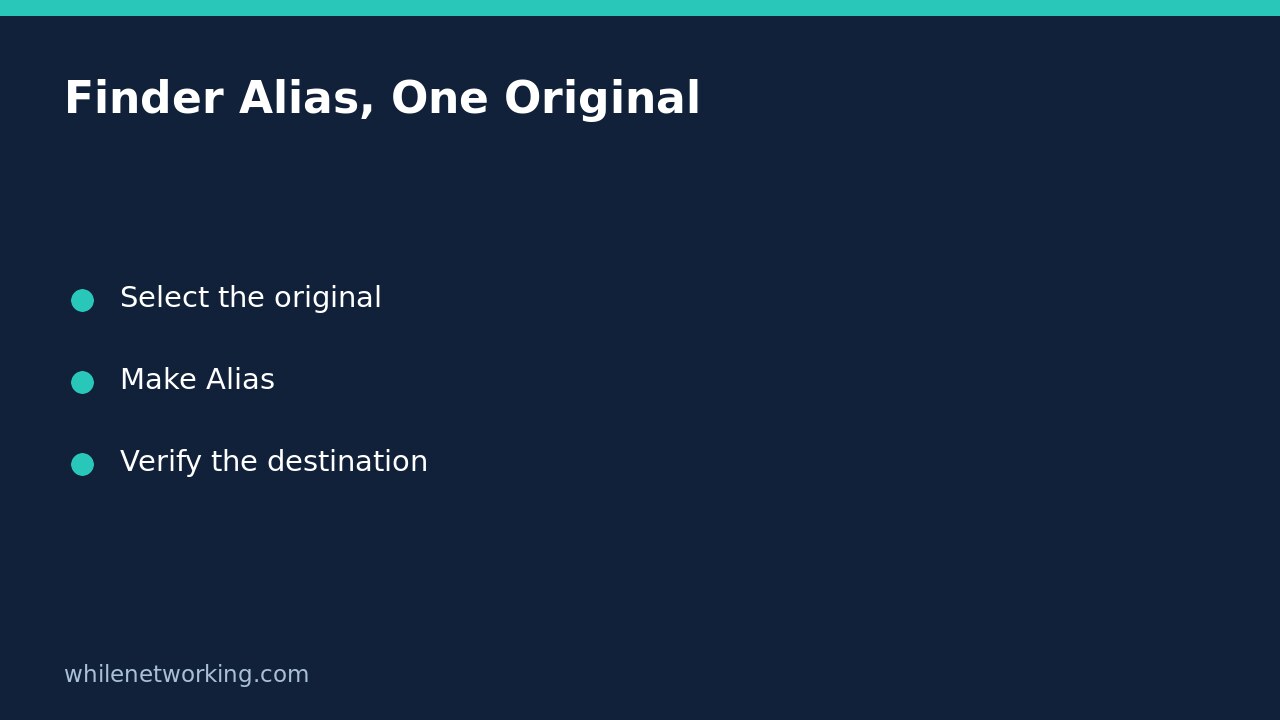

A Finder alias lets you reach a file, folder, app or disk from another convenient location without creating a second working copy. Select the original in Finder, choose File > Make Alias, and move the resulting alias where you want it. Opening the alias opens the original item.
This is especially useful when a project folder belongs in Documents but you want a convenient desktop entry. The important distinction is that an alias is an access route, not a backup. Changes made after opening it affect the original working files.
Start with a disposable practice folder
Before organising important documents, make an empty practice folder in a location you recognise. Give it a clear name such as Alias Practice and put a harmless text document inside. Keep the original Finder window open so you can compare locations during the exercise.
Do not start with your only copy of a client project, a shared folder you do not own, or an unfamiliar external disk. The goal is to learn what the shortcut opens, not to rearrange a production filing system.
If you find locations hard to distinguish, first use the Finder path bar to inspect and copy a folder path. A recognisable location is more useful than relying solely on two similar folder names.
Create the alias without moving the original
- Select your practice folder in Finder.
- Choose File > Make Alias.
- Identify the newly created alias rather than selecting the original again.
- Drag that alias to the desktop or another convenient folder.
- Open the alias and check that the expected practice document appears.
Apple also documents an Option-Command drag: hold those keys while dragging the original to another folder or the desktop to create and move an alias in one step. For a first attempt, the menu method is easier to inspect because creation and relocation happen separately.
Do not assume that an ordinary drag will create an alias. Drag behaviour depends on context, and selecting the wrong object can turn a shortcut exercise into an unwanted move or copy. If you are unsure what happened, stop and compare the original location before continuing.
Verify that you are opening the intended working folder
Open the alias and inspect the folder location, not just its visible name. For a disposable demonstration, create a new harmless document in the folder opened through the alias. Then return to the original folder through its normal location and confirm that the document is there.
This demonstrates the practical consequence: you reached the same working folder through two routes. It does not demonstrate a second stored copy or a backup that could recover deleted data. Do not delete real documents as a test of the relationship.
For example, keep a folder called Project Notes in Documents and place its alias on the desktop. Use the desktop entry to reach those notes quickly, while treating Documents as their actual storage location. Avoid creating a second folder called Project Notes and manually keeping both versions up to date.
Choose an alias, sidebar favourite or Dock entry
If you only want faster navigation, a separate desktop alias may not be necessary. Apple explains that Finder sidebar and Dock entries also point to original items.
- Finder sidebar: drag a folder, app or disk into Favorites for access from Finder windows.
- Dock: drag an app to the app side of the separators; place files and folders on the file-and-folder side. With a vertical Dock, those positions are above and below the separator respectively.
- Ordinary alias: use one when you want an entry in a particular folder or on the desktop.
To locate the original behind a sidebar entry, Control-click it and choose Show in Enclosing Folder. For a Dock entry, Control-click and choose Options > Show in Finder. These checks are useful when similarly named folders have accumulated over time.
Remove shortcuts carefully and undo the practice setup
Apple documents that dragging an item out of the Finder sidebar, or out of the Dock until Remove appears, removes that shortcut rather than the original item. That does not mean every action involving Trash is harmless: moving the actual original folder to Trash is a different operation.
For a standalone practice alias, verify that you have selected the alias before moving it to Trash. Then confirm the original folder is still accessible through its normal location. Only remove the disposable practice folder separately when you no longer need its contents.
FAQ and final checks
Does an alias protect me if I lose the original? No. Maintain an appropriate backup independently; a convenient way to open a folder is not a recovery copy.
Should I send someone an alias instead of the actual document? Do not assume it provides them with the underlying file. Use an appropriate file-transfer or sharing method and verify that the recipient can access the intended content.
Before finishing, check that the original remains in its intended location, the shortcut opens that location, and you have not accidentally created two competing working folders.
Source: Apple: Create and remove aliases on Mac. Menu wording can vary with the macOS version selected in Apple’s guide.
Safety: This tutorial is for educational purposes. Test carefully before using steps in production. The site owner is not responsible for misuse, damage, data loss or production issues.