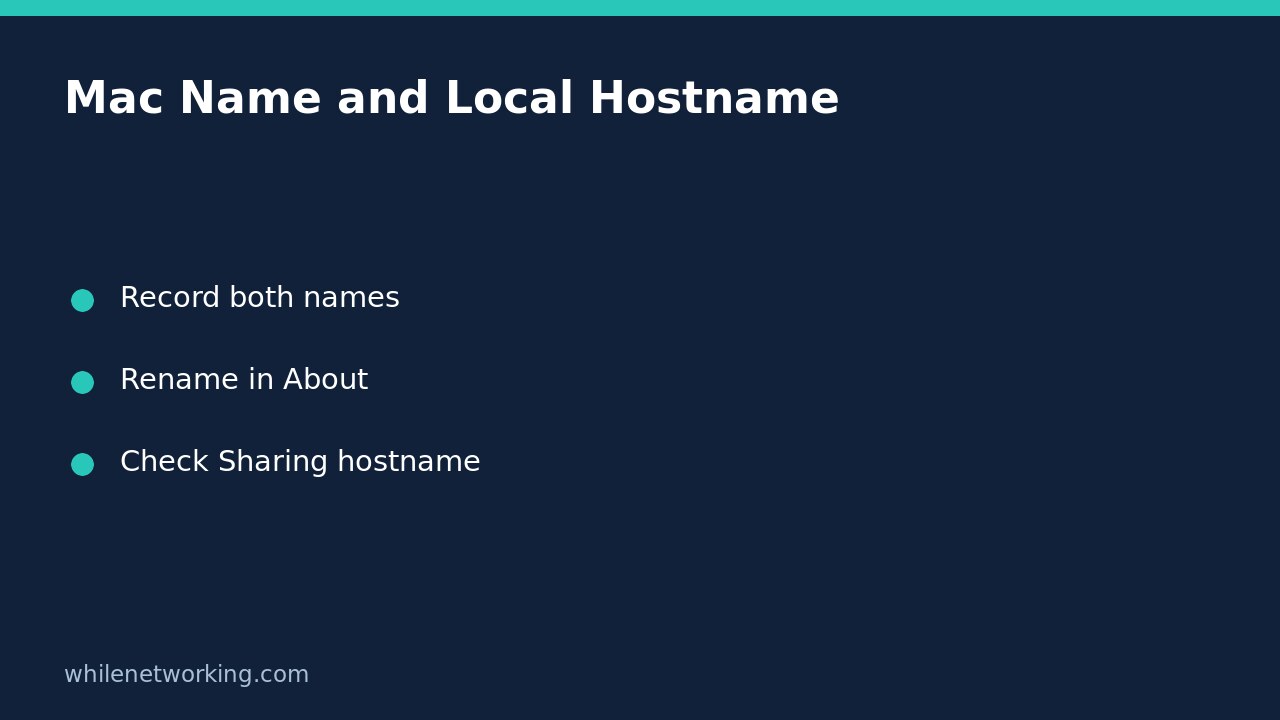

To change your Mac’s computer name, open System Settings, choose General, then About, and edit the current name. Before treating that as a complete network-name change, also inspect General > Sharing: the local hostname used by Bonjour-compatible services is a separate detail worth recording. A friendlier display name does not prove that another device can now reach a shared folder.
This walkthrough is for a Mac you own or are authorised to administer. On a workplace Mac, ask IT whether device naming is managed before making changes. You do not need to enable file sharing, change your account name, or rename your home folder for this task.
Record the two names before changing anything
Apple distinguishes the computer’s name from its local hostname. The latter normally resembles the computer name with spaces replaced by hyphens and with .local appended. Apple’s example is My Computer becoming My-Computer.local. Local hostnames are not case sensitive, so changing capital letters alone is not a way to create a distinct Bonjour identity.
- Open the Apple menu and choose System Settings.
- Choose General, then About. Write down the current computer name.
- Return to General and open Sharing. Find the Local hostname section near the bottom and record the displayed name.
- Note any saved connection instructions that refer to the old name before editing it.
For a hypothetical home office, you might record a computer name of Study Mac and a local hostname of Study-Mac.local. These are illustrative labels, not observations from your computer. Avoid using a full personal name, street address, or sensitive project name in labels that other people on the local network may see.
Change the computer name in About
In General > About, select the current computer name and type the intended replacement. Pick a clear name that distinguishes this machine from the others you administer, such as Study Laptop rather than a name shared by every Mac in the household. Reopen About and check what is actually displayed instead of relying on what you remember typing.
System Settings labels can vary with macOS versions. Apple’s linked guide includes a version selector; use the instructions matching your installed release if the controls differ. If the name is managed, unavailable, or unexpectedly restored, record that behaviour and contact the administrator rather than trying to defeat management controls.
Inspect the local hostname in Sharing
Next, return to General > Sharing. Read the local hostname rather than assuming its final value. Apple notes that if another Mac on the local network has the exact same name, a number is added to the local network name. That can explain why a remembered .local address differs from what the Mac currently displays.
If you deliberately need to change the local hostname, click Edit in that section, enter the intended name, and click OK. Reopen the section and record the accepted result. Do not turn on dynamic global hostname settings merely to tidy a local name; that is a different configuration decision, not a required step in this walkthrough.
Keep the old and new values together in your support notes. When another person needs the new local address, send the value you actually read from Sharing, including any automatically added suffix, rather than constructing an address from memory.
Verify the result without overclaiming
Check About and Sharing again, then test the particular authorised workflow affected by the change. For example, if you previously used a saved file-server connection, check that exact connection from the relevant client. A successful name edit alone does not demonstrate that sharing is enabled, permissions are correct, or the client is using the new address.
Do not rename files or folders to solve a computer-name mismatch. If the support request is actually about identifying a document’s location, use the separate tutorial on copying a folder path with the Finder path bar. A local file path and a computer’s Bonjour hostname answer different questions.
Quick questions and rollback checklist
Does this rename my user account? No account-name change is part of these steps. Leave Users & Groups and your home-folder name alone.
Why is there a number in the local name? Apple documents automatic numbering when another Mac on the local network has the same name. Check the displayed value before diagnosing it as an error.
Can I undo my edit? Return to the same controls and restore the recorded earlier values if appropriate, then read them back. A naming conflict can still affect the accepted local name; restoring text is not a guarantee that every client’s saved connection will immediately behave as before.
Source: Apple’s computer-name and local-hostname instructions.
Educational-use notice: Test changes carefully before using them in production. The site owner is not responsible for misuse, damage, data loss, or production issues.