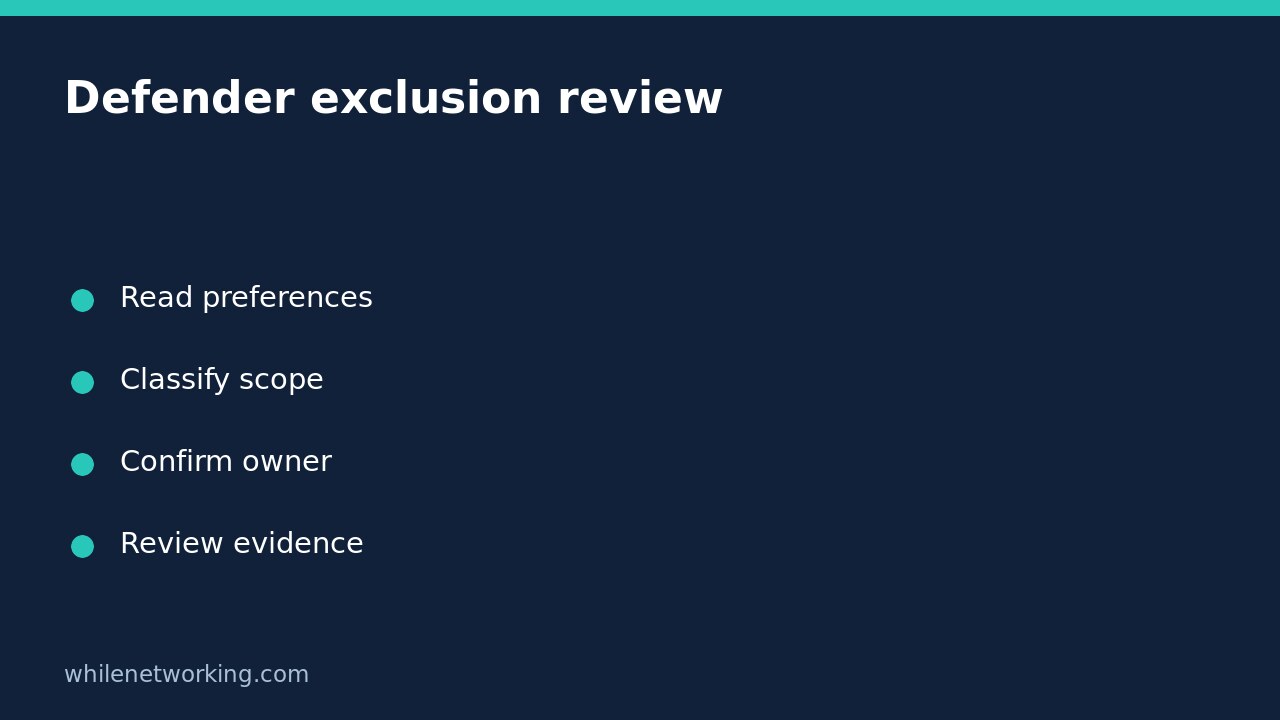

To review Microsoft Defender Antivirus exclusions without altering protection, read the current preferences with Get-MpPreference, inspect the path, extension and process lists separately, and record who owns each exception. Do not add a test exclusion or disable scanning to prove that the command works. This is an inventory and risk-review workflow, not a way to certify that a computer is malware-free.
Start with a read-only preferences snapshot
Use an authorised Windows computer with the Defender PowerShell module available. Open Windows PowerShell; use an administrator-approved elevated session if your environment requires it. These commands read preferences and do not create exclusions:
$preferences = Get-MpPreference
$preferences | Select-Object ExclusionPath, ExclusionExtension, ExclusionProcess | Format-List
The first statement retrieves a preferences object. The second selects three properties for a focused display. Keeping the object in a variable means that all three lists come from the same retrieval rather than separate commands run while policy might be changing. Microsoft documents this object-and-property pattern in the Get-MpPreference reference.
If the command is missing, check that you are on the intended Windows host and that the Defender module is available. If access is denied, ask the device administrator for an authorised review path. Do not install random replacement modules, change execution policy, or turn off tamper protection to obtain an inventory.
Interpret the three lists differently
A path exclusion addresses a specific file or folder location. A folder entry can cover many files below it, so a seemingly short list can still have a large impact. An extension exclusion applies to that file type regardless of its location. A process exclusion concerns files opened by the specified process; it is not simply another spelling of an exclusion for the executable itself.
For a fictional example, compare a path entry for C:\ExampleApp\worker.exe with the same executable named in the process list. The first concerns scanning the executable file. The second concerns the files that the process opens. Record the property name alongside the value so that a reviewer does not mistake one for the other. These examples describe interpretation, not settings to add.
Microsoft also distinguishes a full executable path from a process name without a path. A name-only process rule can apply to programs with that name in different locations. Flag unusually broad entries for investigation, but do not remove them immediately: a business application might depend on an approved compatibility exception.
Build an evidence worksheet, not a deletion list
For each visible custom rule, record the following information in an access-controlled support ticket:
- Device name, observation time, exclusion property and exact value.
- Application owner and the policy or change record that authorised it.
- The specific compatibility or performance problem it addresses.
- Whether the application and affected folders still exist.
- The agreed review date and evidence needed before narrowing or retiring it.
Suppose an old build-cache folder remains excluded after its software was retired. The useful next step is to confirm retirement with the owner and identify the setting’s management source. It is not to assume that every similarly named folder is safe or to perform an unapproved bulk cleanup. Treat exported paths as potentially sensitive because they can reveal usernames and application locations.
Understand what this snapshot cannot prove
An empty display is not a complete assurance that there are no exclusions of any kind. Microsoft’s exclusions documentation distinguishes custom rules from built-in operating-system exclusions and automatic Windows Server role exclusions. Centrally managed devices also need their configuration checked against the organisation’s management records. Do not bypass visibility restrictions if local output is incomplete.
Likewise, the presence of an antivirus exclusion does not mean every Defender for Endpoint capability ignores the affected item. Microsoft notes that excluded files can still generate EDR alerts. Avoid treating this inventory as an effective-protection verdict for the entire endpoint security stack.
Review checklist and common questions
Should a valid software signature justify an exclusion? No. Publisher identity and an antivirus exception answer different questions. The related installer signature inspection tutorial helps assess downloads, but does not establish that their working directories need scanning exceptions.
Should I remove an unexplained entry immediately? Escalate it, preserve the exact observation and agree a controlled change. Test approved changes on a non-production device, document the original value and management source, and define an authorised rollback before changing production policy. This tutorial intentionally supplies no commands that add, remove or replace exclusion lists.
Final check: can you explain each rule’s type, scope, owner and current justification? Unanswered questions belong in the review record rather than being silently treated as approval.
Educational use only. Test carefully before applying any changes in production. The site owner is not responsible for misuse, damage, data loss or production issues.