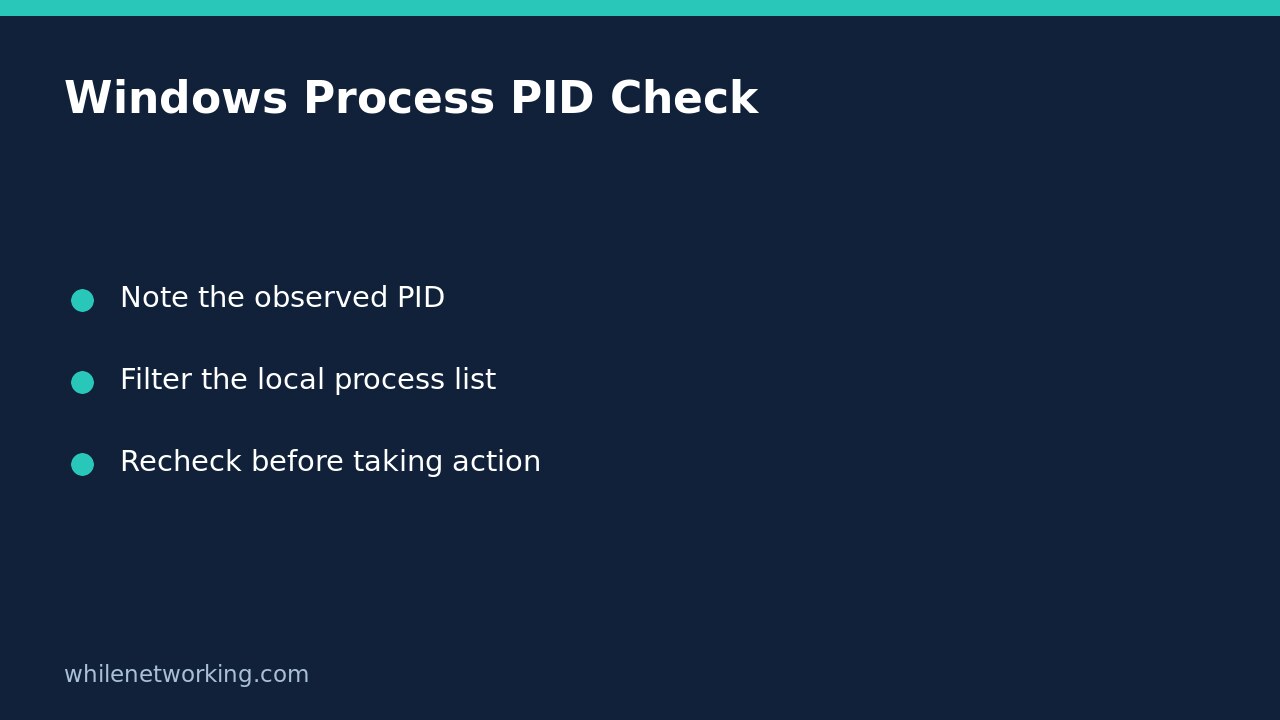

When a support note mentions a Windows process ID, use tasklist to check that specific running process before deciding what to do. Filtering only by an executable name can return several processes. A PID filter narrows the snapshot, but it does not establish that the program is safe, healthy or responsible for the reported problem.
This workflow uses local, read-only queries in Command Prompt. It does not stop processes, change services or collect remote credentials. It is useful when Task Manager, an error message or a support colleague has already supplied a PID that needs checking.
Record the context before running a query
Write down the computer, approximate observation time, application involved and PID exactly as shown. Confirm that the number really is a process ID rather than a service identifier, port or event number. If the report came from another computer, querying your own computer cannot identify that remote process.
Open Command Prompt on the affected Windows computer using an ordinary account first. Some details can depend on your permissions. An incomplete result is not a reason to disable security software or immediately elevate an unfamiliar command. Ask your support team which additional evidence is needed.
Filter by the observed process ID
In this example, 4321 is a placeholder. Replace it with the PID you actually observed; there is no expectation that this example number exists on your computer.
tasklist /fi "PID eq 4321" /fo listMicrosoft documents /fi as a filter, PID as a supported filter name, and eq as an equality operator. The /fo list option changes presentation to a list rather than the default table. Keep the quotes around the entire filter expression so its spaces remain together.
Read the returned image name and PID together. If no task matches, first check the number, computer and timing. The process may have exited since the original observation. A no-match result does not prove that the application never ran, and an access or command error is not equivalent to a successful query with no matching process.
Compare repeated names without confusing instances
To see why a name is not always enough, query an application by image name. This second example uses Notepad; if it is not running, no matching process is expected.
tasklist /fi "IMAGENAME eq notepad.exe" /fo tableSeveral returned PIDs mean several matching process instances at that moment. They do not, by themselves, mean a duplicate installation or malware. Conversely, a familiar image name is not a signature check, full executable-path verification or proof that the program came from a trusted publisher.
Use the PID from the relevant observation to return to the first query. Do not select the first matching name and assume it is the instance attached to the user’s problem. Modern applications can legitimately involve multiple processes, and Tasklist alone does not explain their full relationship.
Collect detail only when it answers the support question
For a more detailed local snapshot of the same PID, Microsoft provides verbose output:
tasklist /v /fi "PID eq 4321" /fo listVerbose output can expose information such as usernames and window titles. Review it before sending it to a ticket, chat or public forum. If you copy command output, follow the separate guide to copying Command Prompt output with Clip without sharing unreviewed details. Avoid posting an entire process inventory when a small redacted extract would answer the question.
Do not interpret a single status field or memory figure as a diagnosis. Capture what you saw, when you saw it and which filter you used. Any troubleshooting action should be based on the application’s symptoms and an approved support procedure, not merely its presence in the list.
Final checklist and common questions
- Check the machine and observation time.
- Match the PID rather than relying only on an image name.
- Distinguish a valid no-match result from a command or access failure.
- Review potentially private output before sharing.
- Recheck immediately before any separately approved action: processes can exit and identifiers can be reused.
Does this end the task? No. These examples inspect processes and contain no termination command. Does a matching PID prove identity permanently? No. Treat it as evidence tied to the current observation, not a durable application identifier.
Source: Microsoft’s Tasklist syntax, filters and output formats. These Windows command examples were documentation-checked, not executed on a Windows host for this article.
This tutorial is for educational purposes. Test carefully before using any steps in production. The site owner is not responsible for misuse, damage, data loss or production issues.