
Before sharing your Windows screen, check the pinned entries in clipboard history rather than relying on Clear all. Windows deliberately keeps pinned clipboard items when you clear history, and pinned items also survive a restart. A saved address, customer reference or reusable message can therefore remain visible when you open Windows logo key + V during a demonstration.
This is a privacy check for Windows 11, not a repair for broken copy and paste. It does not require registry edits, administrator access or system-file repair. Complete it before joining a meeting, while nobody else can see the screen.
Understand what you are clearing
The ordinary clipboard supports pasting the content you have just copied. Clipboard history provides a separate interface for choosing previously copied entries. Cloud synchronisation adds another consideration: copied text can be shared with other devices using the same Microsoft or work account when the feature is enabled.
Microsoft explains that Clear all removes history entries except pinned items. It also says restarting clears history except pinned items. Neither action should be treated as proof that every retained snippet has disappeared. Clearing Windows clipboard data is not secure erasure and does not remove copies already pasted into documents, messages or another application’s own history.
Review entries privately before the meeting
- Close screen-sharing software or confirm that sharing has not started. Also consider whether someone can physically see your display.
- Press Windows logo key + V. If history is disabled, do not enable it just to perform this check; instead review the current clipboard and your application-specific sharing risks.
- If history is available, inspect the entries, including pinned ones. Avoid pasting a sensitive entry into a chat or shared document to identify it.
- For an unwanted entry, open its See more (…) menu and choose Delete. Repeat for each sensitive item, rather than assuming one bulk operation covers pinned entries.
- Use Clear all for the remaining unwanted unpinned entries, then reopen history to inspect what remains.
Do not delete information that exists nowhere else if you still need it. Store necessary material in its approved location first, following your organisation’s information-handling rules. Clipboard history is not an appropriate password manager or permanent records store.
Check synchronisation separately
Open Start, Settings, System, Clipboard. Review whether clipboard history across devices is enabled. Microsoft’s instructions distinguish automatically synchronising copied text from manually selecting an item for synchronisation. The account used on the devices matters; enabling a feature on one account does not establish the state of a different account.
Decide whether cross-device copying is necessary for the session. Turning off future synchronisation should not be described as deleting every existing remote copy. Microsoft documents a Clear button in the Clear clipboard data area for clearing device and cloud clipboard data, with the same important pinned-item exception. Review relevant devices separately and follow workplace policy if settings are managed.
If a setting is unavailable on a work computer, ask IT rather than attempting to bypass policy. There is no need to sign into a different account or switch on cloud synchronisation merely to complete a local presentation.
Use a harmless rehearsal
For example, suppose you normally keep a pinned customer-delivery template. Before a training call, delete that template from clipboard history if its contents are confidential. Copy a harmless phrase such as presentation test from a blank local document, reopen history and confirm that no unwanted saved entry is visible. Do not put real credentials or customer records into your rehearsal.
Test the paste destination in an unshared, disposable document, not the meeting chat. Afterwards close the document without retaining unnecessary test content. This exercise confirms what your interface shows at that moment; it does not certify forensic deletion, audit every application, or guarantee that a different device has no retained text.
Quick questions and final checklist
Will restarting solve this? Not for pinned history entries. Review and delete those entries explicitly.
Does Clear all remove everything? No. Microsoft explicitly excludes pinned items. Reopen history and check instead of trusting the button name.
Should I enable history to make this work? No. Enabling retention is a separate decision. If history is off, keep it off unless you actually want that feature.
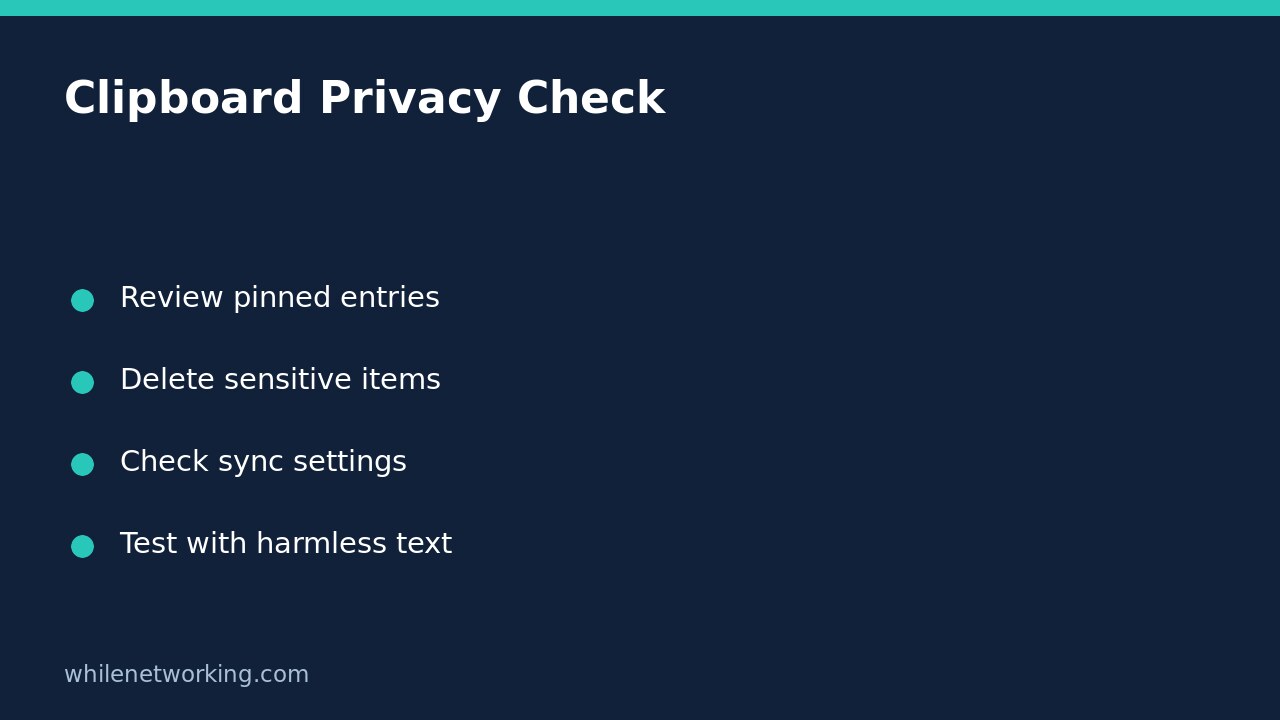
- Review history before sharing starts.
- Delete confidential pinned entries individually.
- Review cloud synchronisation and relevant devices separately.
- Rehearse only with harmless text.
If Win+V itself is malfunctioning, the separate Windows clipboard-history troubleshooting guide addresses feature failures. Do not run repair tools merely because a pinned item correctly survives Clear all.
Source and safety
Source: Microsoft Support: Using the clipboard, including clearing, pinned entries and cross-device synchronisation.
This tutorial is for educational purposes. Test carefully before applying steps in production. WhileNetworking is not responsible for misuse, damage, data loss or production issues.