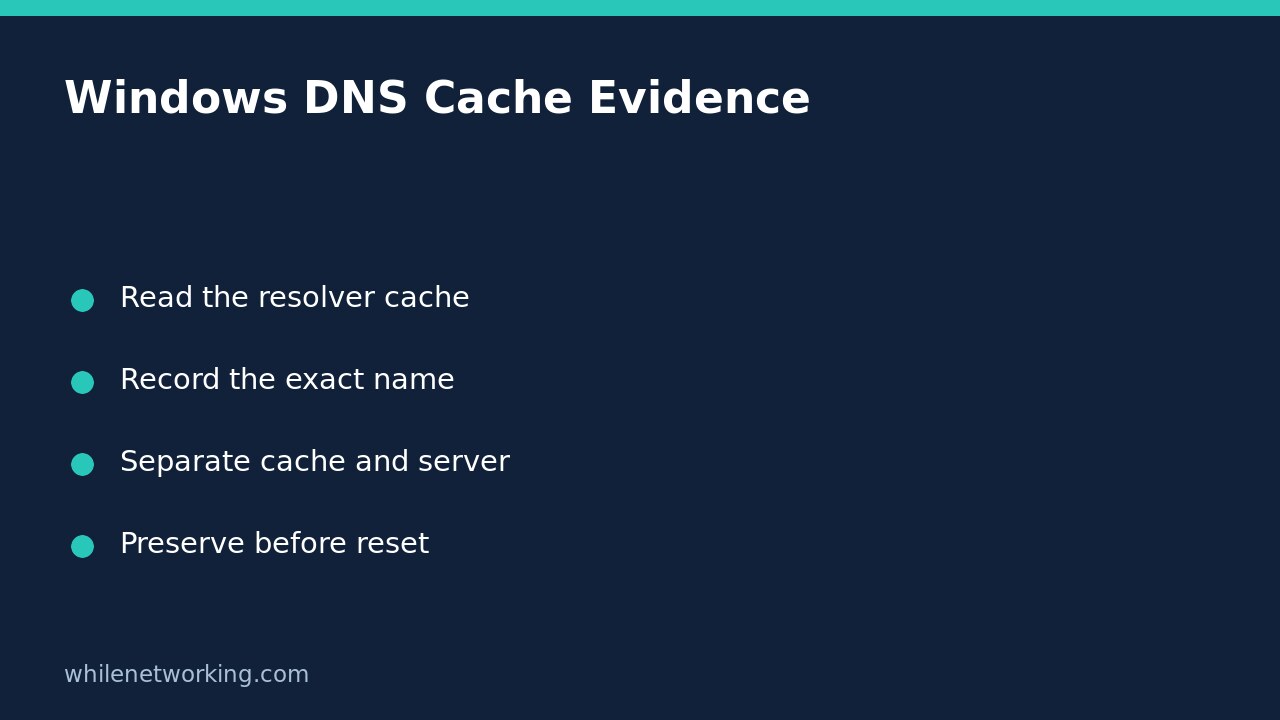

Before clearing the Windows DNS cache, run ipconfig /displaydns and inspect the resolver’s current records. This read-only check preserves a useful distinction: what your computer has cached is not necessarily what a DNS server would return now. A cache entry also does not establish that a website is reachable or that an application successfully connected.
Read the local resolver cache without changing it
Open Command Prompt on the affected Windows computer and run:
ipconfig /displaydnsMicrosoft describes this switch as displaying the DNS client resolver cache. That cache includes entries preloaded from the local Hosts file as well as recently obtained resource records from name queries resolved by the computer. It is therefore a mistake to label every displayed record as a fresh answer from your configured DNS server.
Do not substitute the similarly named reset or registration switches. Displaying the cache does not require releasing an adapter’s address or registering a computer name. Microsoft documents those as different operations with different purposes. In particular, releasing DHCP configuration can interrupt connectivity; it is not an evidence-gathering step for this task.
Match the exact failing name, not a familiar-looking fragment
Write down the hostname used by the failing application, the approximate failure time and whether a VPN was connected. For a browser, distinguish the hostname from the URL path. A failure involving a sign-in hostname may be different from a failure involving the site’s main homepage.
Look through the displayed records for the exact name and its surrounding record details. Keep related alias and address records together when you capture evidence. A partial screenshot containing only one address can hide the name or record type that explains it. Do not expect every record to contain the same fields or to represent an IPv4 address; DNS has different record types.
As a hypothetical support example, suppose an internal application uses a company hostname and a colleague reports that its address recently changed. A cached address matching the previous value is a useful observation to investigate. It is not proof that the cache caused the application failure: the application might be using another name, another resolver path, or an existing connection.
Understand what missing and present records cannot prove
A missing entry does not prove that the computer has never visited the site. The display is a snapshot of the client resolver cache, not a complete browsing history. Nor does a present address prove that the remote service is healthy, that a firewall permits the connection, or that a certificate is valid.
The Hosts-file inclusion is particularly important. If an address keeps appearing, do not assume that repeatedly clearing dynamically obtained records will change a locally supplied mapping. Record the unexpected mapping and ask the system owner to review the appropriate configuration. Do not edit a managed Hosts file simply to match an address found on an unrelated computer.
Treat cache evidence as potentially sensitive. Internal hostnames and service names can reveal organisational information. If support needs the output, share it through an approved channel and provide only the relevant context rather than posting a full cache dump publicly.
Compare a different evidence layer before deciding on a reset
If you need to compare DNS-server answers, use a separate, clearly labelled investigation. Our tutorial on comparing two DNS servers with nslookup covers that reader task without changing Windows DNS settings. A server comparison is not a replacement for the local cache snapshot: each answers a different question.
Keep a short evidence note with the exact name, relevant cached records, capture time and network context. If an authorised troubleshooting procedure later calls for clearing the cache, preserve that note first. Microsoft describes flushing as resetting the resolver cache, including negative cache entries and dynamically added entries. It is a change, not a way to recover the evidence you just removed.
FAQ and support handover checklist
Does this fix DNS? No. The command displays evidence. A useful outcome is identifying the next question without prematurely changing state.
Should I run it on an unaffected laptop? That can provide a comparison, but label the device and network. A different cache is not automatically a faulty cache.
What should the handover contain? Include the affected hostname, the application symptom, relevant records, capture time, VPN context and any separately collected server answers. State explicitly which changes have and have not been made.
Source: Microsoft’s ipconfig command reference. This command example is documented for Windows; it is not a claim of a Windows runtime test in this article.
This tutorial is for educational purposes. Test carefully before production use. WhileNetworking is not responsible for misuse, damage, data loss or production issues.