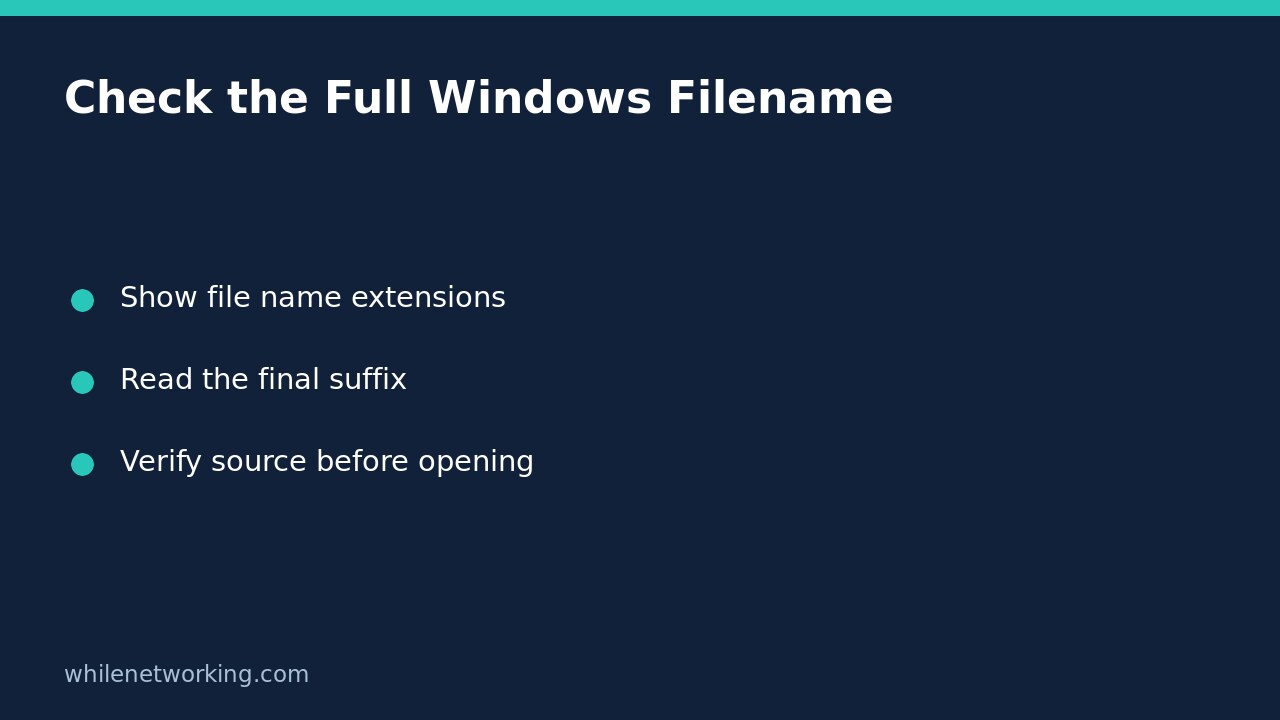

Before opening an unexpected download or fixing a filename, make Windows show the complete file extension. In Windows 11 File Explorer, select View > Show > File name extensions. Then inspect the entire name, especially its final suffix. This reveals useful naming information without launching the file or changing its contents.
The important boundary is that an extension is part of a filename, not a certificate of authenticity. Showing extensions helps you notice inconsistencies, but a convincing name does not establish that the file is safe, that its internal format matches the name, or that the sender is genuine.
Turn on the display option and inspect the whole name
- Open File Explorer and navigate to the folder containing the download.
- Choose View > Show > File name extensions.
- Ensure the filename column or icon label is wide enough to read the complete name. Use Details view and widen the Name column if necessary.
- Select the file without double-clicking it. Read the full name before choosing any action that opens it.
Microsoft documents the Windows 11 menu path in its common file name extensions reference. Its Windows 10 instructions use the View tab’s Show/hide group instead. Do not follow an unfamiliar menu path by downloading a third-party extension-revealing tool: the built-in view setting is sufficient for this task.
This setting changes how names are displayed. It does not convert files, remove malware, restore a damaged document or alter permission to access a file. There is no reason to rename a suspicious download merely to inspect its suffix.
Understand double extensions without guessing from the icon
Suppose an unexpected attachment is called Invoice.pdf.exe. This is an illustrative name, not a file you should create or run. The final suffix is .exe, which Microsoft’s reference identifies as an executable program extension. The earlier .pdf text is part of the name; it does not turn the file into a PDF document.
Similarly, a familiar document icon is not independent evidence of safety. Icons can reflect file associations, and the name presented by a message or webpage may not be the complete local filename. Inspect the saved file itself rather than relying solely on a link’s caption.
A name containing multiple periods is not automatically malicious. For example, a legitimate project document might include a version number before its actual extension. The practical question is whether the complete saved name and expected type agree with what you intended to receive. An unexplained executable suffix on an expected invoice is a reason to stop and verify through an independently trusted channel.
Do not confuse renaming with converting
Microsoft explicitly states that changing an extension does not convert the file to another format. Renaming notes.txt to notes.pdf does not create a PDF; renaming an unexpected executable to end in .txt does not make its contents harmless. You have changed the name, not established a new format or trust level.
If you need a genuine conversion, open a known, trusted source document in an appropriate application and use its supported export or save-as function. Preserve the original and check the exported result. For a file with an uncertain origin, verify the source first rather than experimenting with applications until one opens it.
If a trusted file was accidentally misnamed, record the original name and work on a copy before attempting a correction. Confirm the intended format with its creator. Do not select an extension simply because it makes the icon look right or suppresses an opening error.
Use a safe decision checklist for downloads
- Was this file expected, and did it arrive through the intended source?
- Can you see the complete local filename, including the final extension?
- Does the suffix match the type you expected, without unexplained executable or macro-enabled content?
- Is any security warning or unexpected application request still unresolved?
- Can you verify the sender or publisher without using contact details supplied only in the suspicious message?
If any answer is uncertain, leave the file unopened and follow your organisation’s reporting process. Do not disable endpoint protection or enable macros just to view an unexpected attachment. An ordinary-looking extension is not a reason to skip security scanning or approval requirements.
For a separate Windows storage question after you have established the file’s identity, see checking NTFS file compression before changing a folder. Filesystem compression is different from changing a filename extension or exporting a document to another format.
Common questions
Will showing extensions break my existing files? This is a display option; the procedure does not rename them. Does a PDF suffix prove that a file is a safe PDF? No. A filename alone does not validate the contents or origin. Can I undo the display change? Yes, return to the same File Explorer menu and toggle File name extensions off, although keeping the full name visible can make future checks easier.
This tutorial is for educational purposes. Test carefully before using steps in production. The site owner is not responsible for misuse, damage, data loss or production issues.