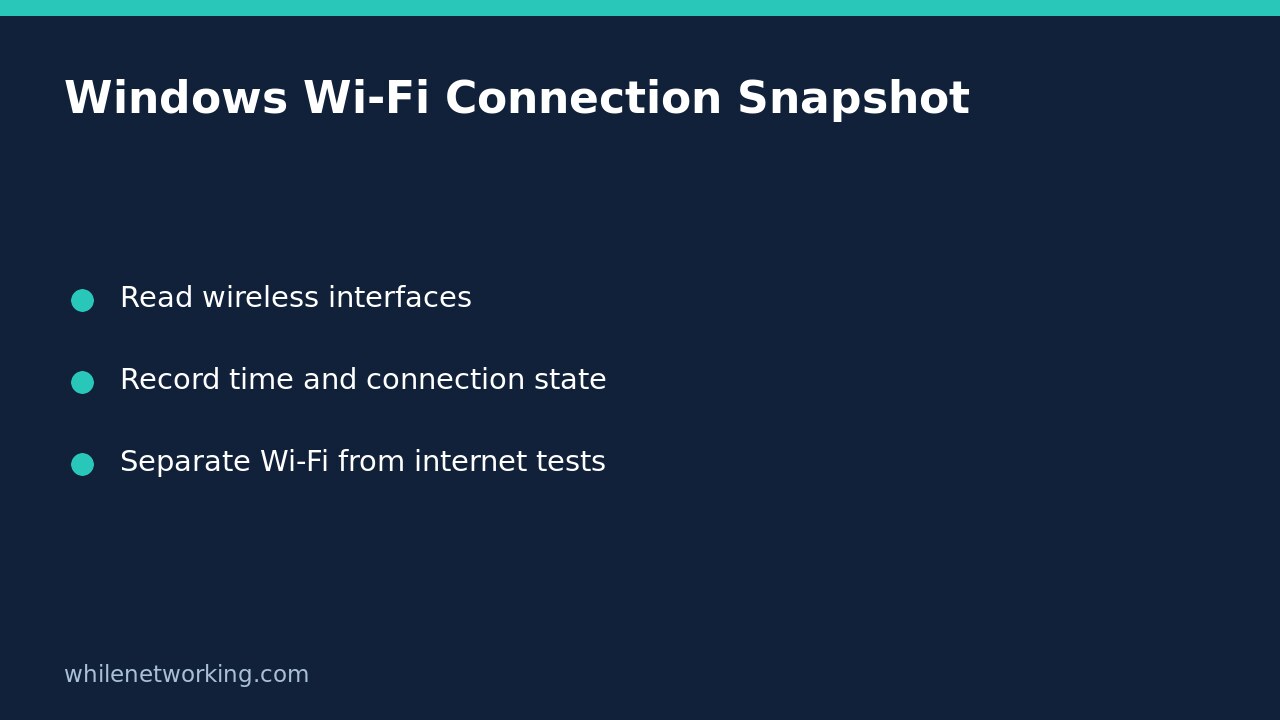

Before disconnecting a Windows laptop that has intermittent Wi-Fi problems, capture its current wireless interface information. The read-only command netsh wlan show interfaces lists wireless LAN interfaces detected on the system. It gives support staff a connection snapshot to compare with the moment a problem occurred, rather than a report collected only after a reset has erased the immediate context.
This procedure is about preserving evidence, not repairing every wireless fault. A connected interface does not prove that DNS, a VPN, the internet connection or a particular application is working. Likewise, wireless link information is not a measured download-speed result.
Run the display command before changing anything
On the affected Windows computer, open Command Prompt through Start. Begin with an ordinary session rather than automatically requesting administrator rights. Type the following command and press Enter:
netsh wlan show interfacesRead the complete response, including any permission or service error. Do not silently interpret an error as an empty list of healthy interfaces. Microsoft documents this command under the display operations in its netsh wlan reference. The same utility also has commands that connect, disconnect and change configuration; those are deliberately outside this evidence-gathering workflow.
Note the local time and what failed: a video call, one website, all applications, or the wireless connection itself. Copy relevant output into an approved support ticket, or take a screenshot if permitted. This command itself does not save a report file. Saving a screenshot or ticket is a separate action with its own privacy considerations.
Keep the interface and connection context together
When more than one wireless adapter is listed, keep each adapter’s information together. A built-in adapter and a USB adapter are not interchangeable evidence. Record the displayed interface name, whether it reports a connected state, and the network name if available. Depending on the Windows version, driver and permissions, connection output can include additional wireless details. Preserve the actual labels instead of inventing missing fields.
Where shown, an SSID identifies a network name, while a BSSID identifies an access-point radio address. A shared network name does not necessarily identify one physical radio. Treat these identifiers as troubleshooting context, not proof that the access point is trustworthy or that the user is connected to the intended corporate service.
If signal information or receive/transmit link rates appear, record their displayed units. Do not label a link rate as usable internet throughput. Local radio conditions, shared airtime and other parts of the network can affect application performance independently. Avoid universal pass/fail signal thresholds: the purpose here is comparison under documented conditions, not a made-up guarantee.
Compare two snapshots without manufacturing a diagnosis
Consider a hypothetical laptop that can join the office network but loses a browser session near a meeting room. Capture the interface output at the desk, then again when the issue occurs if it is safe to do so. Record the location, time and application symptom alongside each snapshot. Do not disconnect simply to make the second output resemble the first.
A changed access-point identifier may be consistent with moving between radios, but two snapshots alone do not prove that roaming caused the failure. A lower displayed signal alongside a failure is a clue, not a complete interference analysis. An unchanged connected state does not exclude brief interruptions between observations. Describe the observations first and leave unsupported causal claims out of the ticket.
Choose the next check from the actual symptom
If the interface is disconnected, investigate the intended network and connection process with your support team. If it remains connected while an application fails, investigate the application’s destination separately. For that distinction, see interpreting TCP reachability when ping fails; a destination-port check answers a different question from a wireless-interface snapshot.
If Windows reports that the requested information is unavailable or permission is denied, preserve that exact response and follow the organisation’s access process. Do not disable security controls or services, export wireless keys, or reset networking just to obtain a cleaner screenshot. Redact network names, hardware addresses and sensitive organisational details before sharing outside approved support channels.
Quick handoff checklist and FAQ
- Include the affected interface, collection time and exact user symptom.
- Keep before-and-during observations separate.
- Distinguish displayed wireless details from an internet performance test.
- Preserve errors and redact sensitive identifiers appropriately.
- Record any later approved change and its result separately.
Does this command disconnect Wi-Fi? The example is a display operation, not a disconnect command. Does it prove the connection was stable all morning? No. It is a snapshot, not continuous monitoring. What rollback is needed? No network configuration is changed by the command; any saved evidence should be retained or removed under your information-handling policy.
This tutorial is for educational purposes. Test carefully before using steps in production. The site owner is not responsible for misuse, damage, data loss or production issues.