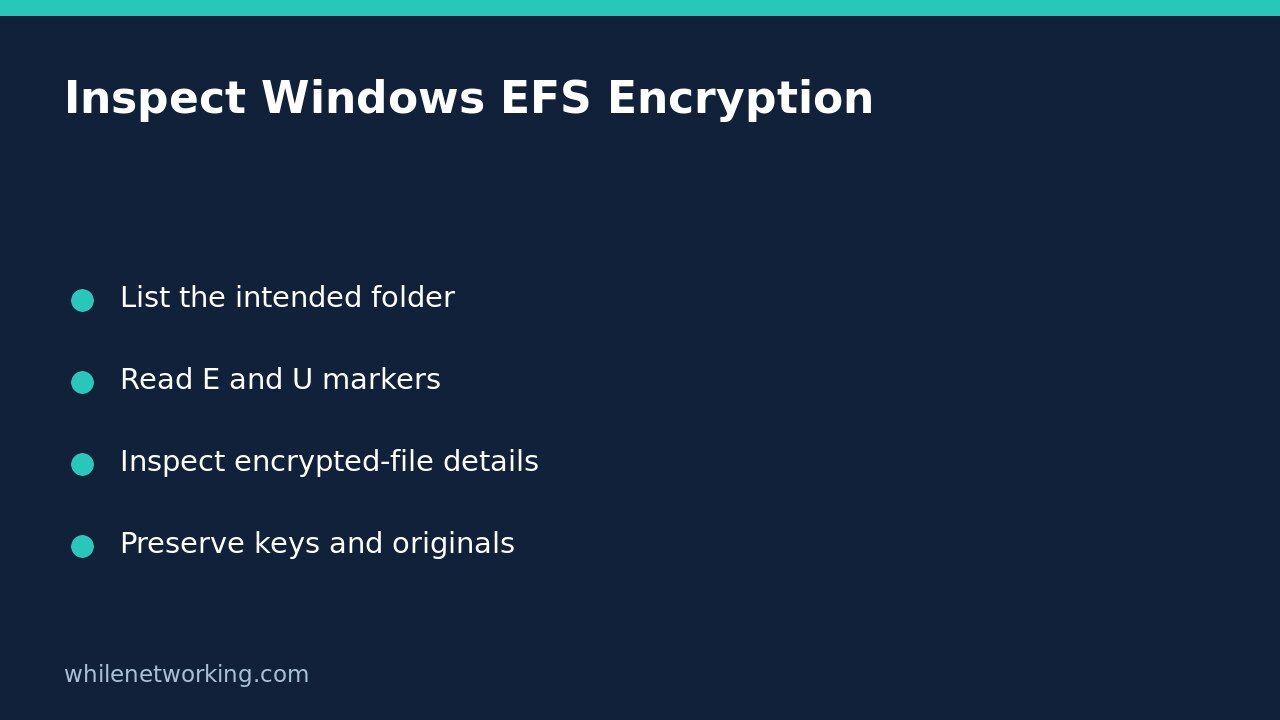

To check whether Windows files use Encrypting File System (EFS) without enabling or removing encryption, open Command Prompt in the intended folder and run cipher with no parameters. Microsoft documents this as an inspection of the current directory and its contents. The listing marks encrypted entries with E and unencrypted entries with U. This answers a file-encryption question, not whether the whole drive is protected or whether your backup can restore a readable copy.
Start in the folder you actually need to inspect
Open Command Prompt using your normal account. Check the displayed path before running anything. If necessary, switch to a known folder with the command below, replacing the example path with your real location. The quotation marks keep spaces in the folder name together; /d allows the drive and directory to change together.
cd /d "C:\Users\YourName\Documents"
cipher
These commands change the shell’s current location and display information. They do not request an encryption change. Keep the first investigation narrow: one relevant folder is easier to interpret than a scan across unrelated data. If a path is unavailable, check its spelling and your access before drawing conclusions about encryption.
Read the folder statement and individual markers separately
The output includes information about the directory and whether new files added there will be encrypted. It also lists individual entries. Do not turn the folder’s setting into a blanket claim about every existing file. Microsoft shows an example where an encrypted subdirectory appears alongside unencrypted documents.
For example, if a listing shows E Private and U notes.txt, it identifies different states for those entries. It does not prove that every descendant of Private has been inspected. Names and letters here are illustrative, not output collected from your computer. Record the exact folder, relevant filenames, account used and time of inspection when handing evidence to support.
Microsoft also warns that an encrypted file in an unencrypted parent directory could become decrypted when modified. That is a reason to investigate how the file is used and stored, not permission to toggle a production folder’s settings during diagnosis.
Inspect an encrypted file without decrypting it
For a specific encrypted file, Microsoft documents /c as displaying information on that file. Supply the exact filename rather than a broad wildcard:
cipher /c "C:\Users\YourName\Documents\Private\budget.xlsx"Read the returned information and preserve it with the original path. A successful inspection is not proof that a different account or another computer can open the contents. Equally, an access error does not establish that the bytes are damaged. EFS keys, the account context, ordinary access permissions and the file’s actual condition are separate parts of an investigation.
Do not post certificate identifiers, account names or confidential filenames publicly without reviewing them. Send the minimum necessary evidence through your organisation’s approved support channel.
Avoid switches that change the problem
Not every cipher command is read-only. Microsoft documents /e for encryption and /d for decryption. Other switches create keys, update encrypted files or manage users. In particular, /w removes data from unused disk space across the selected volume; it is not an EFS-status check and has no place in this workflow.
Do not try a collection of switches copied from a repair forum. If inspection indicates EFS, preserve the original files and seek a supported key-backup or recovery procedure before migrating accounts, reinstalling Windows or removing profiles. This article intentionally does not change encryption or export private keys, so no encryption rollback is required.
Checklist before moving or deleting files
- Confirm the inspected directory and the specific file’s marker.
- Keep folder policy separate from individual file state.
- Record any access error exactly instead of guessing its cause.
- Confirm an appropriate recovery plan before account or storage changes.
- Keep originals until the destination copy is independently usable.
For a separate copy-integrity check, see comparing an original file and USB copy with PowerShell. Matching bytes answer a different question from whether the intended recipient has the keys and permissions needed to read an encrypted file.
Does U mean the drive has no encryption?
No. This listing concerns EFS file and directory encryption, not a complete assessment of drive encryption or transport security. Do not substitute its result for a separate BitLocker or backup-recovery check.
Source: Microsoft’s cipher reference, including the parameter descriptions and E/U listing examples. The Windows commands here were documentation-checked, not executed on a Windows machine during preparation.
This tutorial is for educational purposes. Test carefully before using steps in production. The site owner is not responsible for misuse, damage, data loss or production issues.