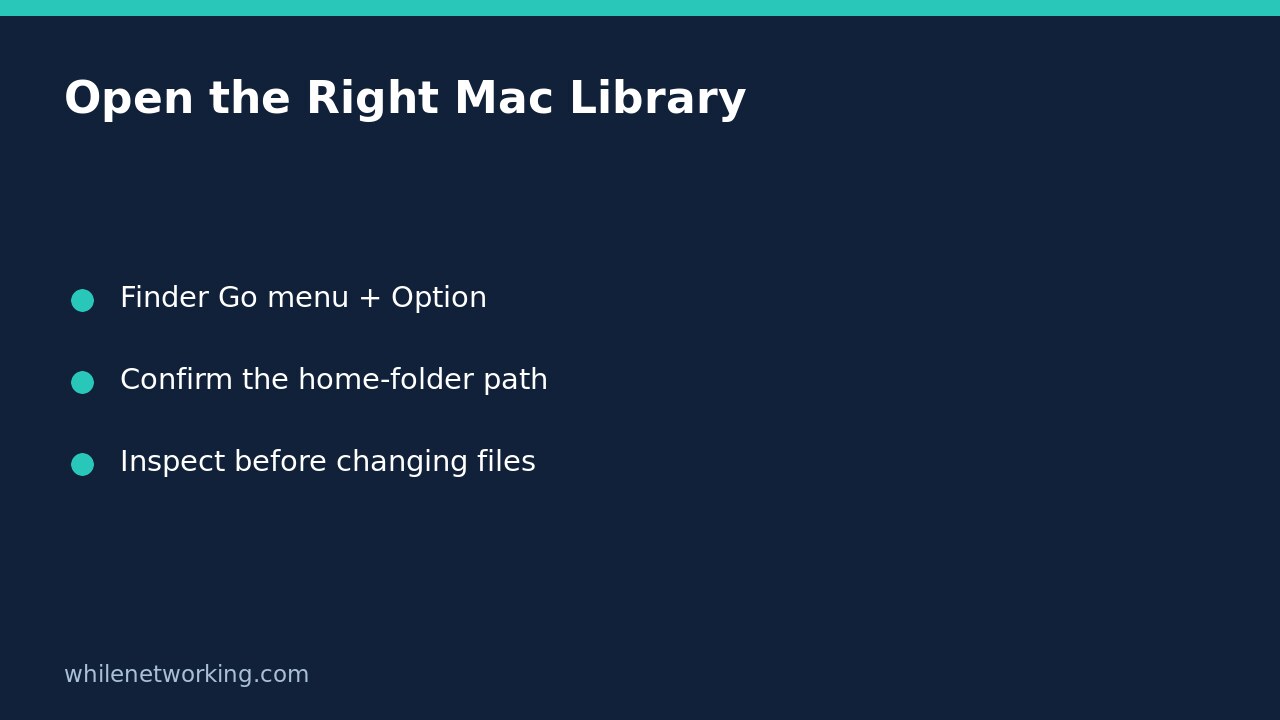

To open your own Library folder on a Mac, activate Finder, open the Go menu, and hold Option to reveal Library. Alternatively, choose Go > Go to Folder, enter ~/Library/, and press Return. Neither approach requires showing every hidden file or changing a folder’s visibility settings. The important next step is confirming which Library you opened before touching any support files.
Why the Library location matters
A troubleshooting instruction that merely says ‘open Library’ is incomplete. The leading characters in the path identify the starting location. Apple documents that a tilde represents your home folder, while a leading slash starts at the top of the computer’s folder structure. Consequently, ~/Library/ and /Library/ are different destinations, even though Finder can display the same final folder name.
For example, an instruction concerning one signed-in user’s application preferences should not be translated into a visit to the computer-level Library simply because that folder is easier to see. Keep the exact path from the application’s support instructions. If those instructions are ambiguous, clarify the intended location before moving anything. Opening a folder is navigation, not permission to delete its contents.
Use the Go menu for a temporary visit
- Click Finder in the Dock so Finder is the active application.
- Open Go in the menu bar at the top of the screen.
- Press and hold Option, then choose Library when it appears.
- Inspect the resulting location before opening the requested subfolder.
This is useful when you need a single visit and do not want to change Finder preferences. Holding Option exposes the menu destination; it does not copy the folder, create a backup, or make application files safe to edit. If Library does not appear, first check that you are using Finder’s Go menu rather than a menu belonging to another app.
Enter an exact path when following support instructions
In Finder, choose Go > Go to Folder. Paste ~/Library/ and press Return. Apple also documents pathname suggestions as you type. Review the chosen destination rather than accepting a similarly named suggestion automatically. Use plain path text without surrounding quotation marks in this Finder field.
If a trusted support document supplies a deeper path, retain its starting characters and folder names. Do not substitute /Library/ for ~/Library/ to make an error disappear. A missing subfolder can mean the application has not created it for this account, the instructions concern a different release, or the path was copied incorrectly. It does not establish that the folder must be created manually.
For a support ticket, record the exact location rather than sending only a screenshot headed ‘Library’. Our Finder path-bar walkthrough explains how to copy a folder path. Before sharing it, consider whether the pathname exposes your account name or a confidential project name.
Inspect safely before applying a proposed fix
Suppose support asks you to locate a preferences file. First confirm the application, account, exact filename and intended operation. Simply finding a similarly named file is not enough. Record the original path and seek application-specific backup and rollback instructions before renaming, moving or deleting anything. Close the affected application if its own support procedure requires that step; do not assume closing a Finder window stops the app.
Avoid broad cleanup advice that tells you to empty Library because an app is slow. This article does not establish which files an application can regenerate, whether a particular folder is synchronized, or whether your backup includes the data. Navigation should remain separate from remediation. If the task only asks you to report whether a file exists, report that observation without making a repair.
Quick questions before you finish
Does opening Library unhide all files? No. These steps navigate to a specific destination; they do not ask you to toggle global hidden-file display.
Is copying a Library path a backup? No. A pathname identifies a location, not a preserved copy of its contents.
What should I send support? The application version, exact requested path, whether the named item exists, and any error message, with sensitive details redacted.
Source: Apple’s Finder folder-navigation instructions explain the Option-key Library shortcut and pathname conventions.
Safety: This tutorial is for educational purposes. Test any proposed changes carefully before production use. The site owner is not responsible for misuse, damage, data loss or production issues. No deletion or permissions change is needed for the navigation steps above.