
Before disabling a Windows network adapter to troubleshoot intermittent trouble, read its statistics. Get-NetAdapterStatistics can expose local interface errors and discards without intentionally disconnecting the computer. The useful question is not simply whether a counter is nonzero: it is whether the relevant counter changes while the symptom occurs.
This is a local evidence-gathering workflow, not a complete packet-loss test. Clean adapter counters do not prove that a router, Wi-Fi link, remote service or application is healthy.
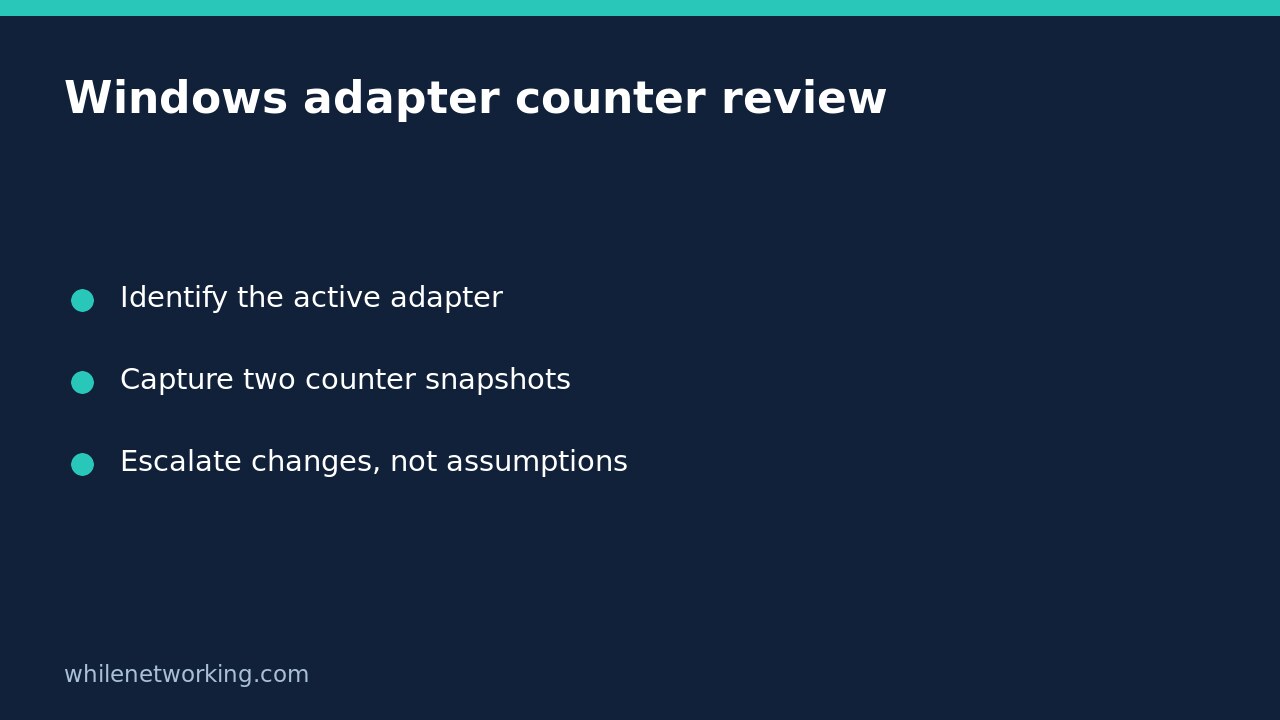
Identify the adapter carrying the affected connection
Open Windows PowerShell on the affected Windows computer. These commands use the Windows NetAdapter module; do not assume they exist in a Linux terminal or WSL. Start with visible adapters:
Get-NetAdapter -Name * | Format-Table Name, InterfaceDescription, Status, LinkSpeedMicrosoft documents Get-NetAdapter as a way to retrieve basic network adapter properties. Match the adapter name to the connection you are investigating. A VPN, virtual switch and physical Ethernet connection can all exist together, so a familiar name is not sufficient evidence that you selected the right interface.
If the expected interface is missing, inspect hidden adapters with Get-NetAdapter -Name * -IncludeHidden. Do not disable unfamiliar virtual interfaces. If you are unsure which route the application uses, first follow the read-only Windows route-table review.
Capture statistics before reproducing the symptom
Replace Ethernet below with the exact adapter name you identified. Keep the same adapter name for every snapshot:
Get-NetAdapterStatistics -Name 'Ethernet' | Format-List -Property *The all-properties view avoids relying on a shortened table that may hide useful fields. Microsoft describes the statistics as including broadcast, multicast, discards and errors. Record the counter names actually returned by your driver and Windows installation rather than expecting a screenshot from another machine to match perfectly.
Save the first output in your support notes, with the time and the symptom you plan to reproduce. Do not interpret an old accumulated count as proof of a current failure. Background traffic can increase byte and packet totals even when you are not deliberately transferring anything.
Take a second snapshot during the same observation window
Use an ordinary approved activity that already exhibits the problem, such as opening the affected business application. Avoid stress tests or large transfers on a production network. Run the same statistics command again, and compare corresponding fields in the two outputs.
For a concrete reasoning example, imagine the received-error count is unchanged but received bytes increase. That observation means the adapter reported traffic without an increase in that particular error counter during your window. It does not mean every packet reached the application. Conversely, an increasing error count is a reason to investigate that interface and its path, not automatic proof that the cable is faulty. This example is illustrative, not a measurement from your computer.
If a counter decreases, the adapter reconnects, or the computer restarts between captures, do not treat subtraction as a valid continuous interval. Establish a new baseline and note the interruption. Driver reporting and virtual adapters also affect how useful individual counters are.
Escalate evidence without destroying the baseline
- Record the adapter name, connection type, time window and affected application.
- Identify exactly which counters changed, rather than writing only “network errors.”
- For wired connections, ask the network administrator to correlate switch-port evidence before replacing hardware.
- For Wi-Fi or VPN issues, investigate the relevant connection separately; physical-interface counters alone cannot explain the complete path.
- Keep adapter resets, driver changes and configuration edits as separate approved actions with a recovery plan, especially over remote support.
Quick questions before closing the ticket
Do zero errors rule out packet loss? No. These are local adapter statistics, not an end-to-end delivery guarantee.
Should I reset the adapter to clear the numbers? Not for this workflow. Comparing observations preserves evidence and avoids an unnecessary disconnect.
What if the command fails? Record the exact error and check that you are on Windows with the required module. Follow your administrator’s access policy; do not install untrusted troubleshooting tools to force a result.
Sources: Microsoft’s Get-NetAdapterStatistics reference and Get-NetAdapter reference.
This tutorial is for educational purposes. Test carefully before using steps in production. The site owner is not responsible for misuse, damage, data loss or production issues.