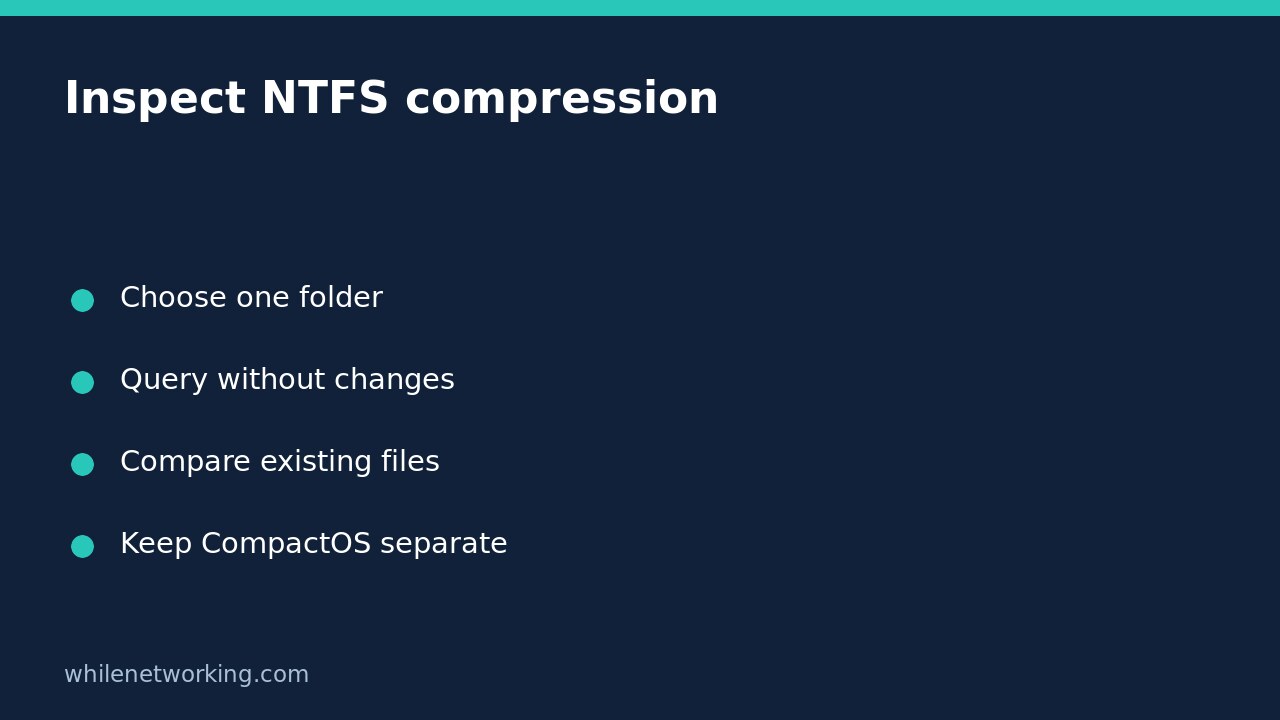

Windows includes a built-in way to inspect NTFS file compression without changing it: run compact with no parameters from the folder you want to examine. Microsoft documents that this displays the compression state of the current directory and its files. The important distinction is that a folder’s compression setting does not necessarily describe every file already inside it.
Use this check before responding to unexpected storage usage or an inherited folder setting. A report is a starting point for investigation, not a reason to compress an entire drive or expand every file.
Choose a small, authorised folder first
Identify the actual local folder and confirm that it is on an NTFS volume. The compact command describes NTFS compression; it is not a general report for every filesystem or storage technology. Microsoft’s documentation specifically says it cannot compress FAT or FAT32 partitions.
Start with a small folder containing ordinary files that you are authorised to inspect. Avoid a broad system-directory or shared-drive investigation unless that scope is approved. Listing filenames can expose sensitive information even though the query does not modify their contents.
Open Command Prompt, not a shell with different environment-variable syntax. The following example changes the prompt’s working directory to your profile’s Documents folder and then requests the report:
cd /d "%USERPROFILE%\Documents"
compact
Run the second command only if the directory change succeeds and the prompt shows the intended location. Some computers redirect Documents elsewhere; use the actual local path shown in File Explorer instead of assuming this example matches your configuration.
Separate the directory setting from existing-file states
Read the directory-level information and the individual file entries as different observations. According to Microsoft, a directory’s compression state indicates whether files added to it are automatically compressed. Setting that state does not necessarily change files already in the directory.
For a hypothetical support case, imagine a folder marked for compression that contains an older uncompressed export. Those observations need not contradict each other. Do not conclude that the report is broken or that every existing file should be rewritten to make the entries match.
Record the exact folder, collection time and the particular file you are investigating. If the question concerns a child folder, inspect that child separately. The initial no-parameter query is not a complete recursive inventory of every descendant.
Query one existing file explicitly
To narrow the report, use a specific filename. Replace this fictional example with an existing file in the current folder:
compact "example-notes.txt"No compression or decompression action switch is included. Keep the filename quoted when it contains spaces, and do not add wildcards unless a wider listing is intentional. A missing-file or access error means the requested observation was not obtained; it does not establish that the file is uncompressed.
By default, compact does not include hidden or system files in its display. Microsoft documents /a for including them. Use that wider view only when necessary and authorised, rather than assuming an initial listing contains every object.
Recognise switches that would turn inspection into changes
The distinction between querying and changing is critical. Microsoft’s /c switch compresses specified objects, while /u uncompresses them. The /s switch extends the selected operation through subdirectories. Combining an action with recursion can greatly enlarge the impact.
This tutorial deliberately provides no bulk-change command. Do not paste a compression example from a reference page merely to obtain a report. The /f option forces processing, and /i continues despite errors; neither is needed for the basic observation here.
Before any later approved change, establish backups, application compatibility, available space and a scoped rollback plan. Uncompressing files is itself a write operation and can require additional storage. It is not a harmless diagnostic reset.
Keep file compression separate from CompactOS
The same utility also documents /CompactOs options. Those address the operating system’s compression state, a different question from whether a particular document is compressed. Its always and never options change that system state; they should not be used to investigate an ordinary data folder.
Likewise, a compressed file is not necessarily an archive such as a ZIP file. Do not rename extensions, extract random files or change system compression because a folder’s report differs from your expectations.
Checklist before closing the ticket
- Confirm the intended NTFS folder and successful directory change.
- Keep the directory setting separate from each existing file’s state.
- Record errors and whether hidden/system entries were included.
- Avoid action switches and unintended recursive scope.
- Hand over observations rather than claiming compression explains every storage discrepancy.
Does this measure battery drain? No. If short runtime prompted the investigation, collect separate evidence such as a Windows battery report; a compression listing does not establish an energy-use cause.
Source: Microsoft’s compact command reference. The examples were checked against that documentation and reviewed as decoded text; they were not executed on a Windows host for this article.
This tutorial is for educational purposes. Test carefully before making production changes. The site owner is not responsible for misuse, damage, data loss or production issues.