
A Windows energy report can help investigate energy-efficiency problems without immediately changing a power plan or disabling devices. Use powercfg /energy to collect a short diagnostic observation, then interpret its findings alongside what the computer was actually doing. A flagged entry is a lead to investigate, not proof that a particular component caused your battery problem.
This workflow creates an HTML report in your temporary folder. It does not reset power settings, override application requests or promise to measure battery health.
Prepare an idle sample rather than recording your normal workload
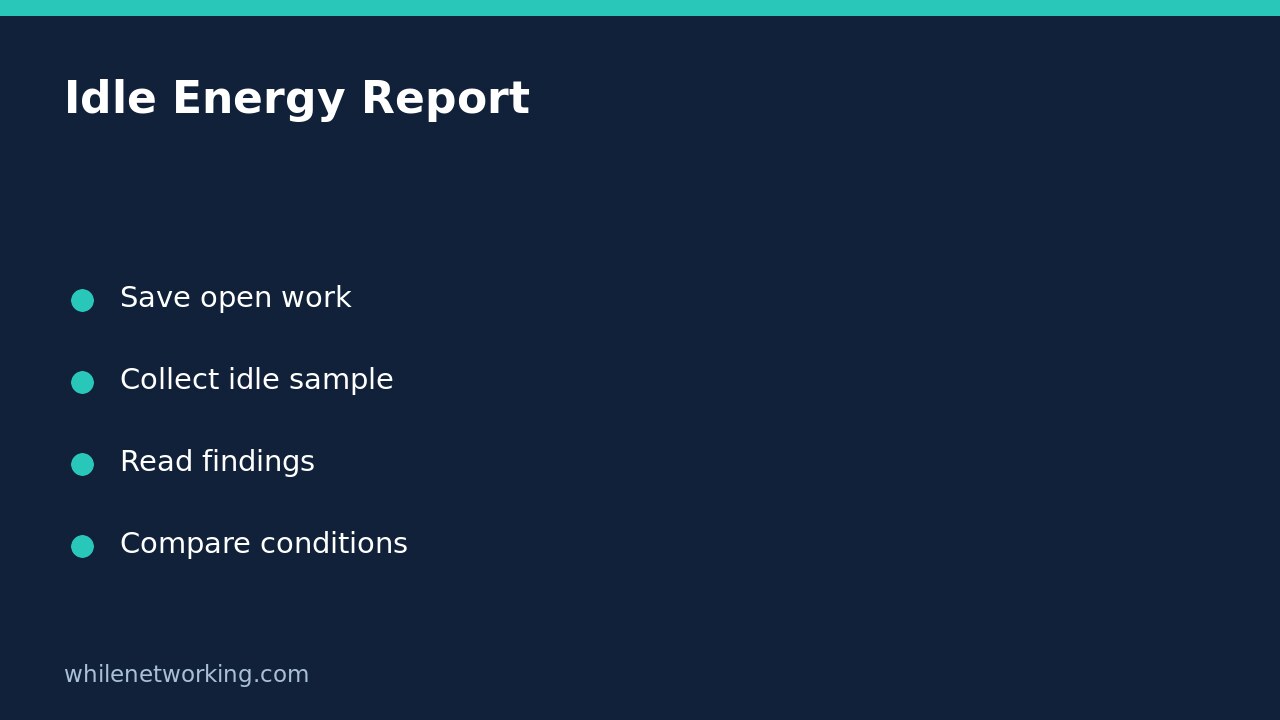
Microsoft says the energy option should be used while the computer is idle, with no open programs or documents. Save your work and close ordinary applications before collecting the report. Do not run it while streaming video, installing updates or copying a large folder and then interpret the results as a clean idle baseline.
Do not stop required security agents or managed services to manufacture an empty-looking report. Instead, note known background activity and collect a quieter sample later when practical. If your organisation controls diagnostics or elevation, obtain permission first.
Record whether the laptop is plugged in, which power mode is selected, what peripherals are attached and when collection starts. These notes make a later comparison meaningful. An external display, dock or active background job can change the circumstances even if the desktop looks quiet.
Generate the HTML file from an elevated Command Prompt
Open Command Prompt using Run as administrator on a device you are authorised to diagnose. Use the following command in that shell, not as an unchanged PowerShell example: percent-style environment variables are Command Prompt syntax.
powercfg /energy /output "%TEMP%\energy-idle-report.html" /duration 60Leave the computer untouched while the observation completes. Microsoft documents a default observation of 60 seconds; specifying it here makes the sample duration explicit. Watch for the command’s completion message and reported output location. If the command fails, preserve the error instead of assuming a report was created.
Open the resulting HTML file using File Explorer and your browser. If an administrative account was different from your everyday account, use the actual path reported by the command rather than assuming both accounts share a temporary folder. Treat the document as private diagnostic information.
Read each finding in its collection context
Start with the report’s system and collection information, then review the individual diagnostic findings. For each relevant entry, write down what was observed, the named process or device if present, and whether that activity was expected during your sample.
For example, a hypothetical report collected during an ongoing application update is not a clean demonstration of unexplained idle activity. The practical next step is to let the authorised update finish and collect a comparable idle sample, not terminate the updater or disable a device simply to remove a finding.
Do not turn the number of warnings into a battery-health score. The energy command analyses common efficiency and battery-life problems during its observation. It is not the same report as the historical battery-usage report. For that separate evidence, see saving a Windows battery report before investigating short runtime.
Repeat a controlled observation before considering changes
Preserve the first HTML file if you need to compare it later: running the same output command again may replace that file. For a second collection, choose a distinct filename and keep the duration and ordinary hardware setup consistent. Record any deliberate difference, such as an approved application having finished its background work.
Compare the actual finding descriptions rather than just the total count. A finding disappearing after a different workload is useful context, but it does not establish a universal fix or predict how long the battery will last under your normal applications.
If evidence points to a particular component, consult its supported documentation or your administrator before updating drivers, changing sleep behaviour or altering power policy. Plan and record a reversible change separately. Generating this report requires no power-configuration rollback; remove only your own diagnostic files when they are no longer needed.
FAQ and handover checklist
Is this a normal-workload runtime test? No. This procedure is an idle diagnostic observation. Real workload and battery-runtime testing need their own controlled method.
Should I fix every warning immediately? No. Establish whether the condition is relevant, reproducible and safe to change first.
- Save work and close ordinary applications.
- Record power source, peripherals and collection time.
- Keep the command’s actual completion result and output path.
- Preserve the HTML before collecting another sample.
- Share relevant findings through an approved private support channel.
Source and safety note
Source: Microsoft Learn: Powercfg command-line options, energy and battery-report sections.
This tutorial is for educational purposes. Test carefully before using steps in production. The site owner is not responsible for misuse, damage, data loss or production issues. Never disable organisational security controls to produce a cleaner diagnostic report.