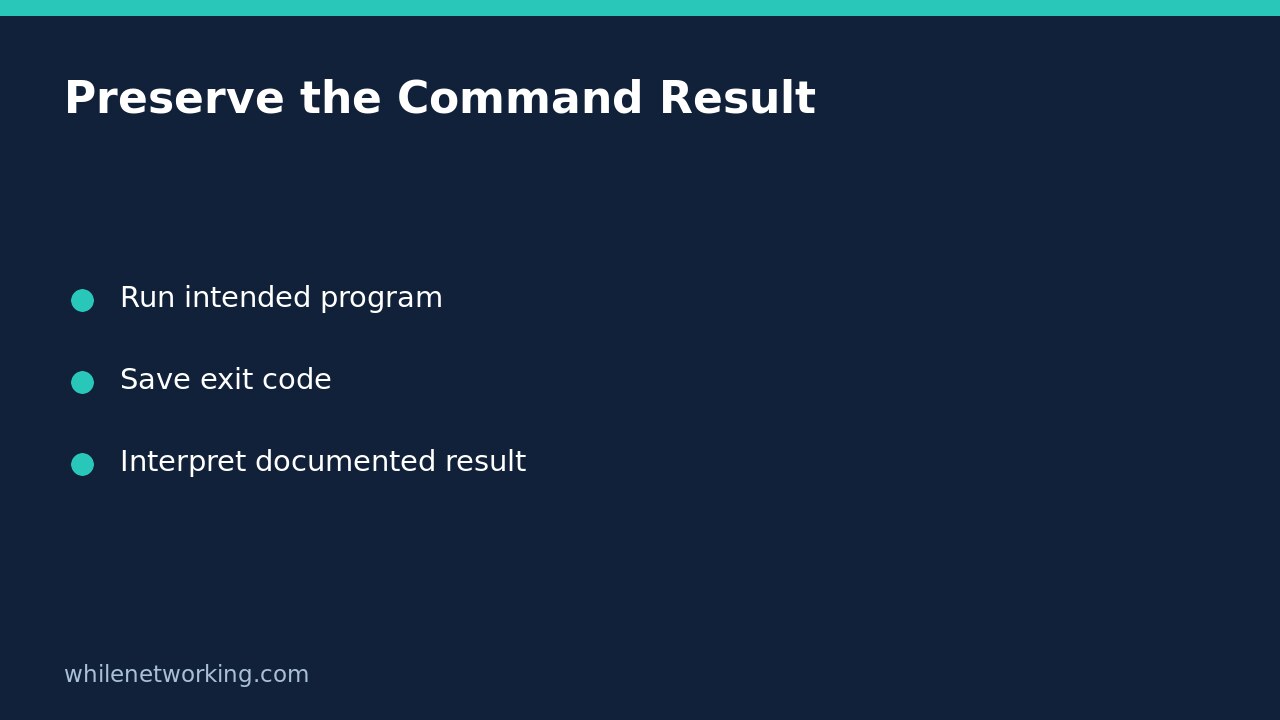

After a Windows native command runs in PowerShell, copy $LASTEXITCODE into your own variable immediately. This preserves that program’s result before another executable changes it. Interpret the saved number using the program’s documentation, rather than assuming every nonzero value means exactly the same thing.
This is especially helpful in support scripts that run a diagnostic, collect additional details and then produce a summary. Without a saved result, the summary can accidentally describe the final helper program instead of the operation you meant to check.
Know which kind of command you ran
Microsoft documents $LASTEXITCODE as the exit code of the last native program or PowerShell script that ran, with specific rules for scripts depending on how they are invoked and whether they use exit. It is not a general success indicator for every PowerShell cmdlet.
For example, running a successful Get-Item does not establish a fresh native-program result. Reading $LASTEXITCODE afterwards can reveal an older value. Likewise, a value left from an earlier command does not prove that a program which failed to launch actually executed. Confirm command identity and successful process invocation before interpreting its termination status.
If a name resolves unexpectedly, first use our explanation of where.exe, aliases and Get-Command. Resolving the intended executable is a separate prerequisite to checking its result.
Demonstrate the overwrite without changing Windows settings
Run this example in PowerShell on Windows, not in Command Prompt. It starts the Windows command interpreter with a deliberately chosen exit value, saves the result, and then starts another harmless interpreter process with a different value. Neither child edits files or changes system configuration.
& $env:ComSpec /d /c "exit 7"
$firstExitCode = $LASTEXITCODE

& $env:ComSpec /d /c "exit 0"
$secondExitCode = $LASTEXITCODE

[pscustomobject]@{
    FirstSaved = $firstExitCode
    SecondSaved = $secondExitCode
    LatestNative = $LASTEXITCODE
}
The intended result is a saved first value of 7 and a saved second value of 0, while the current native exit-code variable reflects the second child. These numbers are deliberately selected demonstration values, not diagnostic codes for your application. The call operator & invokes the executable named by the environment variable.
Use a normal Windows session with its expected command interpreter. If ComSpec is absent or unexpected, stop and inspect the environment rather than copying an untrusted executable path into the example. No administrator rights are required for this demonstration.
Branch on the saved result
For a tool whose documentation says only zero means success, capture its exit code on the next statement and branch on that saved variable. Keep the invocation and capture together during later editing. Inserting a second native utility between them changes which result you save.
Do not silently reuse that zero-only rule for every program. Some utilities use distinct nonzero codes for meaningful outcomes that need different handling. Record the executable, operation, timestamp and saved value, then translate the code using documentation for the actual tool and version. Avoid recording passwords, tokens or sensitive command arguments in support logs.
PowerShell’s $? and a native process exit code answer related but different questions. A successful later PowerShell operation can make a last-operation check misleading for an earlier command. A captured native result remains available in your own variable; it does not depend on whether the display or logging step succeeds.
Keep wrapper scripts and scheduled tasks distinct
A script that displays an error is not necessarily a script that exits with the intended failure status. Microsoft describes different exit-code behaviour for directly invoked scripts, scripts started with pwsh -File, and commands started with pwsh -Command. Check the exact launch method used by the scheduler instead of assuming an interactive result proves the wrapper’s final status.
If the script is intended as a standalone job, design its final exit behaviour explicitly and test it in a separate process. Do not casually add exit to code pasted into your interactive session: it may close that session. Function libraries also need different error and return conventions from standalone job scripts.
Review checklist and FAQ
- Did the intended native executable actually start?
- Was its exit code captured before another native command ran?
- Does the interpretation match that program’s documented codes?
- Does the calling scheduler receive the intended final script result?
Must I reset LASTEXITCODE before every command? Resetting it does not solve command-launch failures or prove which operation ran. Preserve a freshly obtained result and handle invocation errors separately.
Was this tested on my Windows computer? No. The example is a safe demonstration to run locally; it is not evidence about your installed tools, policies or scheduled task.
Source: Microsoft Learn: automatic variables and LASTEXITCODE.
This tutorial is for educational purposes. Test carefully before using these steps in production. The site owner is not responsible for misuse, damage, data loss or production issues.