
A Stale entry from Get-NetNeighbor does not, by itself, prove that the other device is offline. Microsoft defines this state as a neighbor that is no longer known to be reachable; Windows does not try to verify its reachability until traffic is sent to it. That is a cache-state observation, not a fresh application test.
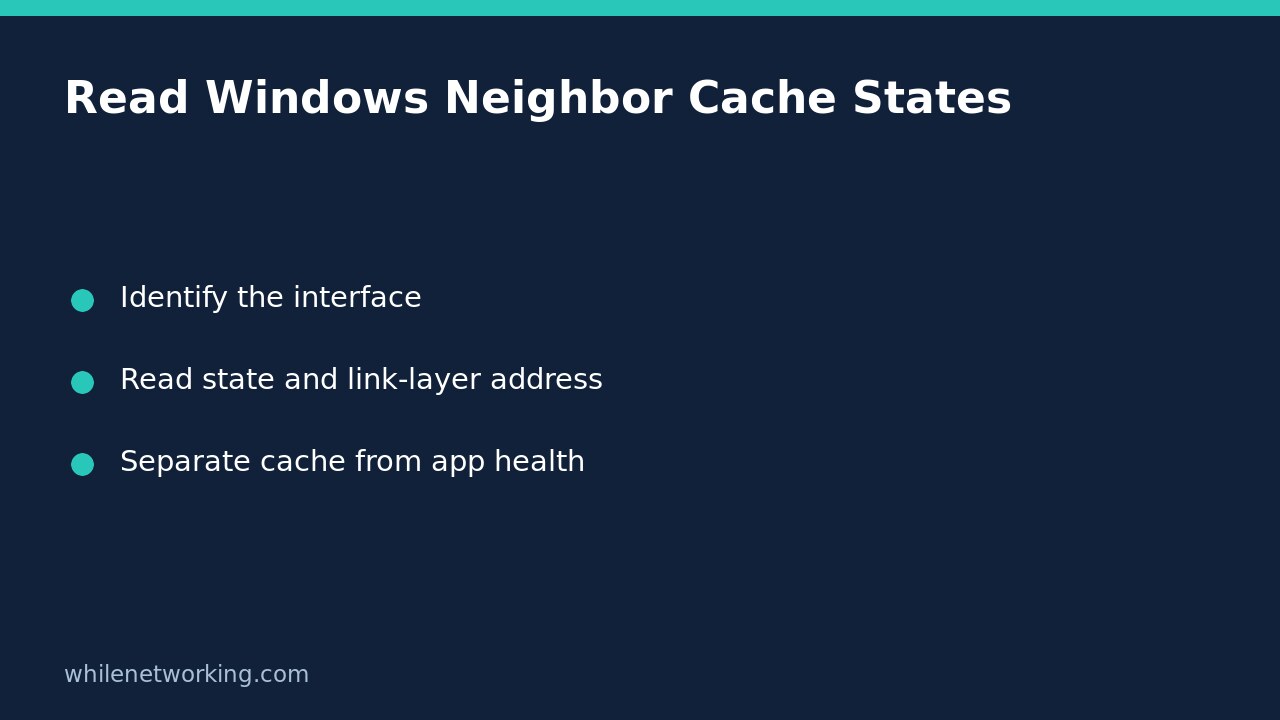
Start by reading the cache and identifying the relevant interface. Do not clear entries, disable adapters or restart a router just to make the state look tidier. Preserving the initial observation is often more useful than changing it.
Understand what the neighbor cache records
Microsoft’s documentation describes the neighbor cache as information about on-link neighbors, including their IP addresses and associated link-layer addresses. For IPv4, it is commonly called the ARP cache. The cmdlet also supports IPv6 neighbor entries.
This is not a list of every server your computer can contact. A remote service reached through a router is not necessarily represented by its own link-layer address in your local cache. A gateway entry and an application server therefore answer different questions. Do not treat a gateway’s healthy-looking entry as proof that the remote website is working.
Take a read-only snapshot
In Windows PowerShell on a system with the NetTCPIP module, start with the documented command:
Get-NetNeighborFor a more explicit view of the fields used in this investigation, run:
Get-NetNeighbor -AddressFamily IPv4 -ErrorAction Stop | Select-Object InterfaceIndex, InterfaceAlias, IPAddress, LinkLayerAddress, StateThese commands request information rather than changing neighbor configuration. If the cmdlet is unavailable or access is denied, preserve that error. A failed query is not an empty cache and does not prove that no neighbors exist. Do not add configuration-changing commands to work around an unexplained failure.
For an IPv6 investigation, use the documented IPv6 filter instead of assuming IPv4 output covers both families:
Get-NetNeighbor -AddressFamily IPv6 -ErrorAction StopRecord the observation time, address family, interface and target address. Multiple adapters, VPNs and virtual networks make the interface important: the same-looking address on an unrelated interface may not describe the connection you are troubleshooting.
Interpret states without overclaiming
- Reachable: Windows has recent reachability information. This does not establish that a particular TCP port, login or business application works.
- Stale: recent reachability is no longer established. Windows can defer verification until traffic is sent; do not translate this directly into “powered off.”
- Incomplete: address resolution is in progress and a link-layer address has not yet been determined.
- Delay or Probe: Windows is in stages of checking a neighbor whose reachability is no longer known. These are not application-level error messages.
- Unreachable: investigate the reported reachability problem in its interface and time context rather than inferring a permanent hardware failure.
- Permanent: the entry is statically provisioned and will not expire unless removed through configuration. Permanence is not evidence of current health.
Microsoft documents these meanings under the State parameter. An address mapping is evidence about local neighbor resolution; it is not authentication of the device’s identity or a guarantee that it is trustworthy.
Work through a stale printer example
Suppose an office printer’s address appears as Stale on the expected Ethernet interface. The safe first conclusion is narrow: the cache contains an entry, but its state is not current reachability confirmation. Save that observation before trying the normal, authorised printer workflow.
If the printer interface or an approved application request works, record that separately. If it fails, collect the specific error and time. A later cache read may show a different state, but do not promise a particular transition or use an unchanged state as the sole verdict. Avoid generating repeated scans or test traffic on networks you do not administer.
For the next layer, see why a ping failure and a successful TCP test can coexist. That distinction helps prevent a neighbor-cache observation from becoming an unsupported claim about an application.
Checklist before making a change
Have you identified the correct interface and address family? Did the query succeed? Are you discussing a local neighbor or a routed destination? Is there an actual user-visible failure, or only an unfamiliar state label? Preserve those answers before escalating.
Should I delete every Stale entry? Not as a default troubleshooting step. This article’s commands require no rollback because they do not change the cache configuration.
Were these commands tested against my network? No. They follow Microsoft’s documented interface; the examples here are not a report of execution on a Windows host or your devices.
Source: Microsoft Learn’s Get-NetNeighbor reference, including the description, address-family examples and State definitions.
Safety: This tutorial is for educational purposes. Test carefully before production use and inspect only systems you are authorised to administer. The site owner is not responsible for misuse, damage, data loss or production issues.