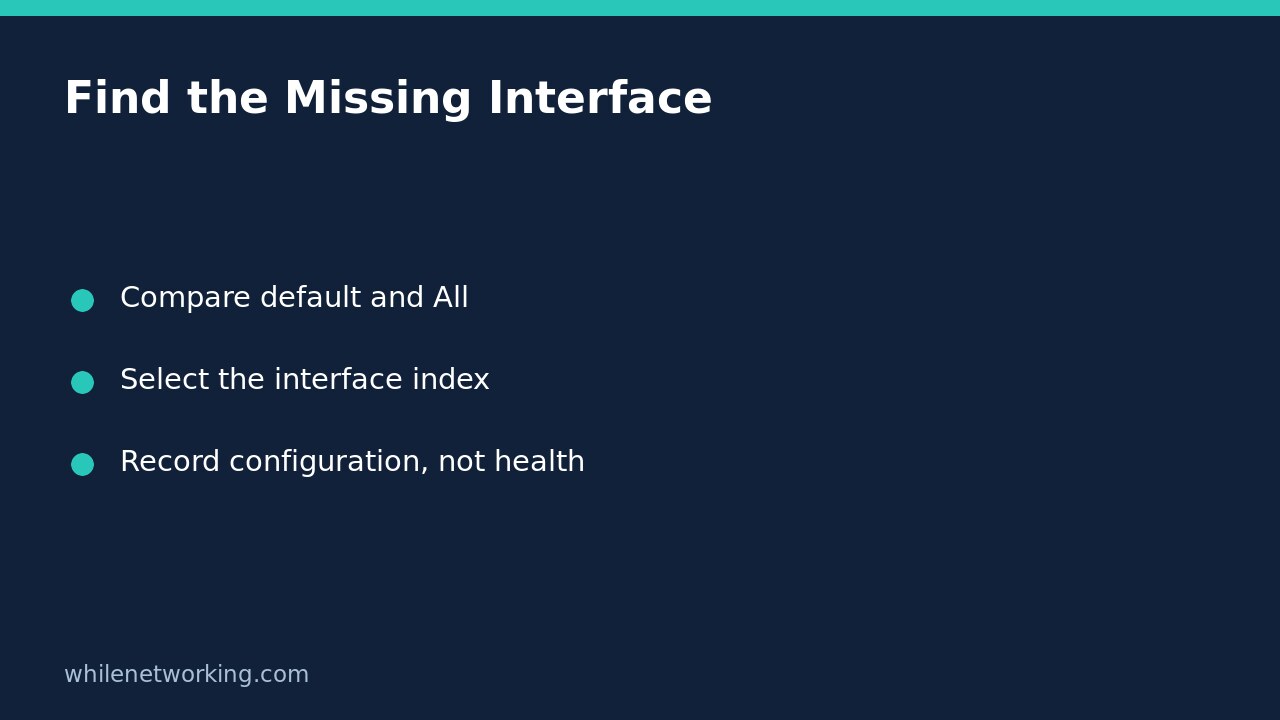

If a Windows VPN or virtual adapter does not appear in the default Get-NetIPConfiguration output, compare it with Get-NetIPConfiguration -All before reinstalling software or resetting networking. Microsoft documents that the command without parameters reports non-virtual connected interfaces; the All parameter includes virtual, loopback, and disconnected interfaces.
An omitted interface in the default summary is therefore not proof that Windows lost the adapter. Equally, an entry appearing in the expanded inventory is not proof that the VPN tunnel is connected, carrying the application’s traffic, or permitted to reach a server.
Compare the two read-only views
Open PowerShell locally on the Windows computer you are troubleshooting. Start with these commands, one at a time:
Get-NetIPConfiguration
Get-NetIPConfiguration -All
These commands request configuration information rather than changing addresses, disabling adapters, or clearing caches. Record which command produced each output. Without that label, screenshots taken from different views can look like evidence that an adapter disappeared between checks.
The behavior is described in Microsoft’s Get-NetIPConfiguration reference. The default filter is the key distinction here, not an instruction to treat every extra interface as a problem. Machines with virtualisation software or several network clients can legitimately contain more interfaces than the user normally sees in a simple connection summary.
If PowerShell says that the command is unavailable, preserve that error and establish whether the expected Windows networking module is present. Do not interpret a command-loading error as an empty adapter inventory. This walkthrough assumes Windows PowerShell networking cmdlets are available; it does not run them on macOS or Linux.
Select one interface by its observed index
Look for the relevant interface alias and index in the expanded output. Names can be renamed or resemble one another, so retain both identifiers in your troubleshooting notes. Then request the interface explicitly. This example uses a hypothetical observed index of 12:
Get-NetIPConfiguration -InterfaceIndex 12
Get-NetIPConfiguration -InterfaceIndex 12 -Detailed
Replace 12 with the index actually shown on your computer. Do not copy it blindly or assume that a number from a colleague’s device identifies the same interface on yours. The Detailed parameter requests additional information such as DHCP status, the link-layer address, network profile, and MTU.
Read the returned fields together. An interface identity, address, gateway, and DNS-server listing describe aspects of configuration, not an end-to-end application test. Some configurations do not require a gateway on every listed interface. Do not add one merely to make a blank field look like the physical Ethernet connection.
Use a comparison that answers the support question
Consider a hypothetical laptop whose ordinary summary shows Wi-Fi but whose expanded output also shows a virtual VPN interface. This establishes that the broader query returned an interface omitted by the default view. It does not establish why the VPN application is failing.
A useful support note states the Windows computer being inspected, when the check was taken, whether the VPN application claimed to be connected, the observed alias and index, and which query returned the entry. Keep actual addresses and server names in the private ticket rather than a public forum.
If the question is whether traffic uses the expected route, continue with a separate read-only route-table review. Configuration inventory and route selection are related but different questions. Neither automatically proves that a remote service is listening or that an authentication attempt will succeed.
Interpret absence carefully and avoid premature resets
If the expected interface is absent even from the expanded query, first confirm that you are checking the intended computer and that the relevant VPN software is installed and running as expected. Preserve errors and consult the client’s approved support process. Absence from this output alone does not identify a broken driver, an expired login, or a firewall rule as the cause.
Avoid changing an interface alias, resetting TCP/IP, or reinstalling a VPN client just to make the initial summary longer. Those actions can interrupt remote access and erase useful evidence. There is no configuration rollback step for the read-only commands above because they do not request configuration changes.
Short verification checklist
- Did you compare the default query with the All query on the same computer?
- Did you select an index observed in that computer’s output?
- Did you distinguish configuration presence from tunnel health and application reachability?
- Did you retain any actual error rather than describing it as no adapters found?
This tutorial is for educational purposes. Test procedures carefully before using them in production. The site owner is not responsible for misuse, damage, data loss, or production issues. The commands are documented examples, not a claim that a Windows VPN or your network was tested during preparation.