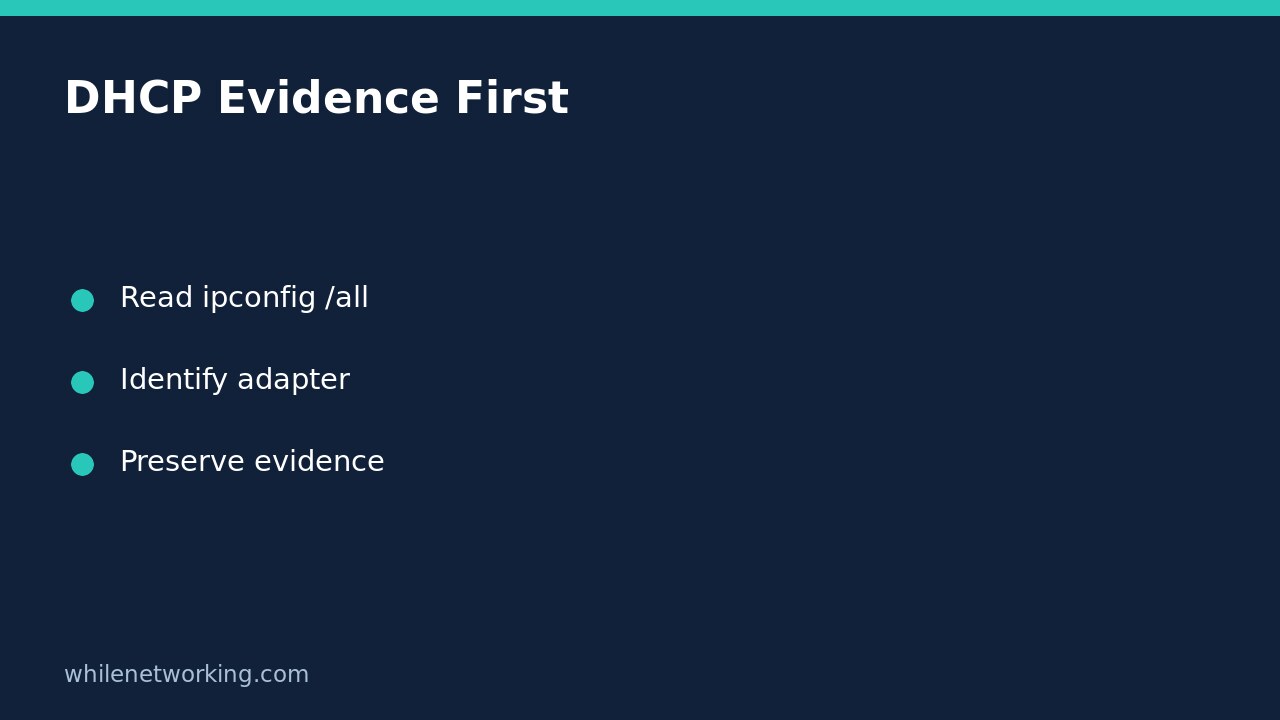

Before releasing a Windows IP address, run ipconfig /all and preserve the relevant adapter’s configuration. Microsoft’s documentation says that /release discards DHCP address configuration and disables TCP/IP for automatically configured adapters. That is a change to connectivity, not a harmless way to collect information. Capture evidence first, especially if you are receiving remote support through the connection being investigated.
This workflow is for recording a DHCP client’s current state. It does not renew an address, reset DNS, change routes or prove that the DHCP server is healthy. You can often give support a much clearer starting point without disconnecting anything.
Start with two read-only commands
Open Command Prompt and run the basic display command:
ipconfigMicrosoft documents this as displaying IPv4 and IPv6 addresses, subnet masks and default gateways for adapters. Read the adapter headings rather than stopping at the first address. A laptop can have Wi-Fi, Ethernet and virtual interfaces, so the first block may not describe the connection you are using.
Then request the full configuration:
ipconfig /allThis displays full TCP/IP configuration for all adapters, including physical and logical interfaces. These commands inspect local configuration; they do not send a release instruction. Keep the command and its output together when recording the result.
Make an adapter-specific evidence note
Find the block corresponding to the connection under investigation. Record the adapter heading, whether it appears connected, its address information, subnet mask, gateway and DNS server entries. Where the output provides them, also preserve the DHCP-enabled field, DHCP server and lease timestamps. Do not invent missing fields or borrow a value from the next adapter’s block.
A useful support note might read: ‘Wi-Fi connection, output captured before any reset; DHCP-enabled field copied below; gateway and DNS entries retained in the attached excerpt.’ That is a suggested note format, not a report of a test on your computer.
Include the capture time and describe the symptom separately: for example, whether one application fails or all websites fail. Configuration output is a snapshot of reported settings. It does not establish that a gateway responds, that a DNS server answers correctly, or that an application can complete its own transaction.
Before sharing, check for hostnames, physical addresses, internal domains and other organisational information. Send necessary details through your approved support channel rather than posting an unredacted company network inventory publicly.
Understand what a release would change
Microsoft distinguishes the display options from modification options. The release operation sends a DHCPRELEASE message and discards the current DHCP configuration. Without an adapter argument, it can affect all applicable adapters rather than only the one you meant to investigate.
For that reason, this evidence-collection workflow intentionally contains no release or renewal command to copy. A renewal is a separate troubleshooting decision; Microsoft’s documentation limits it to adapters configured to obtain an address automatically. A successful display command is not permission to apply DHCP changes to a statically configured interface.
If support later authorises a change, establish which adapter is in scope and how you will recover if remote access drops. Preserve the initial output before that change. Avoid combining address release, DNS flushing and a reboot into one unexplained step, because you then lose the ability to relate a result to a particular action.
Keep the next diagnostic question separate
If the address and gateway appear plausible, do not label the incident resolved. Ask what the next observation needs to establish. Name-resolution testing, route selection and application-port access answer different questions.
For example, our tutorial on comparing DNS servers with nslookup without changing Windows settings addresses resolver answers rather than DHCP lease administration. Use it when the evidence points toward a name-resolution question, not as proof that every DHCP setting is correct.
Questions to settle before any reset
Does DHCP Enabled mean the Internet works? No. It describes configuration mode, not end-to-end connectivity or application health.
Should I release every adapter to save time? Not as an evidence-gathering shortcut. Determine the relevant connection and change scope first; an indiscriminate release can interrupt the very access needed for support.
- Identify the relevant adapter by its heading.
- Save full configuration before modifications.
- Keep lease details with their own adapter.
- Record symptoms and capture time separately.
- Agree on recovery access before disruptive changes.
Source: Microsoft Learn’s ipconfig reference. The commands shown are documented Windows commands; this article does not claim they were executed on a Windows machine during preparation.
This tutorial is for educational purposes. Test carefully before using steps in production. The site owner is not responsible for misuse, damage, data loss, or production issues.