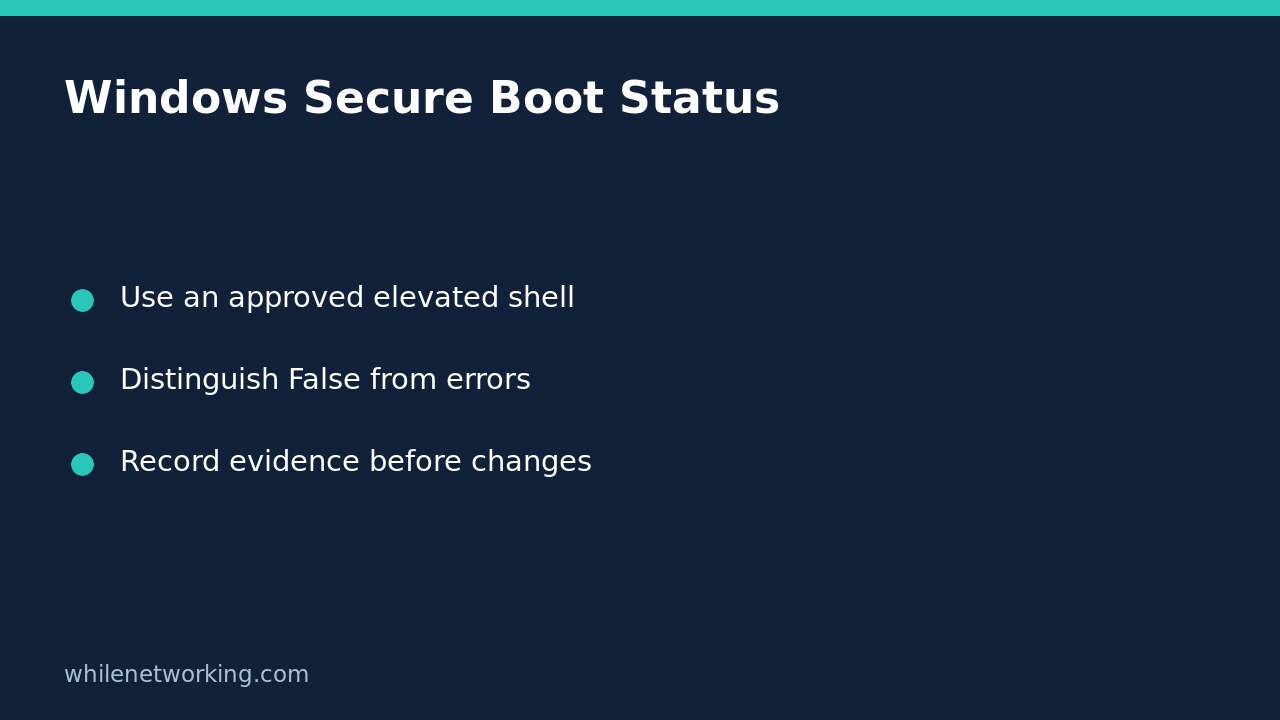

To check Secure Boot on a Windows computer without changing its firmware, run Confirm-SecureBootUEFI in an administrator Windows PowerShell session. Microsoft documents four important outcomes: True, False, an unsupported-platform message, and an access-denied privilege error. Only a successful False result means that the supported computer reports Secure Boot disabled. An error must not be silently converted into that finding.
This is an evidence-gathering step for a device review or support ticket. It is not a procedure for enabling Secure Boot, converting a boot disk, updating firmware, or deciding whether a computer is free from malware.
Prepare a local, authorised check
Confirm that you are inspecting the intended device and have permission to use an elevated shell. Note its asset identifier and the review time. On a managed computer, use the organisation’s approved support process rather than bypassing administrator restrictions. Do not put credentials, recovery keys or other secrets into the ticket.
Open Windows PowerShell using Run as administrator. Microsoft’s command reference explicitly requires administrator mode. The command checks the local computer; opening a terminal on a support laptop does not inspect a different employee’s device. If you are working through an approved remote session, document which computer actually executes the command.
Run the status command, not a firmware change
Enter this single command:
Confirm-SecureBootUEFIKeep the displayed result together with any accompanying error text. Do not wrap the command in a script that catches every error and writes False. That would collapse different evidence states into a misleading compliance finding. For a one-device investigation, preserving the straightforward output is often clearer than building a pass/fail dashboard first.
This example is based on Microsoft’s documented Windows behaviour. It has not been executed against your computer, and a Linux shell or WSL session is not a substitute for the required Windows firmware inspection. If the command is unavailable in your chosen environment, record that limitation and use the supported Windows PowerShell context through your administrator.
Read each outcome correctly
- True: Microsoft says the computer supports Secure Boot and Secure Boot is enabled. Record the result as a successful status observation at that time.
- False: the computer supports Secure Boot but reports it disabled. Preserve the finding and refer any required change to the device owner or authorised administrator.
- Cmdlet not supported on this platform: Microsoft’s reference associates this with unsupported Secure Boot hardware or a BIOS, non-UEFI computer. This is not the same as a successful False response.
- Unable to set proper privileges. Access was denied: Microsoft documents this when Windows PowerShell is not run in administrator mode. The check did not establish the Secure Boot state.
For example, imagine two hypothetical tickets. The first includes a successful False result from an authorised elevated session. The second includes only an access-denied error from a standard-user session. The first supports a disabled-state finding; the second supports an incomplete-check finding. Neither should be rewritten to match a preferred dashboard colour.
Keep this finding separate from other protection checks
Secure Boot status is one security property. A True result does not establish that antivirus signatures are current, that disk encryption protection is active, or that every downloaded program is trustworthy. A False result also does not identify the reason the setting is disabled or establish that an intrusion occurred.
For a separate endpoint-protection check, use the Microsoft Defender signature-freshness review. Keep its evidence distinct: a fresh signature timestamp does not replace a Secure Boot result, just as Secure Boot does not establish signature freshness.
Do not enter firmware setup and toggle settings merely to make the check pass. Boot-security changes can affect the machine’s ability to start and may interact with other protections. They need device-specific guidance, authorised change control and an appropriate recovery plan, not an improvised fix inside a read-only ticket.
Handover checklist and common questions
Record the device, execution context, timestamp, exact result and whether the check completed successfully. For errors, document the missing prerequisite and who will follow up. After any separately authorised change, repeat the observation and preserve both records instead of overwriting the original finding.
Does True certify the whole computer as secure? No. It answers this particular status question, not every security or health question.
Does the privilege error mean the command changed a setting? No. Despite the wording about privileges, this is a status-checking cmdlet; the error is not evidence that a firmware change occurred.
Source: Microsoft’s Confirm-SecureBootUEFI reference.
This tutorial is for educational purposes. Test carefully before using instructions in production. The site owner is not responsible for misuse, damage, data loss, or production issues.