
A Windows Firewall setting can look different in a local configuration view and in the policy currently applied to the computer. Before trying to fix that difference, collect both views. Get-NetFirewallProfile can inspect PersistentStore and ActiveStore without changing either. This is a policy-evidence workflow, not a procedure for disabling protection or proving that a connection is allowed.
Understand the two policy stores
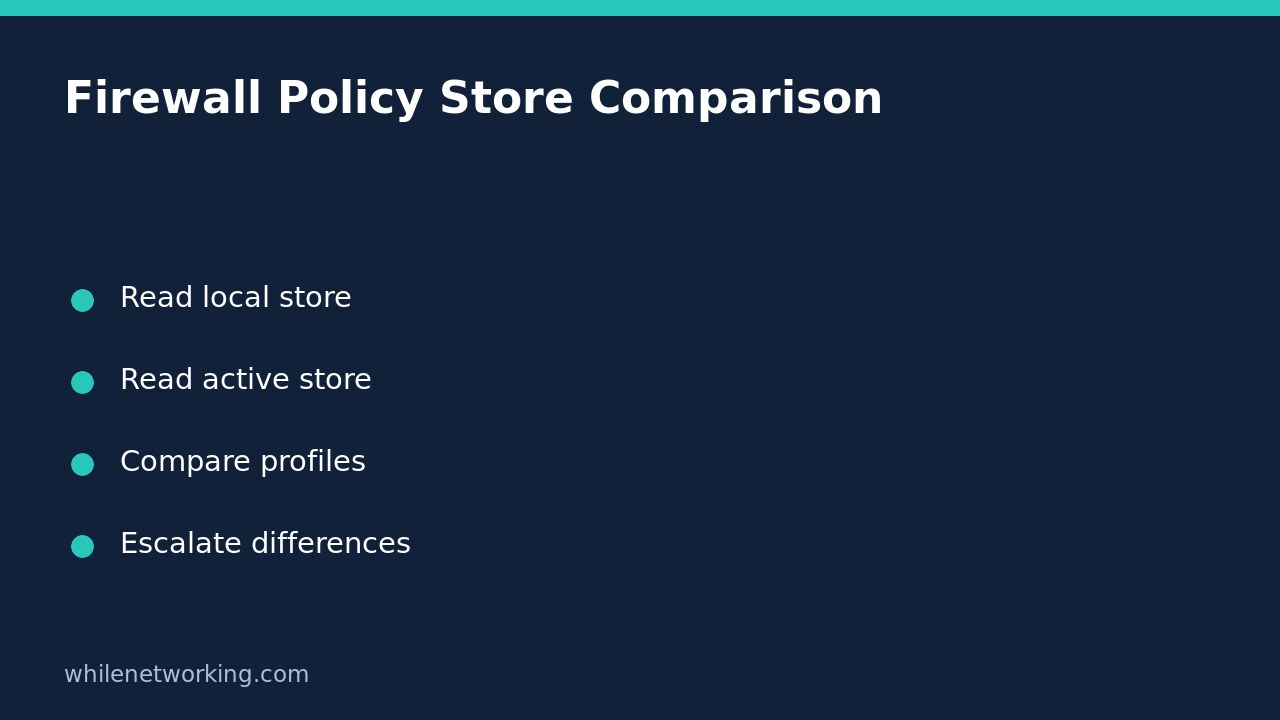
Microsoft documents PersistentStore as the local persistent policy store. ActiveStore represents the currently active resultant policy, combining applicable stores, including Group Policy and local policy. Running Get-NetFirewallProfile without a policy-store argument retrieves the persistent store, not automatically the combined active view.
That default matters when a support ticket says a locally configured value should already be effective. A difference may be consistent with centrally managed policy, but a comparison alone does not identify the exact winning policy or prove that management is broken. Keep the observed settings separate from explanations that still need investigation.
Domain, Private and Public are profile names. Displaying all three profile configurations does not establish which category applies to a particular network connection. Do not change a network category simply because a profile has settings you prefer.
Collect a read-only comparison in PowerShell
Use an authorised Windows support session where the NetSecurity module is available. The following commands query the current computer. They do not create firewall rules, import another configuration or reset any settings. If your organisation requires an elevated session to inspect policy, follow its normal access procedure rather than attempting to evade the restriction.
Get-NetFirewallProfile -PolicyStore PersistentStore | Select-Object Name, Enabled, DefaultInboundAction, DefaultOutboundAction | Format-Table -AutoSize
Get-NetFirewallProfile -PolicyStore ActiveStore | Select-Object Name, Enabled, DefaultInboundAction, DefaultOutboundAction | Format-Table -AutoSize
Keep the headings or label each captured result clearly in your ticket. Record the computer identifier, collection time and relevant connection being investigated. If you repeat collection after an approved policy update, preserve the original results as a separate observation instead of overwriting the evidence.
These examples have been checked against the documented cmdlet syntax; they are not a claim that Windows policy was tested on your machine. If the cmdlet fails or returns an access error, preserve that diagnostic. Missing output is an unverified observation, not evidence that a firewall is off.
Compare the same profile and property
Start with one named profile and compare matching properties across the two outputs. For example, imagine a ticket where the Public profile has a different DefaultInboundAction in the persistent and active results. Record both actual values exactly. Do not silently substitute what you think the default should be or convert an unresolved setting into an assumed Allow or Block.
Next, ask the policy owner whether that difference is expected for the device and management scope. A useful question is: which management policy should control this profile on this computer, and what effective value should we see? That question is more actionable than asking someone to make every visible value match.
An Enabled value is also not a complete connection verdict. Profile configuration is only one part of filtering. Individual rules, application and service scope, addresses, ports and other controls can affect a specific flow. Matching outputs therefore do not establish that the intended application can communicate.
Build a useful handover instead of resetting the firewall
- Identify the affected application or service and the intended destination and port.
- Attach the labelled persistent and active profile results from the same computer.
- State which profile and property differ, without inventing a root cause.
- Ask the authorised policy owner to reconcile the expected management scope.
- Keep any later change request separate from this evidence collection.
Avoid commands that disable a profile or reset the firewall merely to make a screenshot look consistent. On a managed endpoint, a local change may be inappropriate or later overridden. If a change is eventually approved, the owner should define its scope, validation method and rollback before applying it.
Quick questions
Does ActiveStore show only the profile currently used by my network adapter? No. This command retrieves active policy settings on a per-profile basis; it is not an adapter-category report.
Do equal values prove that no central policy applies? No. Different stores can produce the same visible value. Equality does not establish policy provenance.
What should I check next? Investigate the actual failed flow with the responsible administrator. For another example of collecting security evidence before enforcement changes, see the Controlled Folder Access audit-pilot checklist; it addresses a different control and should not be treated as a firewall fix.
Source and safety note
Source: Microsoft Learn: Get-NetFirewallProfile, including the policy-store definitions and active-store example.
This tutorial is for educational purposes. Test carefully before using steps in production and follow your organisation’s change controls. The site owner is not responsible for misuse, damage, data loss or production issues.