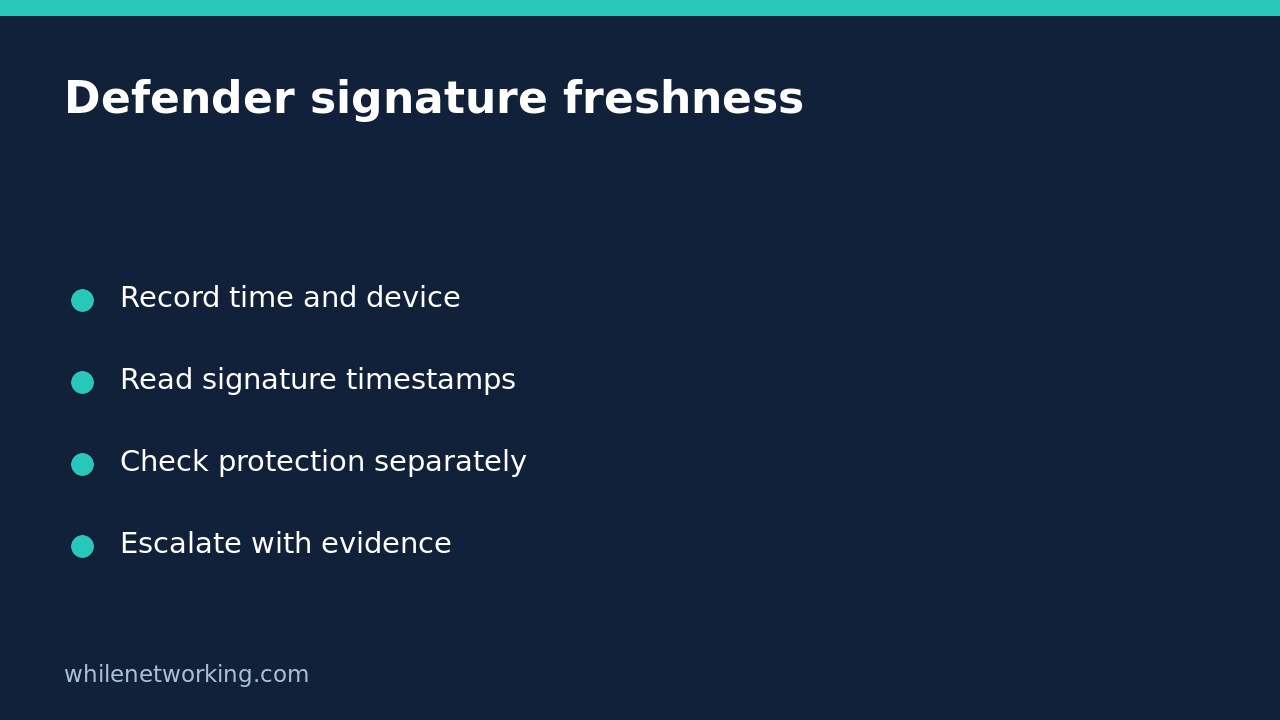

To investigate whether Microsoft Defender security intelligence looks out of date, collect its signature version and last-updated timestamp together with the computer’s current time. Then check protection status separately. A recent signature timestamp does not prove that real-time protection is running, and a recent scan does not prove that definitions are current. This read-only workflow helps a Windows support technician produce a useful escalation without changing protection settings.
Capture one consistent status snapshot
Use PowerShell on the Windows computer you are authorised to inspect. This tutorial uses the Defender module, not a generic cross-platform antivirus interface. Availability and returned properties depend on the installed Windows and Defender components. If the command is unavailable or denied, record the error and ask the endpoint administrator; do not install an unapproved module or disable a security control.
$observedAt = Get-Date
$status = Get-MpComputerStatus -ErrorAction Stop
$observedAt.ToString('o')
$status | Select-Object AMRunningMode, AMServiceEnabled, AntivirusEnabled, RealTimeProtectionEnabled, AntivirusSignatureVersion, AntivirusSignatureLastUpdated, AntivirusSignatureAge | Format-List
The first line records observation time with the local clock. The status command then captures one object, and the final line selects a focused set of fields from that object. Keeping the object avoids mixing values from multiple queries taken during an update. Record the device identity in the support ticket using your approved inventory reference, rather than posting identifiers publicly.
Microsoft’s Get-MpComputerStatus documentation describes the command as retrieving antimalware status and shows these properties in its example. That example contains historical version numbers and dates: they illustrate the output format, not today’s required version.
Interpret freshness without inventing a universal deadline
Read AntivirusSignatureVersion and AntivirusSignatureLastUpdated together. The version identifies the installed signature set; the timestamp tells you when this computer reports updating it. AntivirusSignatureAge is another useful summary, but do not make it your only evidence. Keep the timestamp, observation time and clock context so another technician can assess the result.
If the timestamp appears in the future, investigate time, timezone and reporting consistency before declaring updates healthy. If a value is blank or a property is missing, record that uncertainty rather than converting it into a zero or a pass. Do not use the documentation’s sample output as an update baseline.
There is no freshness pass/fail threshold established by this tutorial. Compare the snapshot against your organisation’s current endpoint policy and approved monitoring system. A laptop that has been offline needs a different investigation from a continuously connected workstation, but being offline is not evidence that stale protection is acceptable.
Separate update status from active protection and scan history
Review AMRunningMode, AMServiceEnabled, AntivirusEnabled and RealTimeProtectionEnabled alongside freshness. Managed environments can have another endpoint product or an intentional operating mode. An unexpected value calls for configuration-owner review, not an instruction to force Defender into a different mode.
For a scan-history question, inspect the same captured object rather than assuming a signature update started a scan:
$status | Select-Object QuickScanStartTime, QuickScanEndTime, FullScanStartTime, FullScanEndTime | Format-ListA recorded end time is scan-history evidence, not proof that the whole device is harmless. Missing history is not proof of infection either. Keep the questions separate: what intelligence is installed, what protection state is reported, and what scan activity is recorded?
Build an escalation that supports the next action
Consider a fictional ticket in which a workstation reports a recent quick scan but an older signature timestamp. The useful response is not to close the ticket because the scan ran. Record both facts, check the approved update-management view and ask the endpoint team to investigate the mismatch. Do not fabricate a successful update or repeatedly run repair scripts without an owner.
- Include observation time, the reported signature version and last-updated timestamp.
- Include the selected protection-state fields and any command error.
- State whether the device was recently offline and whether the clock appears consistent.
- Record the policy or monitoring expectation used to judge freshness.
- Assign the next action and capture a fresh snapshot after an authorised remediation.
No rollback is required for these inspection commands because they do not change Defender preferences. Update installation, service restarts and policy changes are separate actions that require your normal authorisation and change controls.
Quick questions before closing the ticket
Does a fresh signature make a download trustworthy? No. Continue checking provenance and publisher identity. See the related tutorial on inspecting a Windows installer signature before execution; it addresses a different evidence check, not a substitute for endpoint protection.
Was this example executed against my Windows endpoint? No. Run the read-only commands in your authorised environment and evaluate its actual results. Never paste sensitive endpoint output into a public forum.
Safety: This tutorial is for educational purposes. Test procedures carefully before production use. The site owner is not responsible for misuse, damage, data loss or production issues. Do not weaken protection to make a status check pass.