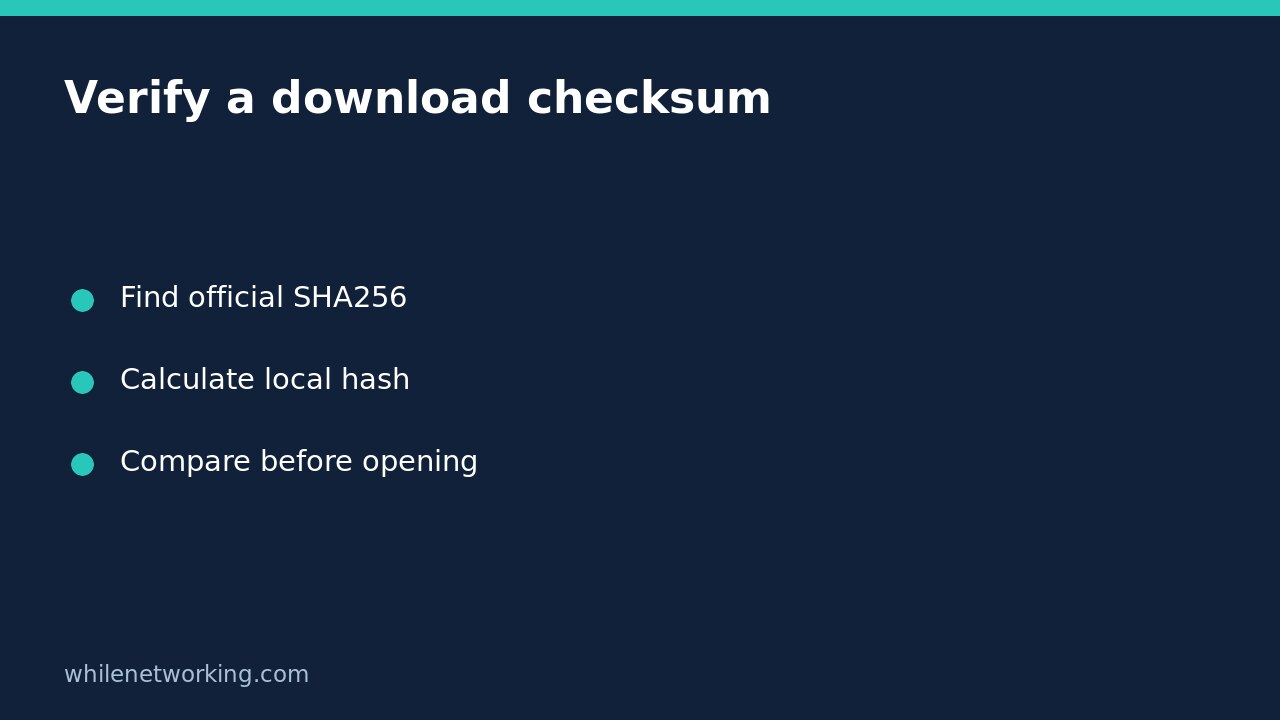

Before opening a downloaded installer or disk image, compare its SHA256 hash with the checksum published for that exact release by the software publisher. PowerShell can calculate the local value without running the downloaded program. A match helps establish that the bytes agree with the reference; it does not establish that the software is harmless or that a compromised publisher supplied trustworthy software.
Start with a trustworthy reference checksum
Open the publisher’s official release page independently rather than following an unexpected email attachment link. Match the version, operating system, processor architecture and package type. A Windows ARM64 installer and a Windows x64 installer are different files even when their version numbers match.
Look specifically for a SHA256 checksum. Do not compare a SHA512 reference with a SHA256 calculation. Save the release-page URL and package name with your deployment notes. If the publisher provides no checksum, do not invent a reference from another download mirror. Use the publisher’s documented verification method instead, or ask your IT team before proceeding.
Calculate the local hash without opening the installer
Open PowerShell as your normal user. Reading a file in your own Downloads folder generally does not require an elevated session. Replace the example filename with the actual downloaded filename:
Get-FileHash -LiteralPath "$HOME\Downloads\vendor-installer-x64.exe" -Algorithm SHA256 | Format-ListThe result includes Algorithm, Hash and Path. Check all three fields: the algorithm should be SHA256, the path should identify the intended download, and the hash is the value to compare. LiteralPath avoids treating filename characters such as square brackets as wildcard patterns. The command reads file contents; it does not launch the installer.
Microsoft documents SHA256 as the default algorithm, but stating it explicitly makes the verification procedure easier to review. Its documentation also warns against MD5 and SHA1 for files requiring protection against attack or tampering.
Compare the whole value, not a few characters
For a repeatable comparison, copy the official checksum into a variable and calculate the local hash separately. This example deliberately contains a placeholder rather than an invented checksum:
$expected = (Read-Host 'Paste the official SHA256 checksum').Trim()
if ($expected -notmatch '^[0-9A-Fa-f]{64}$') {
    throw 'Enter the 64-character SHA256 value only.'
}
$actual = (Get-FileHash -LiteralPath "$HOME\Downloads\vendor-installer-x64.exe" -Algorithm SHA256).Hash
$actual -eq $expected
True means these values match; False means they do not. PowerShell’s default string comparison is case-insensitive, so uppercase versus lowercase hexadecimal letters is not a problem. Copy only the checksum, not a filename or an entire release-page paragraph. This snippet is an illustrative workflow, not a claim that any particular installer has been tested.
Investigate a mismatch before retrying installation
- Check package identity. Confirm the exact release and architecture again. An old cached download can differ from the current release.
- Check the selected file. A browser may have saved a second download with a numbered suffix. Compare the file you will actually use.
- Re-download from the official source. Keep the suspect file unopened and follow your organisation’s handling policy. If the second download also differs, pause and contact the publisher or support team.
Do not disable endpoint protection, ignore a security warning, or keep trying alternative execution methods to make the file run. Record the URL, download time, expected hash and observed hash when escalating. Keep potentially sensitive file paths out of public support forums.
Common questions and a final checklist
Does renaming the file change its hash? Renaming alone does not change file contents, so it does not change the content hash. Editing or replacing the content can change it.
Does a match replace malware scanning? No. It is an integrity comparison against a reference, not a malware verdict. Keep normal endpoint controls and publisher-signature checks in your workflow.
- Official reference and exact package confirmed.
- SHA256 selected and entire value compared.
- No unresolved mismatch or endpoint warning.
- Verification evidence recorded before deployment.
For another defensive deployment precaution, see our controlled folder access audit pilot. Different controls address different risks; a checksum is not a substitute for testing application behaviour.
Source: Microsoft Learn: Get-FileHash parameters, algorithms and examples.
Safety: This tutorial is for educational purposes. Test carefully before using procedures in production. The site owner is not responsible for misuse, damage, data loss or production issues.